SwiftUI and REST (Episode I)

With this post, I am starting a series of three episodes about the use of REST in SwiftUI. In this episode, we will see how to implement a GET request. In the next one, we’ll explore how to make a POST request, and in the last one, we’ll examine different solutions.

Suppose we want to search for books using the Google Books API: https://www.googleapis.com/books/v1/volumes?q=intitle:your-word. The idea is to write the search text in the search bar, press enter, and then search for a book with the word typed in the title.

In the screenshot provided earlier, we see a part of the result for the search term ‘lean’. We use this to define the structure of the data that we want to retrieve and decode.

In a Swift file named ‘Book’, we create the following structure:

struct GoogleBooks: Codable {
    var kind: String
    var totalItems
    var items: Array<GoogleBook>
}

struct GoogleBook: Codable {
    var id: String
    var volumeInfo: VolumeInfo
}

struct VolumeInfo: Codable {
    var title: String
    var subtitle: String
    var authors: Array<String>
    var industryIdentifiers: Array<Identifier>
    var imageLinks: ImagesLink
}

struct ImagesLink: Codable {
    var smallThumbnail: String
}

We create structures that map only the information that we want use in our application. Each structure implement Codable, “A type that can convert itself into and out of an external representation”. It’s necessary to decode (or encode) information from a json.

What happen if some field is null? Using the structure above, we would encounter decode errors in the application. To avoid this problem, we can rewrite the structures in the following way:

struct GoogleBook: Codable {
    var id: String
    var volumeInfo: VolumeInfo?
    init(from decoder: Decoder) throws {
        let container = try decoder.container(keyedBy: CodingKeys.self)
        id = try container.decode(String.self, forKey: .id)
        volumeInfo = try container.decodeIfPresent(VolumeInfo.self, forKey: .volumeInfo)
    }
}

struct VolumeInfo: Codable {
    var title: String
    var subtitle: String?
    var authors: Array<String>?
    var industryIdentifiers: Array<Identifier>?
    var imageLinks: ImagesLink
    init(from decoder: Decoder) throws {
        let container = try decoder.container(keyedBy: CodingKeys.self)
        subtitle = try container.decodeIfPresent(String.self, forKey: .subtitle)
        title = try container.decode(String.self, forKey: .title)
        authors = try container.decodeIfPresent(Array<String>.self, forKey: .authors)
        industryIdentifiers = try container.decodeIfPresent(Array<Identifier>.self, forKey: .industryIdentifiers)
        imageLinks = try container.decode(ImagesLink.self, forKey: .imageLinks)
    }
}

struct ImagesLink: Codable {
    var smallThumbnail: String
}

Now, the fields that can be null are defined as Optional, and an initialization function is added.

In this function, we need to decode all the fields present in the structure that are not optional, in the following way:

id = try container.decode(String.self, forKey: .id)

This for the optionals:

authors = try container.decodeIfPresent(Array<String>.self, forKey: .authors)

In this manner, a field is decoded only if it is present.

Now, let’s jump into the UI part.

struct ContentView: View {
    @State var searchText: String = "lean"
    @State private var results: GoogleBooks = GoogleBooks()
    @State var books = [GoogleBook]()
    @State var loading = true
    let url = "https://www.googleapis.com/books/v1/volumes?q=intitle:"
    var body: some View {
        NavigationStack {
            if loading {
                ProgressView()
            } else {
                List {
                    ForEach(books, id: \.id) { item in
                        Text(item.volumeInfo!.title)
                    }
                }.searchable(text: $searchText)
                .onSubmit(of: .search) {
                    Task {
                        await loadData()
                    }
                }
                .navigationTitle("Books")
            }
        }.task {
            await loadData()
        }
        
    }
    func loadData() async {
    }

In the first part, we define the variables we will use. ‘searchText’ is initialized to ‘lean’ to load at the start. ‘GoogleBooks’ contains all the search results, ‘books’ holds the list of books, and ‘loading’ is a Boolean variable used to hide or show a ProgressView while loading the data. The last one is the URL.

In the view, we set a searchable text field. When the user taps enter, the submit action calls the async ‘loadData’ function within a Task. The same happens when the view loads for the first time. Honestly, I don’t like setting a default search, but I implemented it in this example just to show how to load data at the start.

Last but not least, and never has this phrase been truer than in this case, take a look at the ‘loadData’ function, the core of the application:

func loadData() async {
        
        guard let url = URL(string: url + searchText) else {
            print("Invalid URL")
            return
        }
        do {
            let (data, _) = try await URLSession.shared.data(from: url)
            let decoder = JSONDecoder()
            do {
                // process data
                let decodedResponse = try decoder.decode(GoogleBooks.self, from: data)
                results.items = decodedResponse.items
                results.totalItems = decodedResponse.totalItems
                books = results.items
            } catch let DecodingError.dataCorrupted(context) {
                print(context)
            } catch let DecodingError.keyNotFound(key, context) {
                print("Key '\(key)' not found:", context.debugDescription)
                print("codingPath:", context.codingPath)
            } catch let DecodingError.valueNotFound(value, context) {
                print("Value '\(value)' not found:", context.debugDescription)
                print("codingPath:", context.codingPath)
            } catch let DecodingError.typeMismatch(type, context)  {
                print("Type '\(type)' mismatch:", context.debugDescription)
                print("codingPath:", context.codingPath)
            } catch {
                print("error: ", error)
            }
        } catch {
            print("Invalid data")
        }
        self.loading = false
    }

It’s an async function, due we have to run in this way to avoid that the user interface is blocked waiting the result.

The first step i check that the url is valid, after that get the data with

await URLSession.shared.data(from: url)

Therefore, create a decoder and attempt to decode the data. If there is a problem with decoding, use the catch block to map every possible error (I recommend this, as logs are fundamental in the art of programming).

At the end, ‘loading’ is set to false, so the ProgressView disappears and the list is shown.

That’s all for this episode. Check the blog for the next one.

Close Keyboard on IOS

In the last week-end, while I was working on my side project, I discovered a problem: on iOS the keyboard stay opened after it’s opened due to a click in an input text. The obvious solution that I thought is:

Page {
      MouseArea {
                anchors.fill: parent
                enabled: Qt.inputMethod.visible
                onClicked: Qt.inputMethod.hide()
      }
      //.... input fields
}

Thus in this way, clicking/tapping on the screen, the keyboard should disappear. In my case it doesn’t work because the input fields are in a ScrollView (and if you move the MouseArea in the ScrollView the view doesn’t scroll).

My solution:

Page {
      MouseArea {
                anchors.fill: parent
                enabled: Qt.inputMethod.visible
                onClicked: Qt.inputMethod.hide()
                propagateComposedEvents: true
                z: 10
      }
      ScrollView {
        id: scrollView
        anchors.fill: parent
        anchors.bottomMargin: dp(60)
        clip: true
        contentWidth: -1

        ColumnLayout {
            id: colView
            //.... input fields
}

The tips&trick is set a Z value to the MouseArea and propagates the mouse event to the object in the bottom layers.

Carousel

Today, we often see complex interfaces built using carousel components, as seen on Netflix, Amazon, and others. In this post, I will show you how to build one using SwiftUI. Let’s get started.

First, I’ll show you an example of a carousel built using only text and a rectangle. This is a minimal example meant to help you understand the fundamentals. Then, in the second example, I’ll add some images.

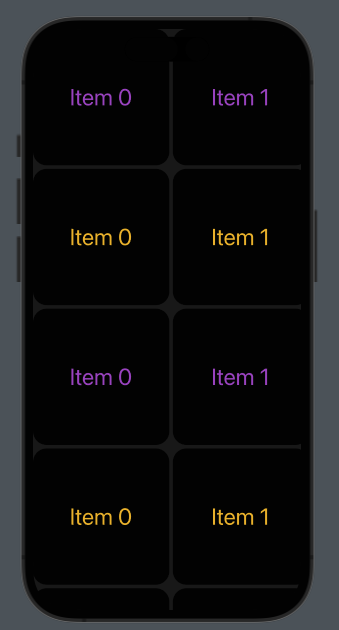
As usual, let’s start from the end.

It’s possible to scroll any row horizontally and vertically.

The code:

struct ContentView: View {
    var colorsRow: [Color] = [.purple,.yellow]
    var body: some View {
        ScrollView {
            VStack(spacing: 5) {
                ForEach(0..<10) { j in
                    ScrollView(.horizontal) {
                        HStack(spacing: 5) {
                            ForEach(0..<10) { i in 
                                VStack {
                                    Text("Item \(i)")
                                        .foregroundColor(colorsRow[j % 2])
                                        .font(.largeTitle)
                                        .frame(width: 200, height: 200)
                                        .background(.black)
                                        
                                }.cornerRadius(20)
                            }
                        }
                    }
                }
            }.background(.black)
                .opacity(0.9)
        }.edgesIgnoringSafeArea(.all)
    }
}

We use two ScrollViews for this implementation: the first for vertical scroll (default behavior) and the second for horizontal scrolling. Note the “.horizontal” parameter. In the VStack, we specify the spacing, which is the space between rows. In the HStack, the spacing is the space between columns.

The first ForEach loop is for rows, and the second is for columns. The color of the text is chosen using the modulo of the row.

Finally, we added a bit of opacity for a better Look and Feel.

Note: English is not my native language, so I’m sorry for some errors. I appreciate it if you correct me.

News in X14 and AnyLayout

New canvas layout and settings

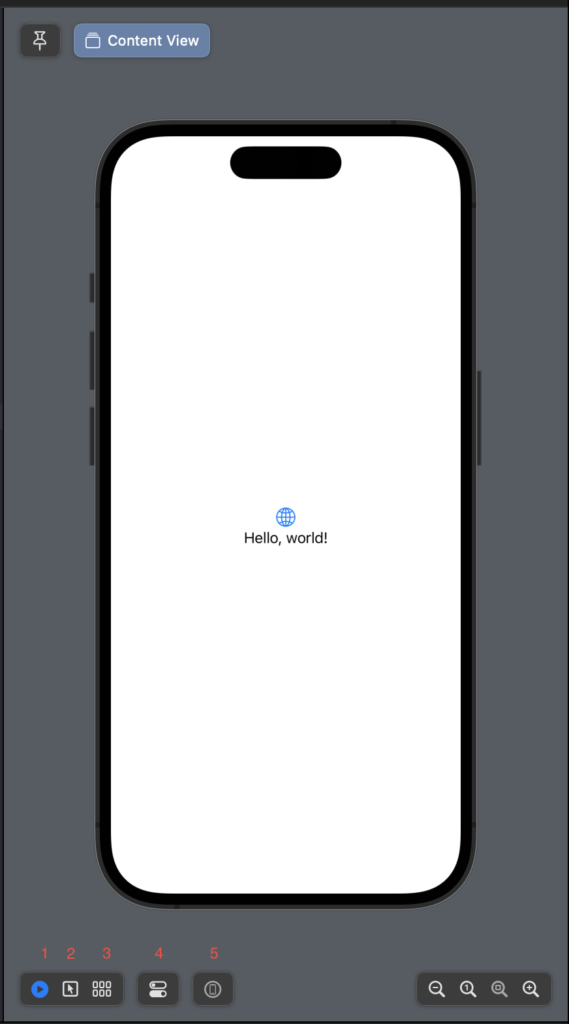
In XCode 14 we have some changes that can help the developers. The main things are in the canvas (UI preview).

The button1 only changed the position, it’s to run the preview.
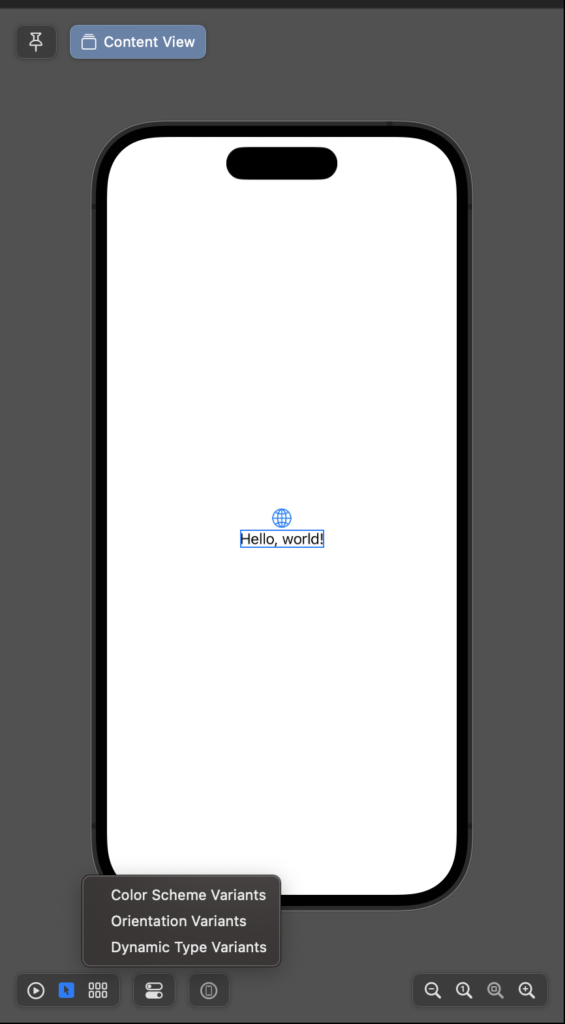
Clicking the button2 it’s possible to select the single element on the canvas.
With the button3, see:

So, with this context menu is possible to see the view with the different colour schema (light/dark) in the different orientations and sizes.
Clicking the button4 it’s set the property of the device in the canvas (colour schema, orientation and size).
Last but not least, with button5 the preview is executed on the real device connected to the computer.

The pin button

Often happen that the views are complex and composed of different elements. In that case, you can like see the complete view and change a property of a single component and see in real-time what happens in the complete view, now it’s possible without switching between the whole view and the single component, using the pin button.
Let’s create a new project, we want to add only a custom button defined in a different view file:

struct CustomButtonView: View {
    var body: some View {
        Button(action: {}) {
            Text("Click Me!")
                .fontWeight(.heavy)
                .padding(50)
                .foregroundColor(.white)
                .background(.red)
                .clipShape(Circle())
                
        }
    }
}

So in the ContentView we have the:

struct ContentView: View {
    var body: some View {
        VStack {
            Image(systemName: "globe")
                .imageScale(.large)
                .foregroundColor(.accentColor)
            Text("Hello, world!")
            CustomButtonView()
        }
        .padding()
    }
}

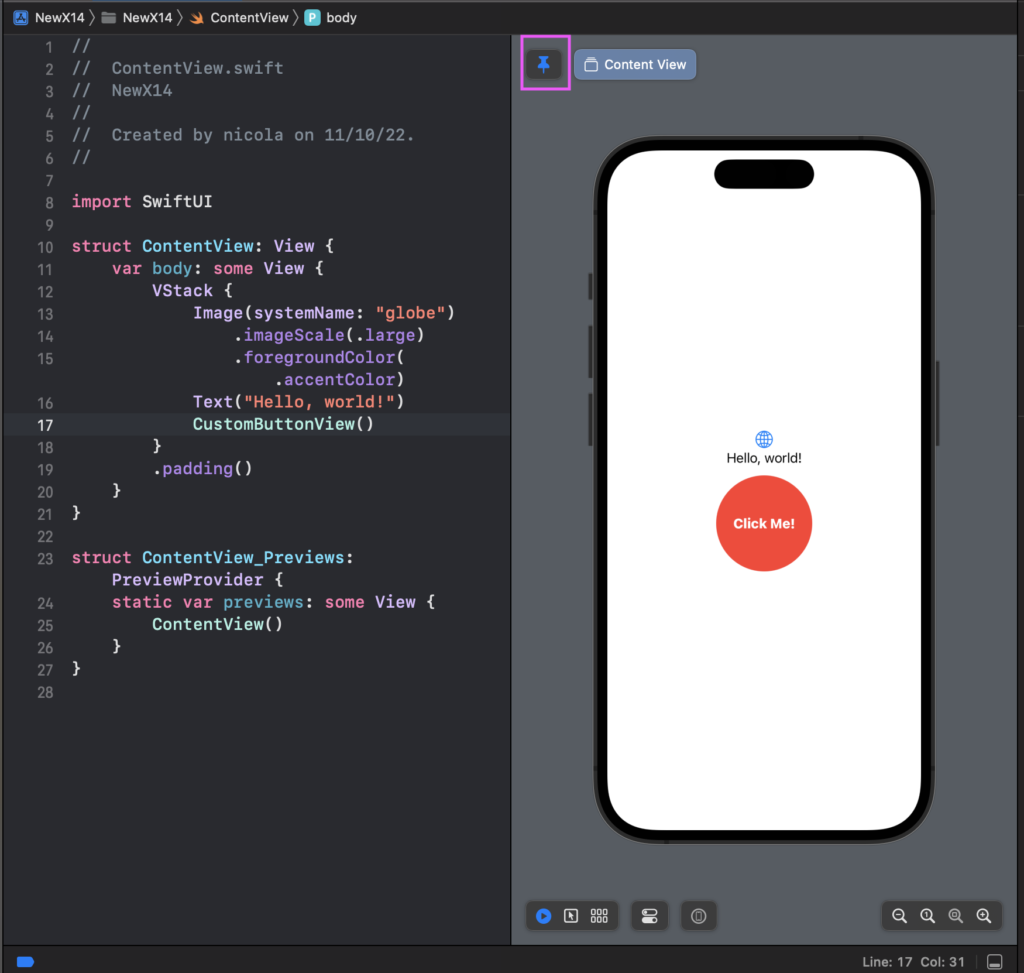
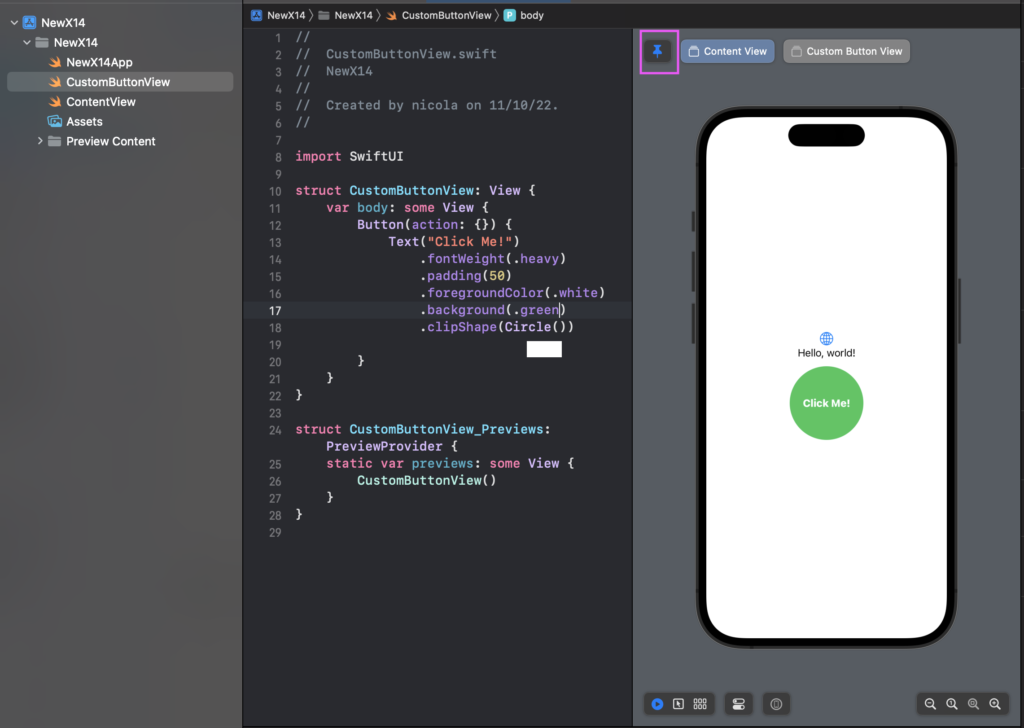
Now we want to change the button’s colour but see in real-time what happens in the ContentView. Select the ContentView and click the pin button (purple box):

Now select the CustomButtonView in the files project list, so we see the code of the custom button in the preview but we see the “pinned” view, the ContentView.

We can change the colour and see what happens in the ContentView. (If you want, you can get the code from https://github.com/niqt/NewX14

AnyLayout

With the last release of SwiftUI is now possible to swap automatically from the different Layout, Horizontal and Vertical. Now we have HStackLayout and VStackLayout can be used to choose the layout following the orientation.

struct ContentView: View {
    @Environment(\.horizontalSizeClass) var horizontalSizeClass
    
    var body: some View {
        var layout = (horizontalSizeClass == .regular) ? AnyLayout(HStackLayout()) : AnyLayout(VStackLayout())
        layout {
                Image(systemName: "globe")
                    .imageScale(.large)
                    .foregroundColor(.accentColor)
                Image(systemName: "car")
                    .imageScale(.large)
                    .foregroundColor(.accentColor)
                Image(systemName: "pencil")
                    .imageScale(.large)
                    .foregroundColor(.accentColor)
            
        }
        
        
    }
}

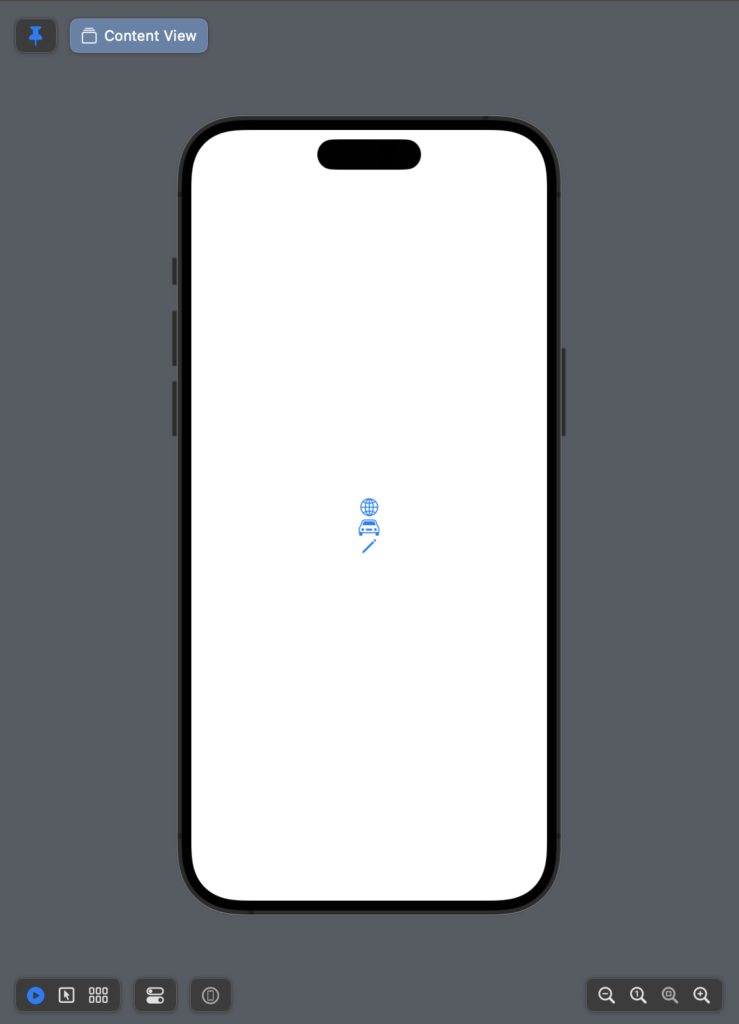
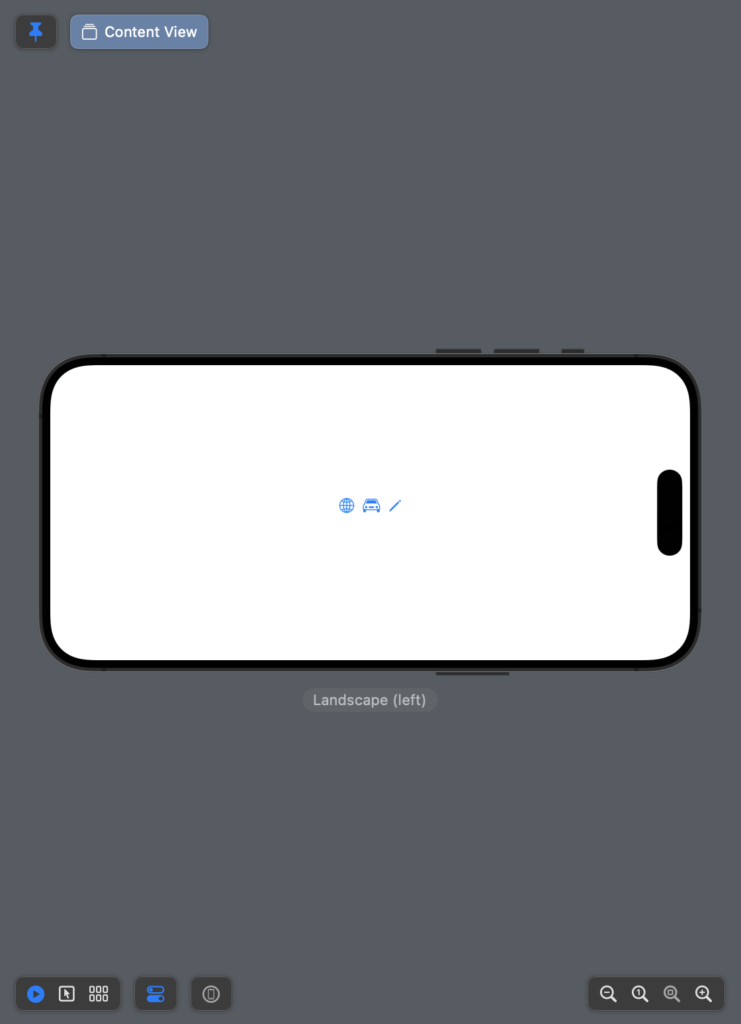
With the horizontalSizeClass we can know the orientation of the device and select the layout that we want.

The image speaks more than one thousand words:

Thus, use VStackLayout and HStackLayout when you need to change the layout dynamically in other cases use HStack and VStack.

Note: English is not my native language, so I’m sorry for some errors. I appreciate it if you correct me.

iOS Tracking Transparency

You must use the AppTrackingTransparency framework if your app collects data about end users and shares it with other companies for purposes of tracking across apps and web sites (https://developer.apple.com/documentation/apptrackingtransparency).

In this post we’ll see how implement what iOS require for the tracking and i’ll use this example also to explain other concepts.

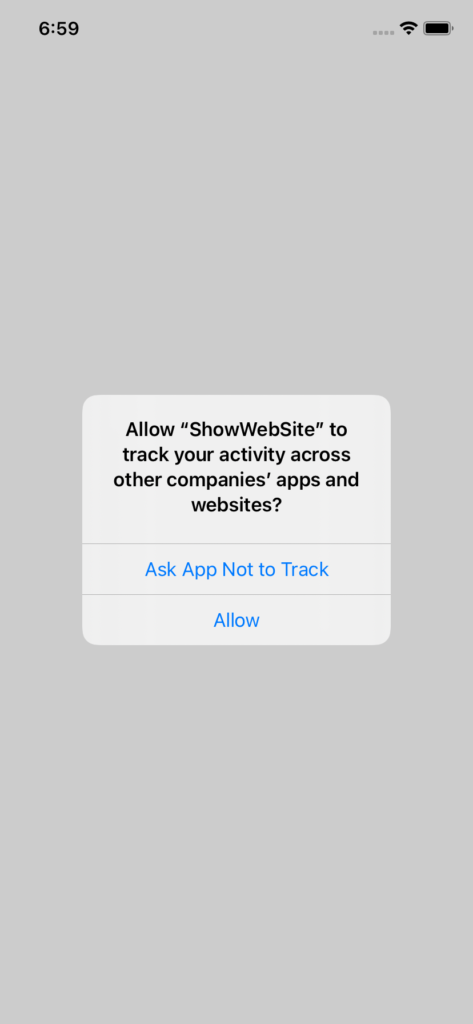
Let’s start from the end, we want this:

Swift with Storyboard

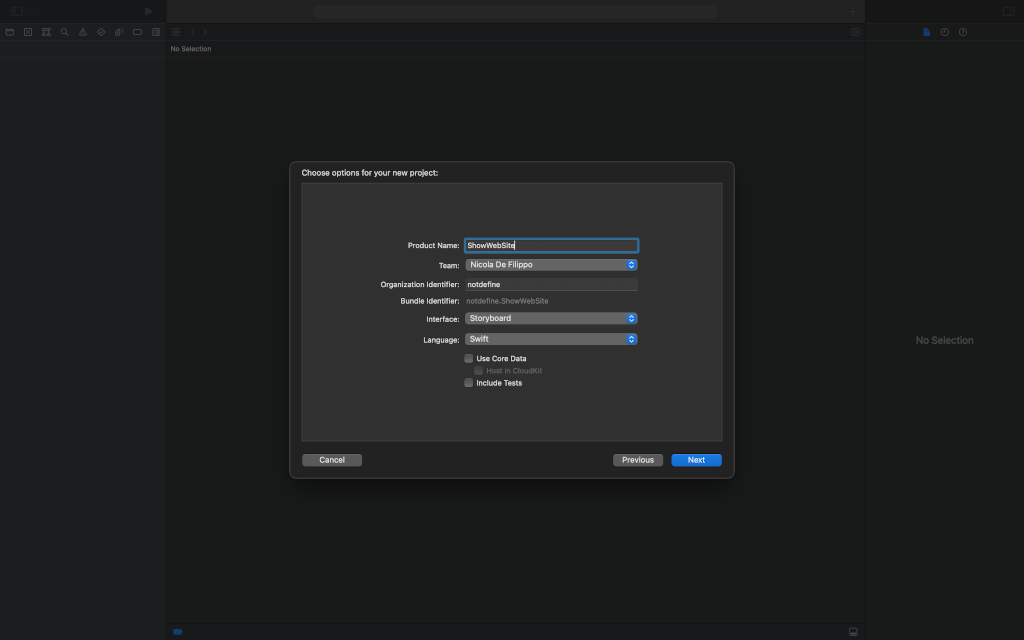
Create a iOS project using a storyboard:

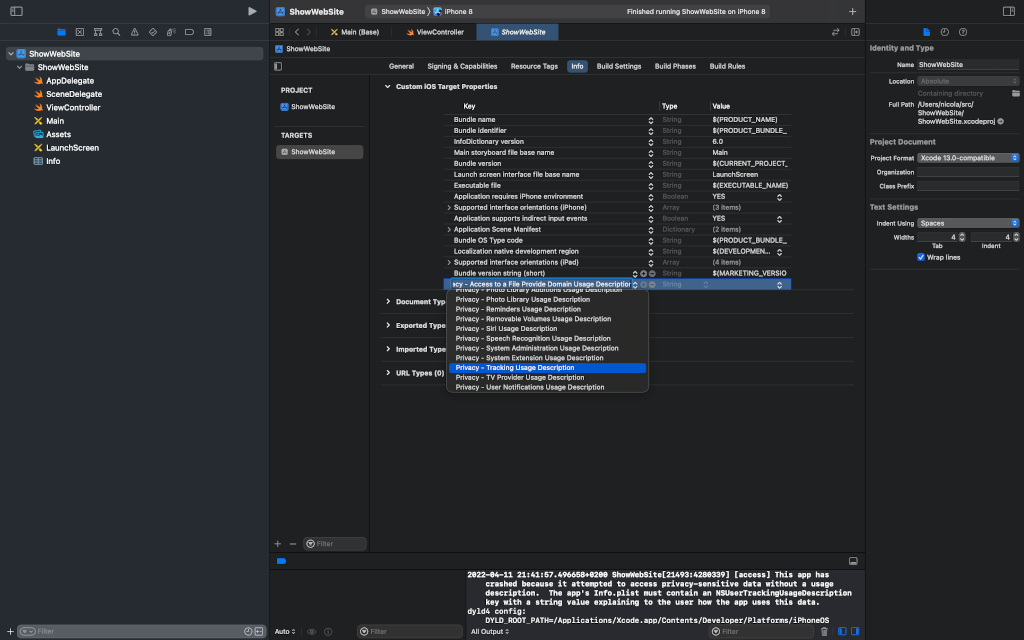
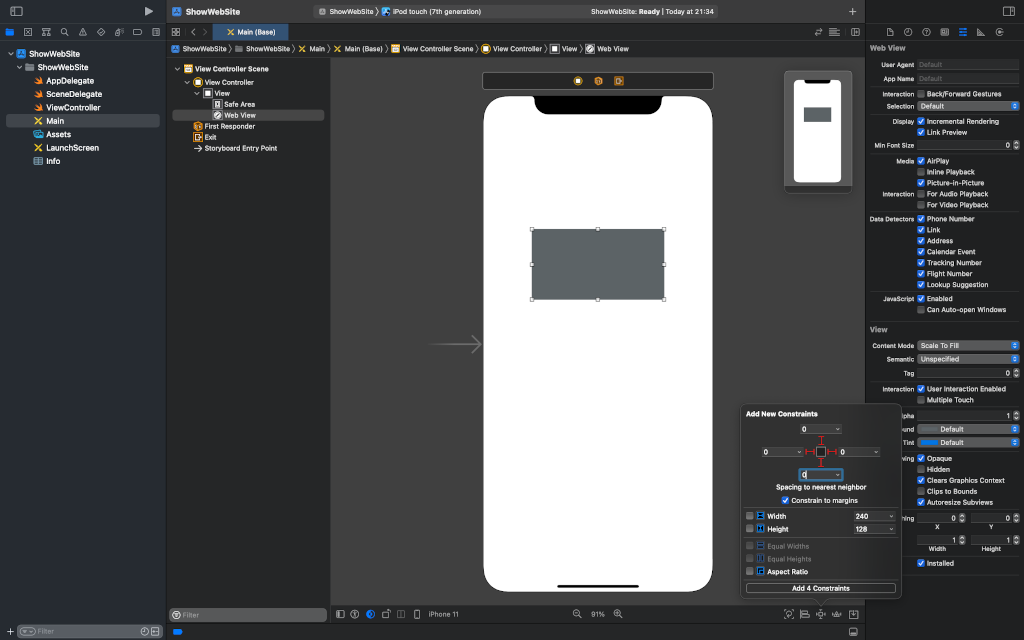
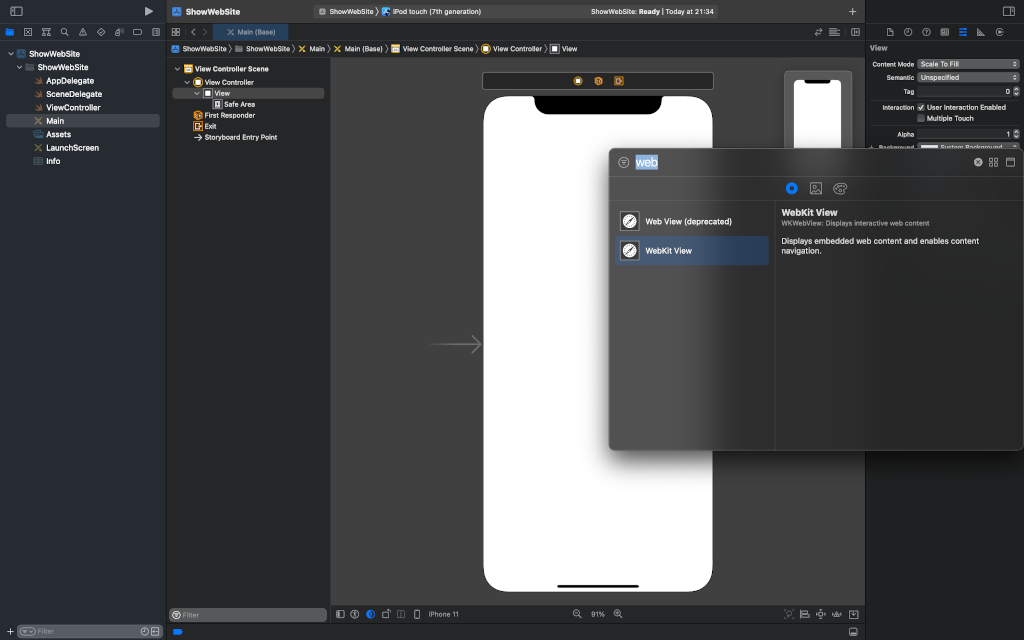
After that, we add a WebView to the storyboard and apply the constrains to have the webview in full-screen. We must add a string value for the “Privacy – Tracking Description usage” in the info tab. This message have to explain because the user is tracked.

First add an outlet for the webview:

import UIKit
import WebKit

class ViewController: UIViewController {

    @IBOutlet weak var webView: WKWebView!
    override func viewDidLoad() {
        super.viewDidLoad()
    }
}

We have to add the import for the Tracking API in the SceneDelegate.swift:

import AdSupport
import AppTrackingTransparency

Now add the code to show the dialog.

struct RequestManager {
    static func getIDFA() -> String {
        return ASIdentifierManager.shared().advertisingIdentifier.uuidString
    }
    
    static func checkTrackingStatus(completionHandler: @escaping (ATTrackingManager.AuthorizationStatus) -> Void) {
        ATTrackingManager.requestTrackingAuthorization { status in
            DispatchQueue.main.async {
                completionHandler(status)
                
            }
        }
    }
}

We create a struct RequestManager, it has two static function, the getIDFA return the Identifier For Advertisers, an UUID used to track the device.

The function checkTrackingStatus is a static function (because is defined in a struct, see https://holyswift.app/the-difference-between-class-func-and-static-func-in-swift-and-why-polymorphism-matters for long explaination) that show (in async way) the dialog to get the permission from the user.

See what’s change in the SceneDelegate:

func sceneDidBecomeActive(_ scene: UIScene) {
        // Called when the scene has moved from an inactive state to an active state.
        // Use this method to restart any tasks that were paused (or not yet started) when the scene was inactive.
        attRequest()
    }

func attRequest() {
        RequestManager.checkTrackingStatus { status in
            switch status {
            case .authorized:
                print("Authorized")
            case .denied:
                print("Denied")
            case .notDetermined:
                print("NotDetermined")
                self.attRequest()
            case .restricted:
                print("Restricted")
            @unknown default:
                break
            }
        }
    }

In the sceneDidBecomeActive call the our function attRequest; this function call checkTrackingStatus with a closure, this function gets the status, if the status is notDetermined, the function call itself to re-ask the authorization. Note that we get also the IDFA but in our case we don’t use it.

The code https://github.com/niqt/ShowWebsite

In SwiftUI

How have this using SwiftUI? More simple, add always the string in the plist.info to request the permission and in the code write:

import SwiftUI
import AdSupport
import AppTrackingTransparency

struct ContentView: View {
    var body: some View {
            VStack {
                Text("Got the permission!")
            }.onReceive(NotificationCenter.default.publisher(for: UIApplication.didBecomeActiveNotification)) {  _ in
                ATTrackingManager.requestTrackingAuthorization(completionHandler: { status in
                    switch status {
                    case .authorized:
                        print("A")
                    case .denied:
                        print("D")
                    case .notDetermined:
                        print("E")
                    case .restricted:
                        print(" restricted")
                    @unknown default:
                        break
                    }
                    
                })
            }
        }
}

In this case the view require the tracking authorization calling the ATTrackingManager in the onReceive of the VStack (just for example). That’s all.

Note: English is not my native language, so I’m sorry for some errors. I appreciate it if you correct me.