SwiftUI and Bluetooth

In this post, I show how to connect a Bluetooth device from SwiftUI and how to receive data.

The code used in this example is here https://github.com/niqt/Blue

Proceed for step: the things to do are: check if the Bluetooth is enabled, scan to search the devices, connect with one and wait for data. The check of the Bluetooth status and the connection is a feature of the connection manager, the others of the peripheral. Let’s see it in details.

Every device has a service, identified with a UUID and any service can have one more property. The properties can be read-only (to read value) or read-write (write is like send a command). Also, the properties are identified with a UUID.

Let’s look at the code:

import Foundation
import CoreBluetooth

Then define the peripherical struct:

struct Peripheral: Identifiable {
    let id: Int
    let name: String
    let rssi: Int
}

We use this struct to expose the peripherical to SwiftUI.

Now, start to look at the core of the application:

class BLEManager: NSObject, ObservableObject, CBCentralManagerDelegate, CBPeripheralDelegate {
    var centralBE: CBCentralManager!
    @Published var isSwitchedOn = false
    @Published var peripherals = [Peripheral]()
    var peripheralsId = [UUID]()
    var thermometer: CBPeripheral!
    var serviceId = CBUUID(string: "00000001-710e-4a5b-8d75-3e5b444b3c3f")
    var readNotify = CBUUID(string: "00000002-710e-4a5b-8d75-3e5b444b3c3f")
    var readWrite = CBUUID(string: "00000003-710e-4a5b-8d75-3e5b444b3c3f")

The BLEManger is an NSObject that is observable (from the SwiftUI side) and implements the protocols to manage the Bluetooth status and services. Instead, the CBPeripheralDelegate protocol it’s about peripherical and properties operation.

So, the CBCentralManager is the Bluetooth manager. The isSwitchedOn contains the status of the Bluetooth and the peripherals array contains the list of the peripherals. These last two variables are published, so the value can be get from SwiftUI.

The thermometer peripheral contains the data of the peripheral on that we want to work in this example, the temperature of a RaspberryPI (the code is here https://github.com/Douglas6/cputemp). Thus, with our app, we want to read the CPU temp of a raspberry. The serviceId and properties are from this Raspberry example, you are free to replace them with anything you want.

With the init, simply initialize the manager and the delegate:

override init() {
        super.init()
        centralBE = CBCentralManager(delegate: self, queue: nil)
        centralBE.delegate = self
}

This function is called when the status changes:

func centralManagerDidUpdateState(_ central: CBCentralManager) {
        if central.state == .poweredOn {
            isSwitchedOn = true
        }
        else {
            isSwitchedOn = false
        }
}

If the state is .poweredOn (the Bluetooth is enabled on the device) we can start the scanning:

func startScanning() {
        print("startScanning")
        centralBE.scanForPeripherals(withServices: nil, options: nil)
}

After the scanning is started, with this function it’s possible to see the device around us:

func centralManager(_ central: CBCentralManager, didDiscover peripheral: CBPeripheral, advertisementData: [String : Any], rssi RSSI: NSNumber) {
        var peripheralName: String!
        
        if let name = advertisementData[CBAdvertisementDataLocalNameKey] as? String {
            peripheralName = name
            let newPeripheral = Peripheral(id: peripherals.count, name: peripheralName, rssi: RSSI.intValue)
            if !peripheralsId.contains(peripheral.identifier) && peripheralName == "Thermometer" {
                peripheralsId.append(peripheral.identifier)
                peripherals.append(newPeripheral)
                stopScanning()
                self.thermometer = peripheral
                self.thermometer.delegate = self
                self.centralBE.connect(peripheral, options: nil)
            }
        }
        else {
            peripheralName = "Unknown"
        }
    }

If the Thermometer peripheral is discovered, it’s added the the array of peripheral, the scanning is stopped, set the delegate for the peripheral to the self and to simplify connect to device (without user interaction).

If the connection has success, this function is called:

 func centralManager(_ central: CBCentralManager, didConnect peripheral: CBPeripheral) {
        print("DidConnect")
        discoverServices(peripheral: peripheral)
    }

Thus starts to discover the services:

func discoverServices(peripheral: CBPeripheral) {
        peripheral.discoverServices([serviceId])
    }

If at least one service is discovered, start to search characteristics:

func peripheral(_ peripheral: CBPeripheral, didDiscoverServices error: Error?) {
        guard let services = peripheral.services else {
            print("ERROR didDiscoverServices")
            return
        }
        if services.count > 0 {
            discoverCharacteristics(peripheral: peripheral)
        }
    }

When the characteristic is found:

func peripheral(_ peripheral: CBPeripheral, didDiscoverCharacteristicsFor service: CBService, error: Error?) {
        service.characteristics?.forEach { char in
            print("CHAR id: \(char.uuid.uuidString) VALUE: \(String(describing: char.value) )")
            peripheral.readValue(for: char)
            
        }
    }

In the BLEManger.swift file you can see also other two lines functions, their name are. self-explanatory.

Take a look to the SwiftUI code:

struct ContentView: View {
    @ObservedObject var bleManager = BLEManager()
    @State private var scan = false
    
    var body: some View {
        VStack (spacing: 10) {
            Text("STATUS")
                .font(.headline)
            
            if bleManager.isSwitchedOn {
                Text("ON")
                    .foregroundColor(.green)
            }
            else {
                Text("OFF")
                    .foregroundColor(.red)
            }
            HStack {
                Spacer()
                Toggle("Scan", isOn: $scan)
                    .toggleStyle(SwitchToggleStyle(tint: .red))
                    .onChange(of: scan) { value in
                        // action...
                        self.bleManager.startScanning()
                    }
                
            }
            Text("Bluetooth Devices")
                .font(.largeTitle)
                .frame(maxWidth: .infinity, alignment: .center)
            List(bleManager.peripherals) { peripheral in
                HStack {
                    Text(peripheral.name)
                    Spacer()
                    Text(String(peripheral.rssi))
                }
            }.frame(height: 300)
            Spacer()
        }
    }
}

We can define an observable object, the BLEManager, so we can get the Bluetooth status, with the toggle button active the scan and in the end, show the peripheral list in a SwiftUI list. Enjoy with your peripheral!

The result

Note: English is not my native language, so I’m sorry for some errors. I appreciate it if your correct me.

Pass by Reference and Value in Swift

A concept not simple to understand in every programming language (mainly for the “new” developer) is to realize the difference between “Pass by reference and Pass by value”.

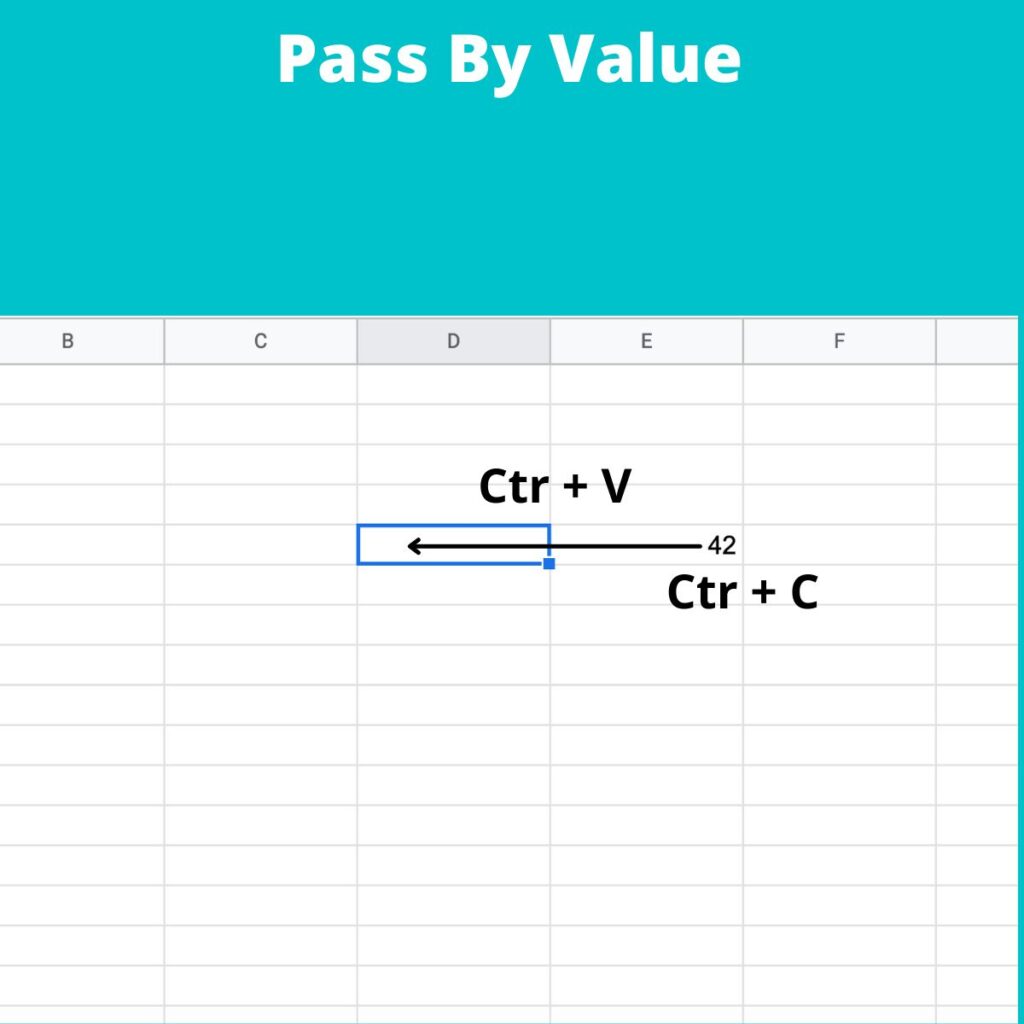
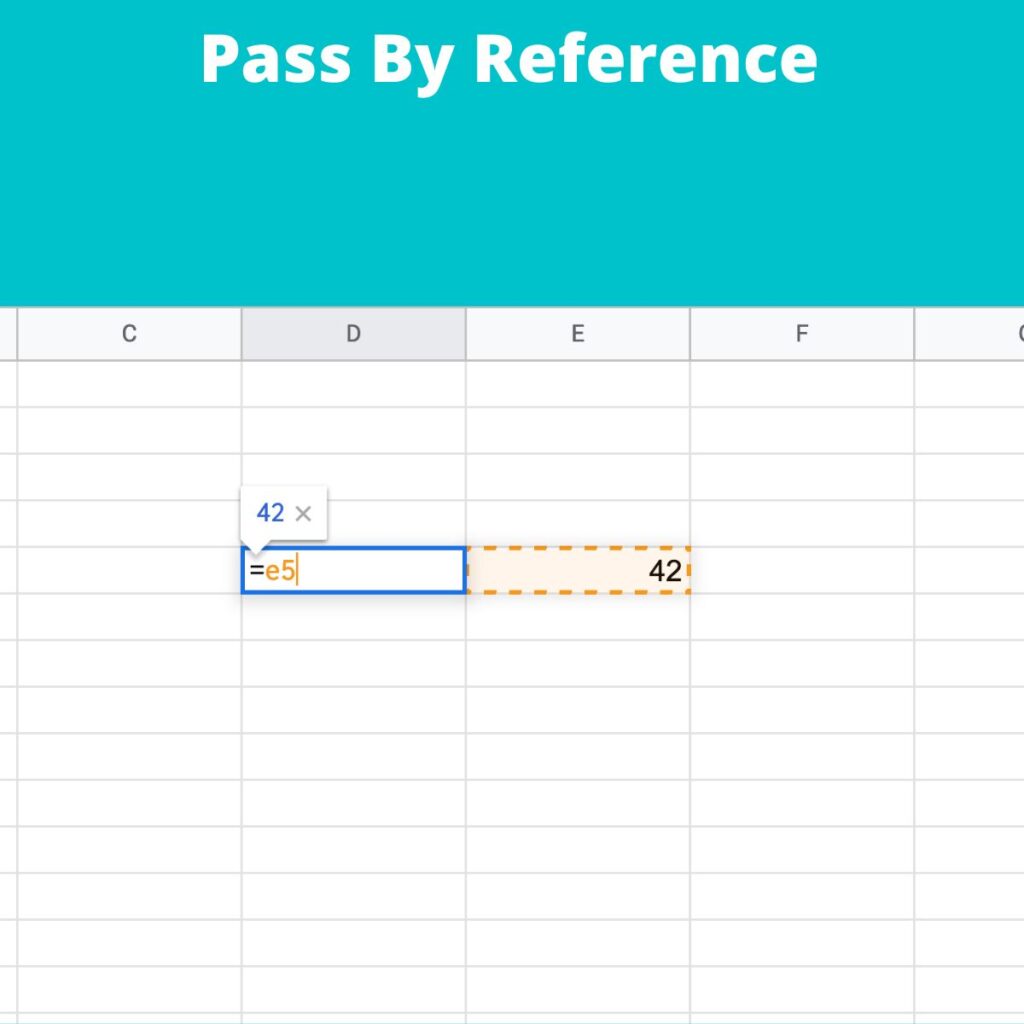
Pass by value means: “copy a value from a location of memory to another location of the memory.” Instead, pass by reference mean that we don’t copy a value in the destination but the reference (address) to the source.

I like to use these images to explain the differences:

Pass by value
Pass by Value
Pass by reference
Pass by reference

Thus, when we pass by value is like copying a cell value from one cell to another, instead, when passing by reference, we set in the destination cell the address of the source (e5 in the example).

Let’s see with swift:

struct BoxStruct {
    var width = 0
    var height = 0
}

var littleBox = BoxStruct(width: 2, height: 3)
var bigBox = BoxStruct(width: 57, height: 84)

littleBox = bigBox

print("Little box: width \(littleBox.width) height \(littleBox.height)")
print("Bix box: width \(bigBox.width) height \(bigBox.height)")

bigBox.width = 150
bigBox.height = 333

print("Little box: width \(littleBox.width) height \(littleBox.height)")
print("Big box: width \(bigBox.width) height \(bigBox.height)")

Executing this code have:

Little box: width 57 height 84
Big box: width 57 height 84
Little box: width 57 height 84
Big box: width 150 height 333

In this case, we have a copy by value. We copy the content from bigBox to littleBox, thus both the boxes have the same value; after we change the value of bigBox and then the two boxes will contain different values.

Let’s see what happen with the class:

class TriangleClass {
    var width: Int
    var height: Int
    
    init(width: Int, height: Int) {
        self.width = width
        self.height = height
    }
}

var littleTriangle = TriangleClass(width: 2, height: 3)
var bigTriangle = TriangleClass(width: 57, height: 84)

littleTriangle = bigTriangle

print("Little Triangle: width \(littleTriangle.width) height \(littleTriangle.height)")
print("Big Triangle: width \(bigTriangle.width) height \(bigTriangle.height)")

bigTriangle.width = 150
bigTriangle.height = 333

print("Little Triangle: width \(littleTriangle.width) height \(littleTriangle.height)")
print("Big Triangle: width \(bigTriangle.width) height \(bigTriangle.height)")

Now we have this output:

Little Triangle: width 57 height 84
Big Triangle: width 57 height 84
Little Triangle: width 150 height 333
Big Triangle: width 150 height 333

This time is different! After the copy, the triangles have the same value; after we change the dimensions of the bigTriangle but happen a magic thing, the dimensions of the littleTriangle are changed! Why? For the class, the copy is done by reference, so writing “littleTrianlge = bigTriangle”, we are not copying the content of the big in the little, we are copying the reference like in the sheet example. Now every change in the big will be visible also in the little.

The same happen in the function, if we want modify the original value of the parameter passed to a function, these have be passed by reference, in this way:

func swap(a : inout Int, b: inout Int) {
    let dum = a
    a = b
    b = dum
}

var first = 2
var second = 5

swap(a:&first, b:&second)

// now first = 5 and second = 2

For exercise try to remove the keyword “inout” and see what happen.

Expand List Item

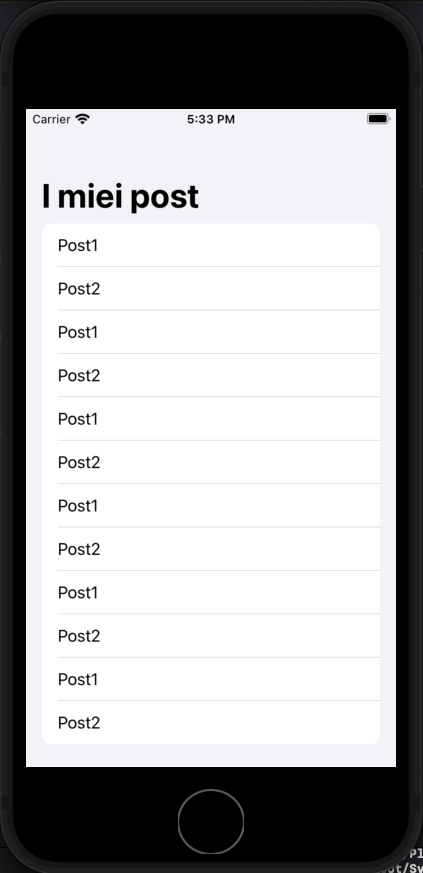
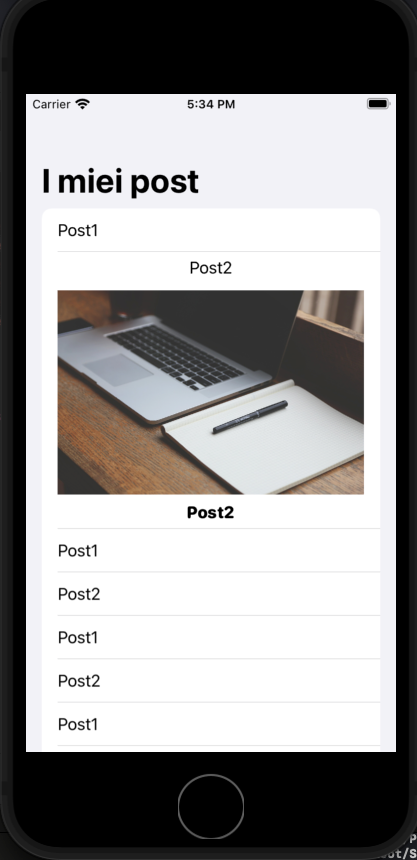
In this post, we see how to expand a list item of a list. To do this is not complicated, the principle is simple when the user taps the row, we insert the current Item in a Set. The view used to show the current item change the visualization type if the current item is in the set of selected items.

Before starting copy the images: https://nicoladefilippo.com/wp-content/uploads/2021/05/blogger-336371_1920-1536×1024.jpg and https://nicoladefilippo.com/wp-content/uploads/2021/05/desk-593327_1920-1536×1024.jpg in your assets directory, renaming them blogger and desktop (you can use also other images if you prefer).

The final behaviour is:

Define the data model for the list:

struct Post: Identifiable, Hashable {
    var id = UUID()
    var title: String
    var image: String
}

The view:

struct ExpandCardUIView: View {
    @State private var selection: Set<Post> = []
    
    var posts = [Post(title: "Post1", image: "blogger"), Post(title: "Post2", image: "desk"),
                 Post(title: "Post1", image: "blogger"), Post(title: "Post2", image: "desk"),
                 Post(title: "Post1", image: "blogger"), Post(title: "Post2", image: "desk"),
                 Post(title: "Post1", image: "blogger"), Post(title: "Post2", image: "desk"),
                 Post(title: "Post1", image: "blogger"), Post(title: "Post2", image: "desk"),
                 Post(title: "Post1", image: "blogger"), Post(title: "Post2", image: "desk"),
    ]
    var body: some View {
        NavigationView {
            List(posts) { post in
                RowView(post: post, isExpanded: self.selection.contains(post))
                .onTapGesture {
                    self.selectDeselect(post)
                }
                
            }
            .navigationBarTitle("I miei post")
        }
    }
    
    private func selectDeselect(_ post: Post) {
            if selection.contains(post) {
                selection.remove(post)
            } else {
                selection.insert(post)
            }
        }
}

Take a look at the logic, at beginning define:

@State private var selection: Set<Post>

In this Set are added the Post when the user Tap the row. If the user re-tap the row, the Post is removed from the Set. This is done by calling the function selectDeselect.

The row is shown with:

struct RowView: View {
    var post: Post
    let isExpanded: Bool
    var body: some View {
        VStack {
            HStack {
                Text(post.title)
            }
            if isExpanded {
                HStack {
                    BigRow(post:post)
                }
            }
        }
    }
    
}

The isEpanded is true when the selection (the Set) contains a post, in that case, the row shows also the BigRow, simply an image and another title in the body.

struct BigRow: View {
    var post: Post
    var body: some View {
        VStack {
            Image(post.image)
                .resizable()
                .aspectRatio(contentMode: .fit)
                
            Text(post.title)
                .fontWeight(.heavy)
                .font(.system(.headline, design: .rounded))
        }
    }
}

Note: English is not my native language, so I’m sorry for some errors. I appreciate it if your correct me.
SearchBar with SwiftUI

From September 2021 is finally available native SwiftUI SearchBar component, so is not anymore necessary to attach UIKit things to have the search bar in a SwiftUI application, but there is a condition, can be restrictive for someone, to use iOS 15.

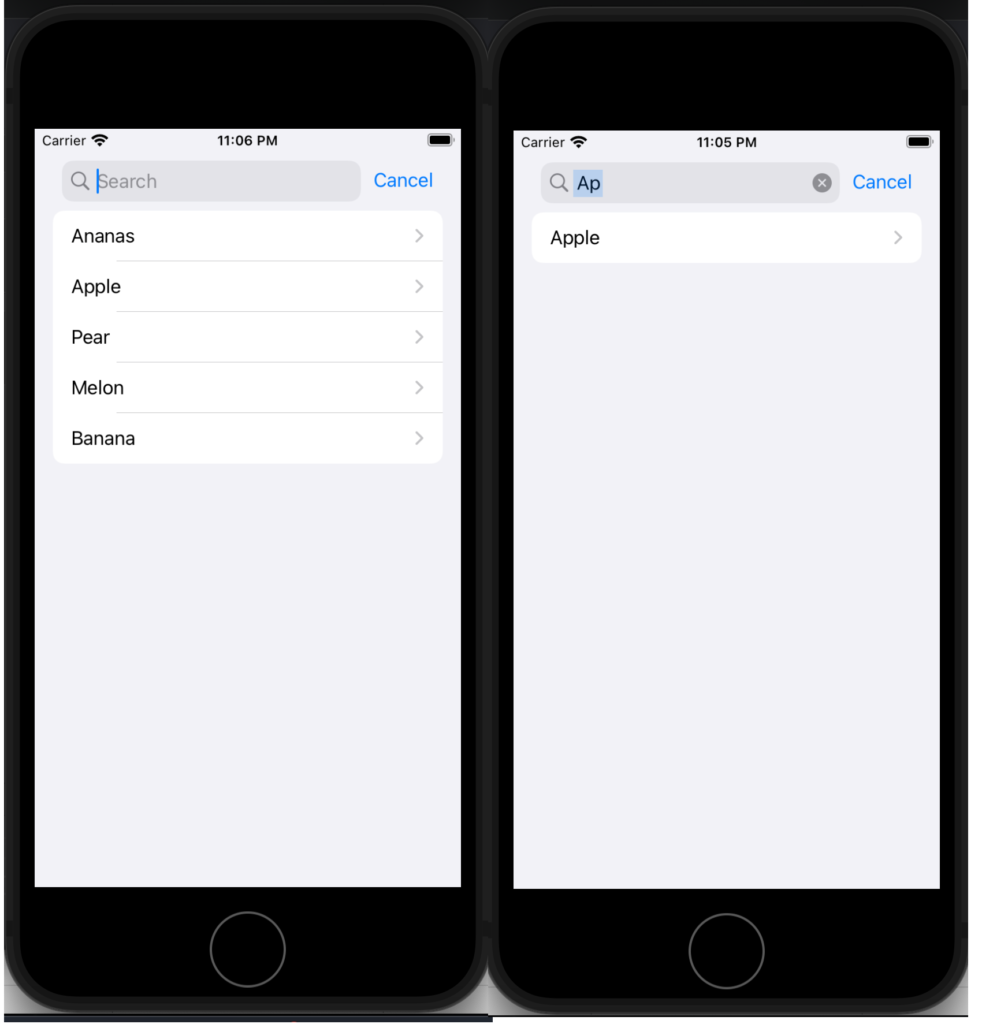
First look at a simple example, use the searchbar to search a string in a list of fruit.

struct SimpleSearchUIView: View {
    let names = ["Ananas", "Apple", "Pear", "Melon", "Banana"]
    @State private var searchText = ""
    
    var body: some View {
        NavigationView {
            List {
                ForEach(searchResults, id: \.self) { name in
                    NavigationLink(destination: Text(name)) {
                        Text(name)
                    }
                }
            }
            .searchable(text: $searchText)
            .navigationTitle("Fruits")
        }
    }
    
    var searchResults: [String] {
        if searchText.isEmpty {
            return names
        } else {
            return names.filter {$0.lowercased().contains(searchText.lowercased())}
        }
    }
}

First thing, add a searchable to a List. The searchable is waiting for a text, and the written text is saved in a state variable, in this case, searchText.

The ForEach is not working on a list but with a variable that contains the fruits filtered using the search text. Simply it applies a filter on the names array.

Now see an example using an array of complex type, simply Post type, so defined:

struct Post: Identifiable, Hashable {
    var id = UUID()
    var title: String
    var image: String
}

Now the List and the searchbar working in this way:

struct SerarchUIView: View {
    @State private var searchText = ""
    var posts = [
        Post(title: "Toolbar and Customization", author: "Nicola De Filippo"),
        Post(title: "SwiftUI App Chat – Episode II°", author: "Nicola De Filippo"),
        Post(title: "SwiftUI App Chat – Episode I°", author: "Nicola De Filippo"),
        Post(title: "Navigation", author: "NDF"),
        Post(title: "SwiftUI App Chat – Episode II°", author: "Nicola De Filippo"),
        Post(title: "List in SwiftUI", author: "NDF"),
        Post(title: "State, Binding and Refactoring", author: "Nicola De Filippo")
        
    ]
    var body: some View {
        NavigationView {
            List(searchResults) { post in
                VStack(alignment: .leading) {
                    Text(post.title)
                        .font(.headline)
                    Text(post.author)
                        .font(.caption)
                }
            }.searchable(text: $searchText)
            .navigationBarTitle("My posts", displayMode: .automatic)
        }
    }
    
    var searchResults: [Post] {
        if searchText.isEmpty {
            return posts
        } else {
            return posts.filter { (post: Post) in
                return post.title.lowercased().contains(searchText.lowercased())
            }
        }
    }
}

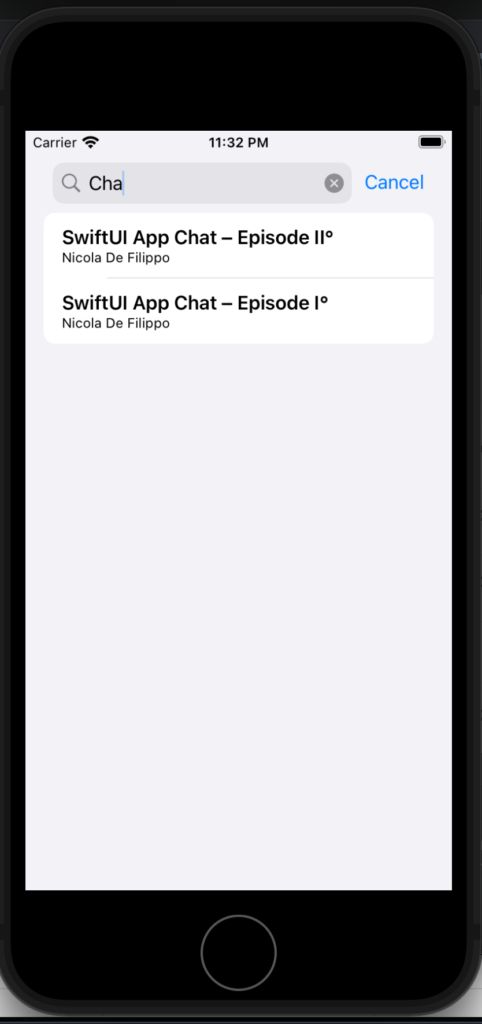
Now the list iterates on a list of posts, the searchable works with a text, instead of the search result in this case filter the array using the title. If everything is ok, you should have:

Note: English is not my native language, so I’m sorry for some errors. I appreciate it if your correct me.

Qml – Copy And Paste

Sometimes in mobile applications is helpful can copy text between applications (i.e. wifi password or simply text). With a simple Text is impossible to do the copy action; it is possible using the QClipBoard, so we have to use a bit of C++.

In my example, we see how to copy the text from a ListItem and past where we want. Start looking at the Qml code:

App {
    NavigationStack {

        Page {
            title: qsTr("Main Page")

            AppToolTip {
                 id: copyTip
                 text: "Copied"
            }

            AppListView {
                id: listView
                anchors.fill: parent

                delegate: SimpleRow {
                    item: modelData
                    showDisclosure: false
                    onSelected: {
                        copyTip.target = listView.currentItem
                        clipboard.setText(detailText)
                        copyTip.open()
                    }
                }

                model: [
                    { text: "WIFI ID",
                        detailText: "MyWifi" },
                    { text: "WIFI PASSWORD",
                        detailText: "1234562"}
                ]
            }
        }
    }
}

First, in the example I used https://www.felgo.com but you can use also simple Qml. In the code, we define a ListView with a simple model that has two fields: text and detailText. The delegate is SimpleRow that show these two pieces of information (you can use your custom delegate if you prefer).

In the code you can find an AppTooltip that we use to show a “Copied” message after we copied the text.

How do we copy the text? Simple we call the function setText of the clipboard object.

What’s a clipboard?

#ifndef MOBILECLIPBOARD_H
#define MOBILECLIPBOARD_H

#include <QObject>

class MobileClipBoard : public QObject
{
    Q_OBJECT
public:
    explicit MobileClipBoard(QObject *parent = nullptr);
    Q_INVOKABLE void setText(const QString &from);
    Q_INVOKABLE QString text();
};

#endif // MOBILECLIPBOARD_H

In the class MobileClipBoard we have two methods invocable from the Qml side. Let’s see what those methods do:

#include <QClipboard>
#include <QApplication>
#include "mobileclipboard.h"

MobileClipBoard::MobileClipBoard(QObject *parent) : QObject(parent)
{

}

void MobileClipBoard::setText(const QString &from)
{
    QClipboard *clipboard = QApplication::clipboard();
    clipboard->setText(from);
}

QString MobileClipBoard::text()
{
    QClipboard *clipboard = QApplication::clipboard();
    return clipboard->text();
}

In the setText get the reference to the system clipboard and set the text in the clipboard.

The text() method simple return the text within the system clipboard.

The last point, bind the C++ world with the Qml side:

 MobileClipBoard clipboard;

felgo.qmlEngine()->rootContext()->setContextProperty("clipboard", &clipboard);

We declare a MobileClipboard and pass it to the root QQmlContext, so it can be used in the Qml side.

You can find the code here https://github.com/niqt/mobileclipboard

Note: English is not my native language, so I’m sorry for some errors. I appreciate it if your correct me.