Images And Assets

In this post, we see how to use the images with SwiftUI and how to create some beautiful effect.

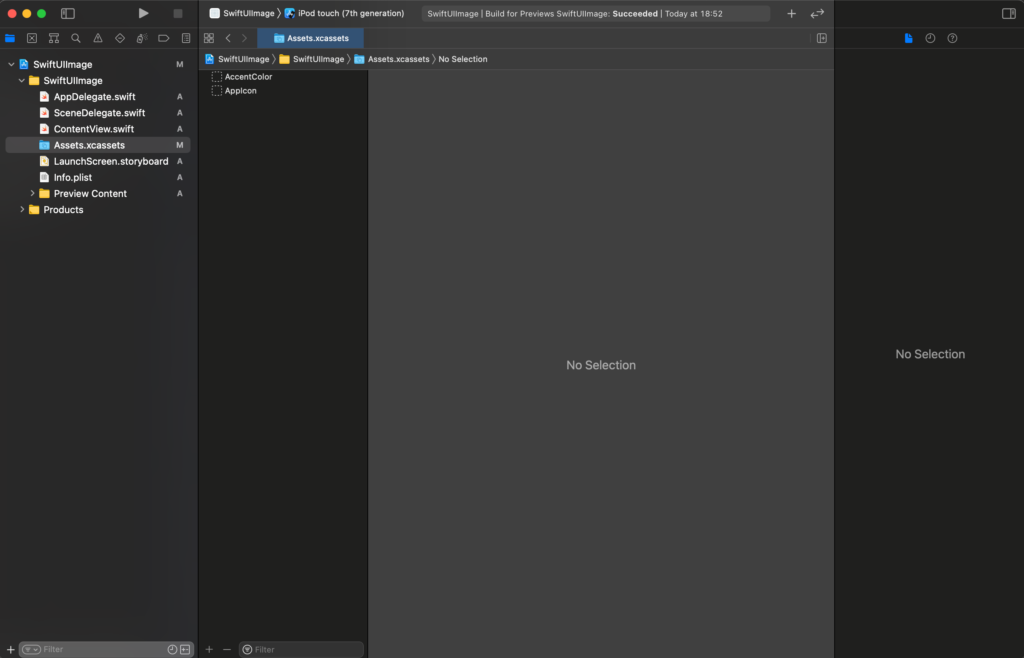
In beginning, we have to add an image to the assets of the XCode project. Click on the assets:

Drag your image under the AppIcon (you can use the image in the header of this post https://nicoladefilippo.com/wp-content/uploads/2021/04/sanfrancisco-1-1536×1152.jpg).

Upload sanfrancisco image

To use the image in the code:

import SwiftUI

struct ContentView: View {
    var body: some View {
        Image("sanfrancisco")
    }
}

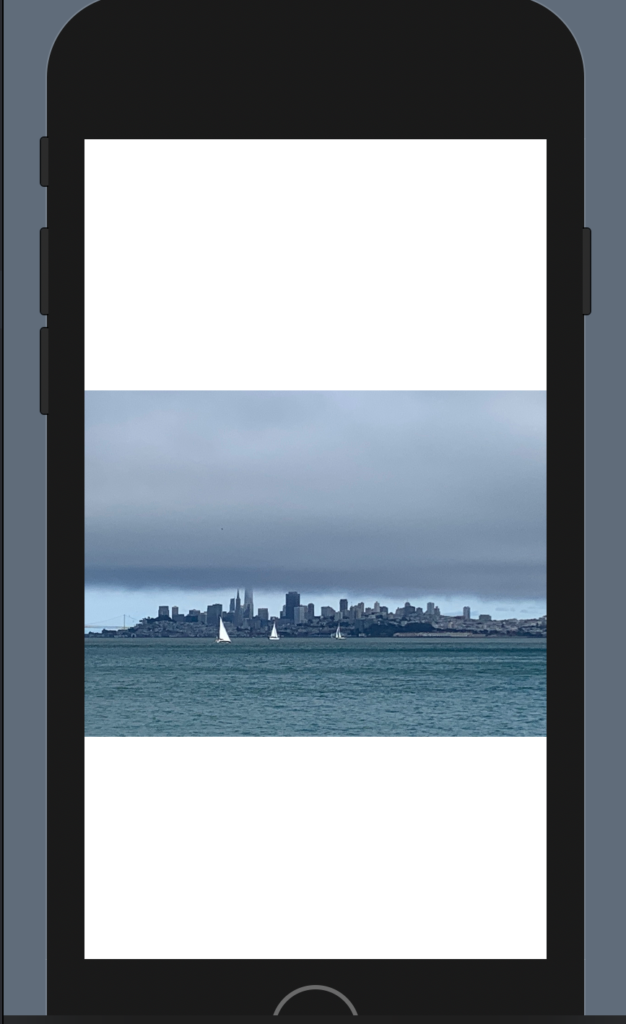
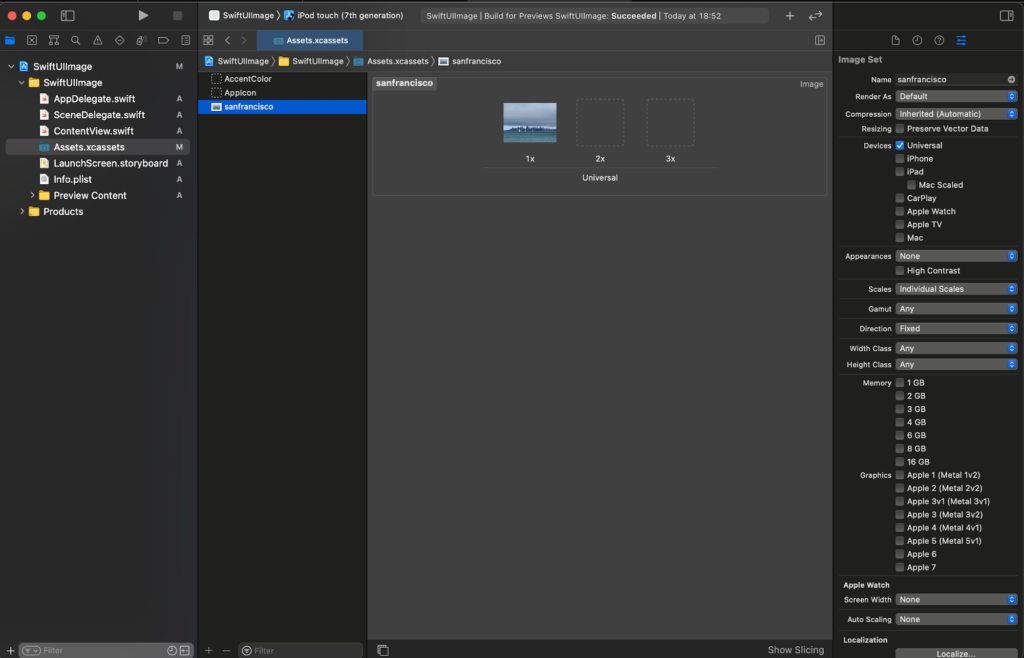
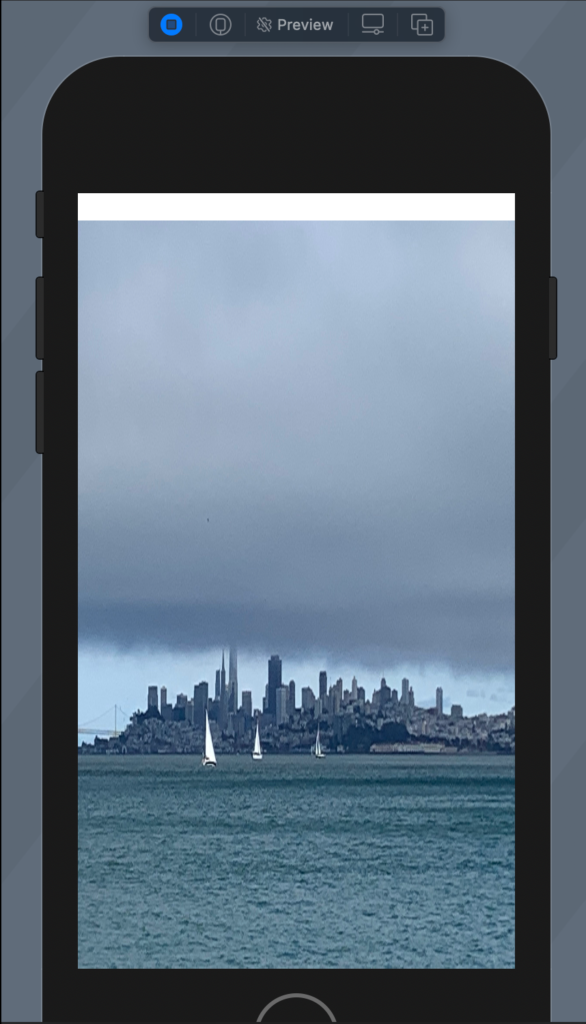
In this way we see the image in bad way:

To resize the image we have to add the resizable:

Image("sanfrancisco")
            .resizable()

To remove the white on the top we choose to ignore the safe area in this way:

struct ContentView: View {
    var body: some View {
        Image("sanfrancisco")
            .resizable()
            .aspectRatio(contentMode: .fill)
            .edgesIgnoringSafeArea(.all)
            
    }
}

Try this code and see what happen.

Aspect ratio

To default the aspect ratio is fill (fill the space but not preserve the aspect ratio), to preserve the aspect ratio:

struct ContentView: View {
    var body: some View {
        Image("sanfrancisco")
            .resizable()
            .aspectRatio(contentMode: .fit)
    }
}

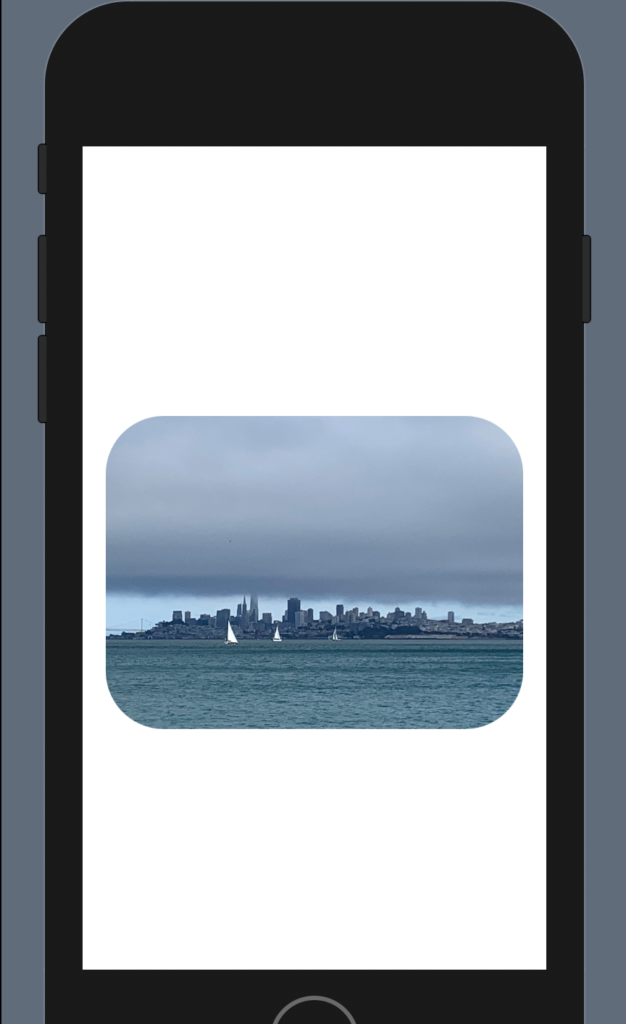
It’s not very nice, we can add rounded corner and padding:

struct ContentView: View {
    var body: some View {
        Image("sanfrancisco")
            .resizable()
            .aspectRatio(contentMode: .fit)
            .cornerRadius(40)
            .padding()
    }
}

To have:

Note: add the padding after the corner radius otherwise you will have the rounded corner.

Effects

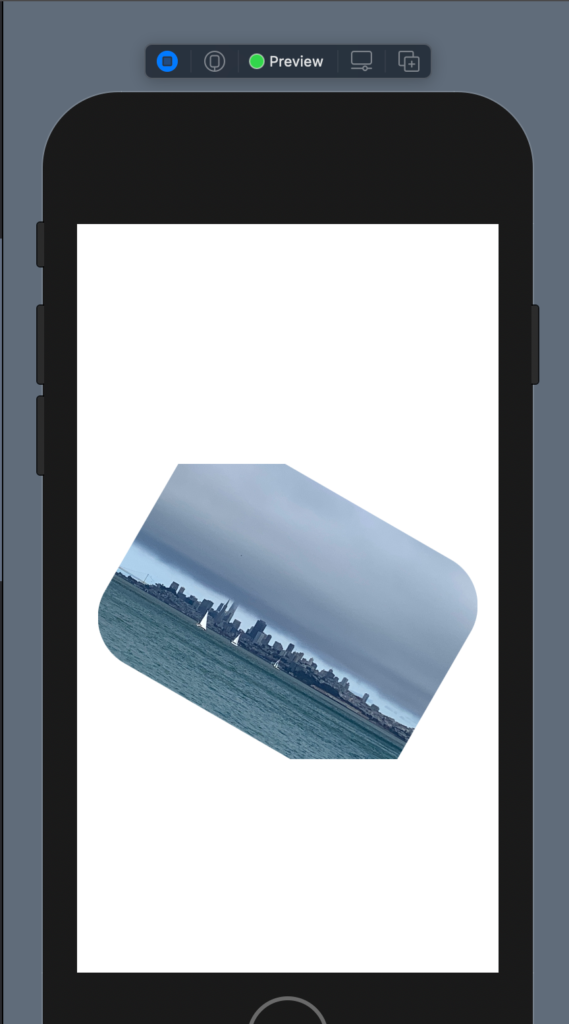
There is also another effect, for example, rotation, I show how to have a photo with a cut edges.

struct ContentView: View {
    var body: some View {
        Image("sanfrancisco")
            .resizable()
            .aspectRatio(contentMode: .fit)
            .cornerRadius(40)
            .padding()
            .rotationEffect(.init(degrees: 30))
            .cornerRadius(40)
            .padding()
    }
}

Shape

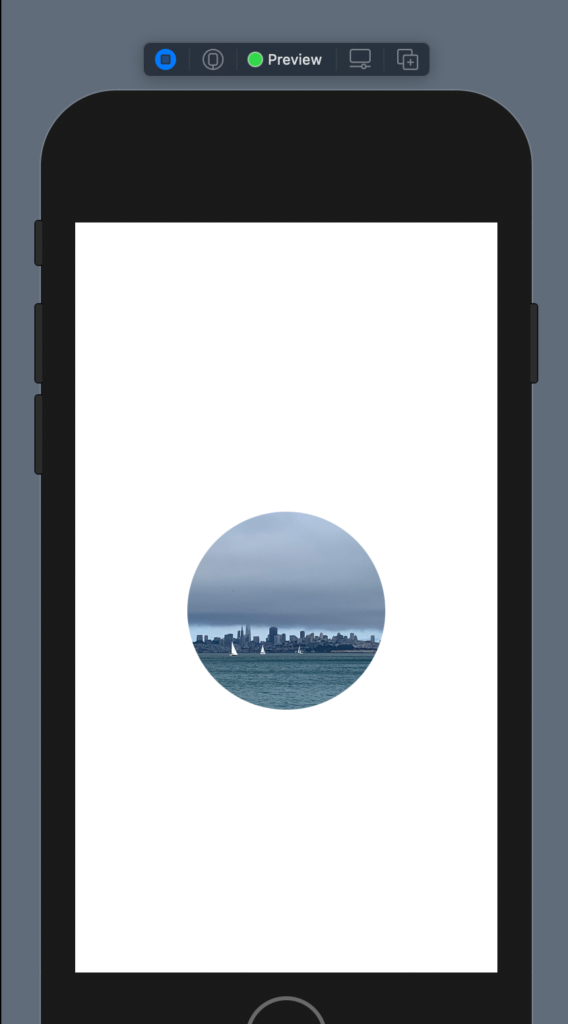
It’s possible also to give a shape and size to the image:

struct ContentView: View {
    var body: some View {
        Image("sanfrancisco")
            .resizable()
            .aspectRatio(contentMode: .fit)
            .clipShape(Circle())
            .frame(width: 200)
    }
}

Overlay

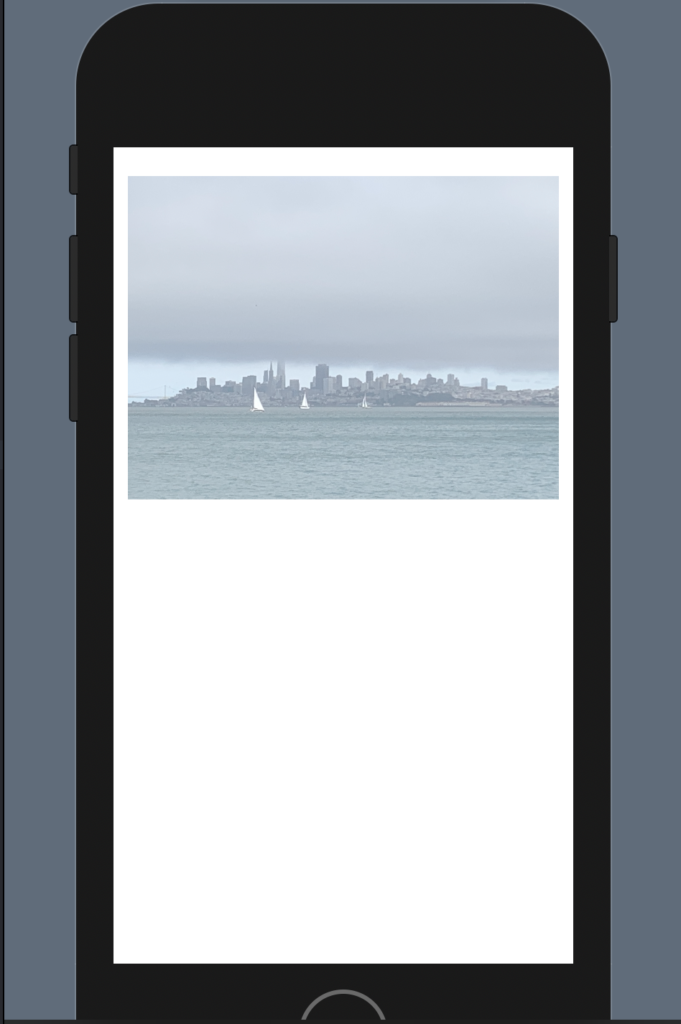
Now see how to overlay an object with another not using the ZStack. First, we push the image on the topo using a VStack and a spacer; change the size using a frame and change the opacity:

struct ContentView: View {
    var body: some View {
        VStack {
            Image("sanfrancisco")
            .resizable()
            .aspectRatio(contentMode: .fit)
            .frame(width: 300)
            .opacity(0.5)
            Spacer()
        }
            
    }
}

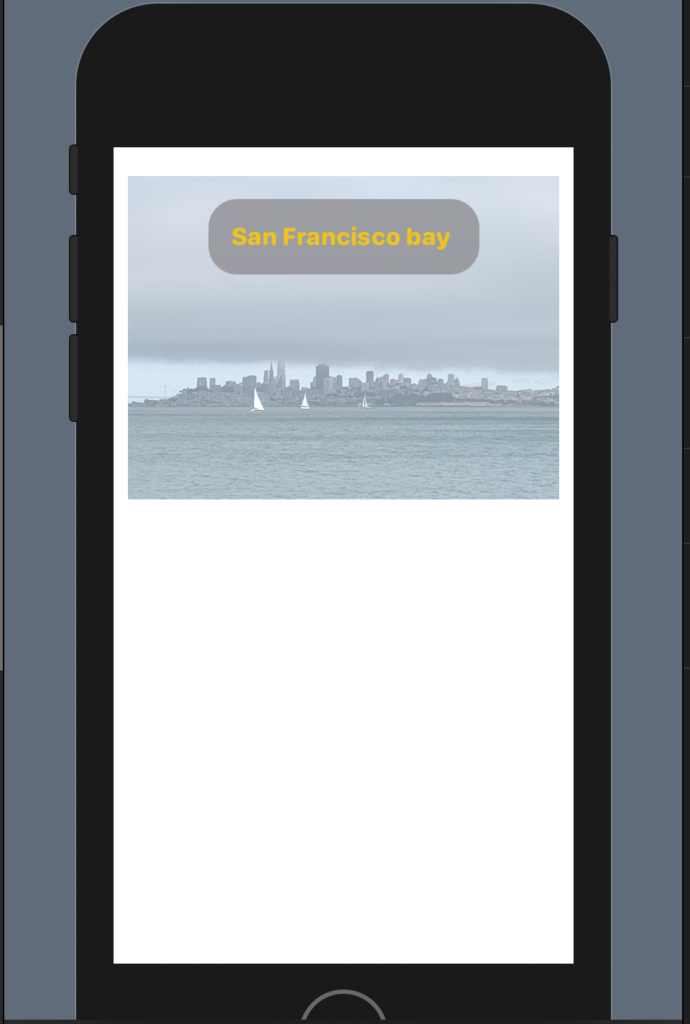
Now we want to add a title on the top of the photo:

The code:

struct ContentView: View {
    var body: some View {
        VStack {
            Image("sanfrancisco")
            .resizable()
            .aspectRatio(contentMode: .fit)
            .frame(width: 300)
            .opacity(0.5)
            .overlay(
                Text("San Francisco bay ")
                    .fontWeight(.heavy)
                    .font(.system(.headline, design: .rounded))
                    .foregroundColor(.yellow)
                    .padding()
                    .background(Color.gray)
                    .cornerRadius(20)
                    .opacity(0.8)
                    .padding(),
                    alignment: .top
                
                )
            Spacer()
        }
            
    }
}

We added an overlay with a Text with properties that we already know (from previous post https://nicoladefilippo.com/text-and-button-with-swuiftui/), note instead of the alignment, with this we say where to set the text. Alignment is a property of the overlay (note the comma after the last padding).

Note: English is not my native language, so I’m sorry for some errors. I appreciate it if your correct me.

Layout in SwiftUI

Vertical Stack

In the previous post we saw a single object in the view, but to build a nice and helpful interface we need to combine more objects. We start with a simple example, we want a text and a button.

VStack() {
            Button(action: {
                
            }) {
                Text("Press")
                    .padding()
                    .foregroundColor(.white)
                    .background(LinearGradient(gradient: Gradient(colors: [Color.black, Color.green]), startPoint: .trailing, endPoint: .leading
                    ))
                    .clipShape(Ellipse())
            }
            Text("Me")
                .foregroundColor(Color.red)
        }

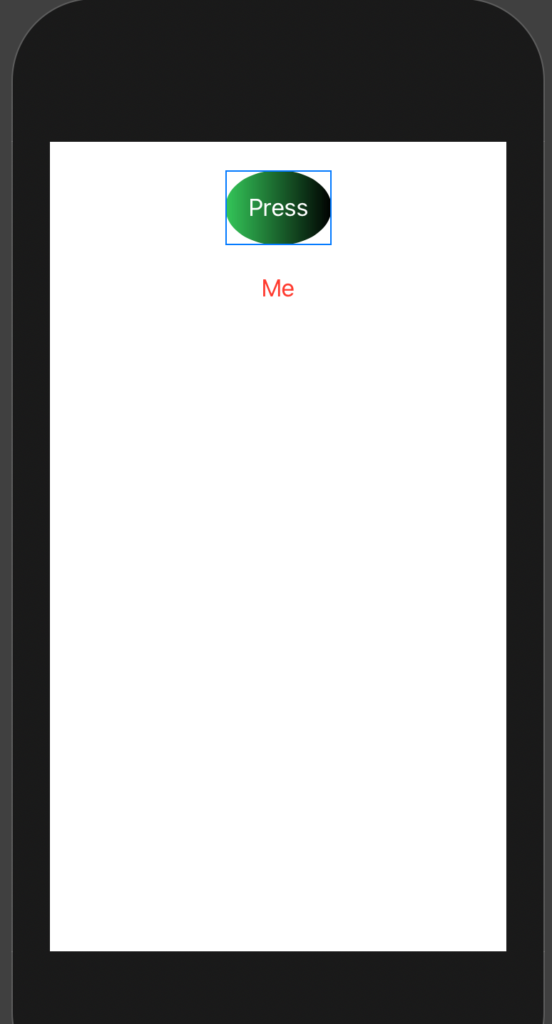
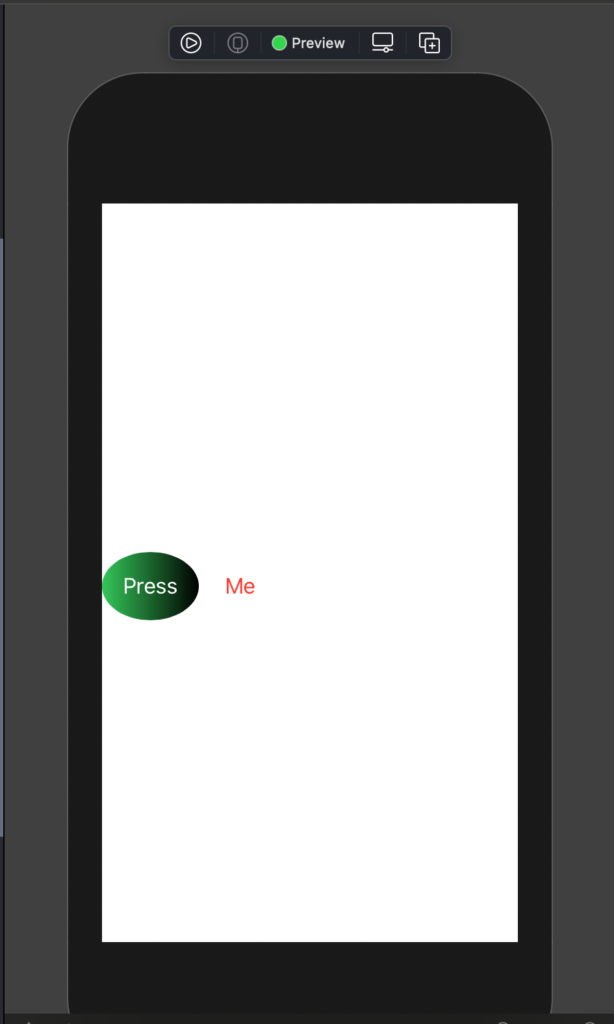
In the code, I used a vertical stack (VStack) the object is showed as in the column. See the picture:

It’s possible to also align the element in the stack, to leading (left), to right (trailing) or center (the default). To add the spacing between the elements it used the spacing property.

VStack(alignment: .leading, spacing: 20) {
            Button(action: {
                
            }) {
                Text("Press")
                    .padding()
                    .foregroundColor(.white)
                    .background(LinearGradient(gradient: Gradient(colors: [Color.black, Color.green]), startPoint: .trailing, endPoint: .leading
                    ))
                    .clipShape(Ellipse())
            }
            Text("Me")
                .foregroundColor(Color.red)
        }

To have:

How we can push the button and the text on the top of the view? We have to use the Spacer object:

struct ContentView: View {
    var body: some View {
        VStack(alignment: .center, spacing: 20) {
            Button(action: {
                
            }) {
                Text("Press")
                    .padding()
                    .foregroundColor(.white)
                    .background(LinearGradient(gradient: Gradient(colors: [Color.black, Color.green]), startPoint: .trailing, endPoint: .leading
                    ))
                    .clipShape(Ellipse())
            }
            Text("Me")
                .foregroundColor(Color.red)
            Spacer()
        }
    }
}

We added the Spacer object after the Text, so we fill the space and the other objects are pushed up.

If we push the Spacer before the button, the objects are pushed down.

Horizontal Stack

Dual of the Vertical Stack is the horizontal stack (HStack):

struct ContentView: View {
    var body: some View {
        HStack(alignment: .center, spacing: 20) {
            Button(action: {
                
            }) {
                Text("Press")
                    .padding()
                    .foregroundColor(.white)
                    .background(LinearGradient(gradient: Gradient(colors: [Color.black, Color.green]), startPoint: .trailing, endPoint: .leading
                    ))
                    .clipShape(Ellipse())
            }
            Text("Me")
                .foregroundColor(Color.red)

        }
    }
}

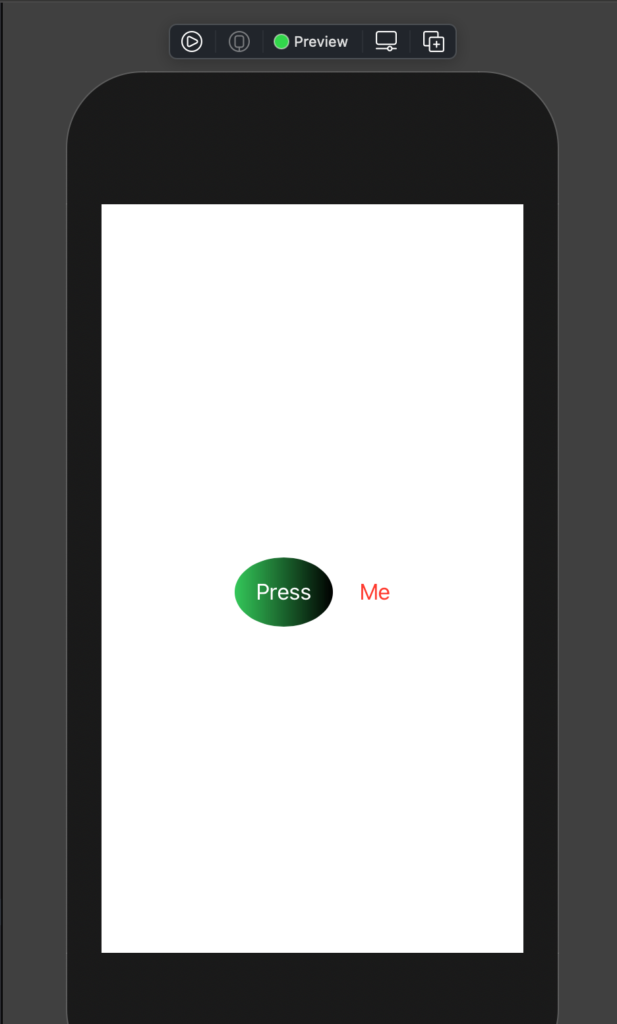
To have:

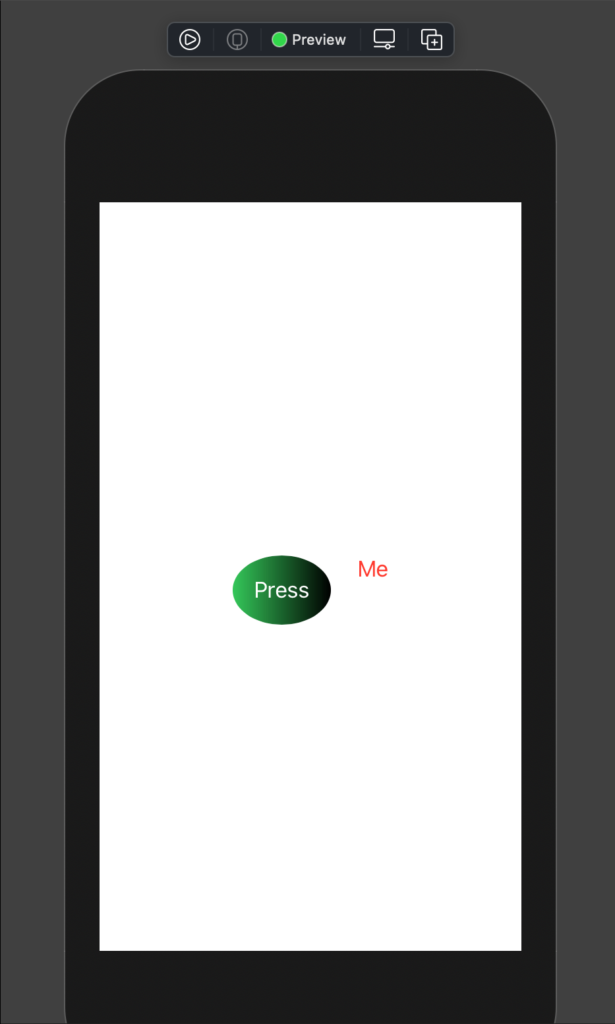
The alignment, in this case, is center, top and bottom. See top as an example:

struct ContentView: View {
    var body: some View {
        HStack(alignment: .top, spacing: 20) {
            Button(action: {
                
            }) {
                Text("Press")
                    .padding()
                    .foregroundColor(.white)
                    .background(LinearGradient(gradient: Gradient(colors: [Color.black, Color.green]), startPoint: .trailing, endPoint: .leading
                    ))
                    .clipShape(Ellipse())
            }
            Text("Me")
                .foregroundColor(Color.red)

        }
    }
}

It looks as:

With the HStack we using the Spacer to push the objects on the left or the right. For example, if we write the Spacer after the Text:

struct ContentView: View {
    var body: some View {
        HStack(alignment: .center, spacing: 20) {
            Button(action: {
                
            }) {
                Text("Press")
                    .padding()
                    .foregroundColor(.white)
                    .background(LinearGradient(gradient: Gradient(colors: [Color.black, Color.green]), startPoint: .trailing, endPoint: .leading
                    ))
                    .clipShape(Ellipse())
            }
            Text("Me")
                .foregroundColor(Color.red)
            Spacer()

        }
    }
}

To have:

ZStack

SwiftUI has also a ZStack, it’s as a pile. See the code:

struct ContentView: View {
    var body: some View {
        ZStack() {
            Text("I'm level 0")
                .foregroundColor(Color.white)
                .padding(100)
                .background(Color.gray)
            Text("I'm level 1")
                .foregroundColor(Color.blue)
        }
    }
}

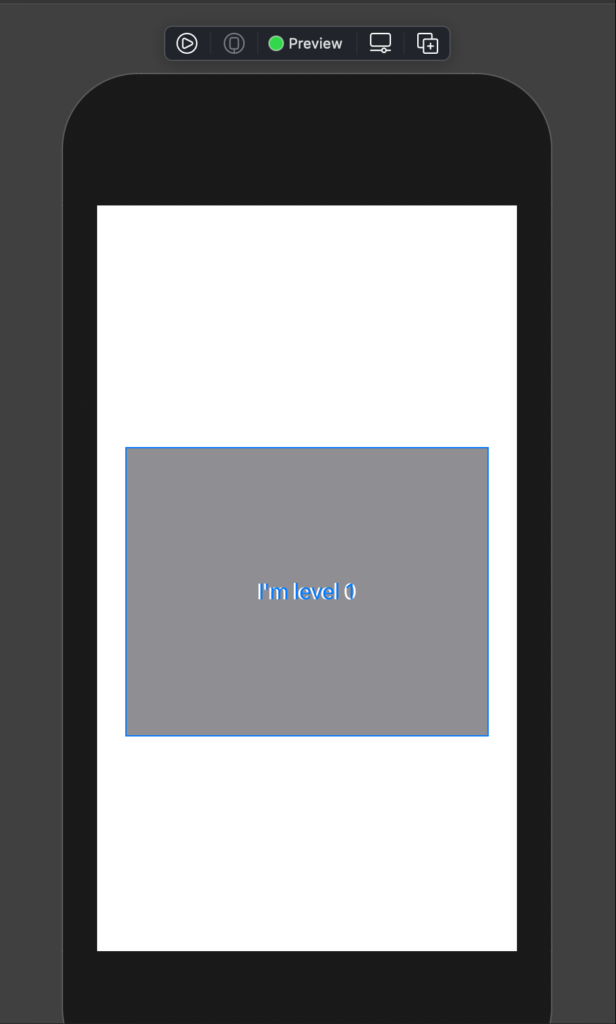
If we run this code we see that the second label (“I’m level 1”), override the first one:

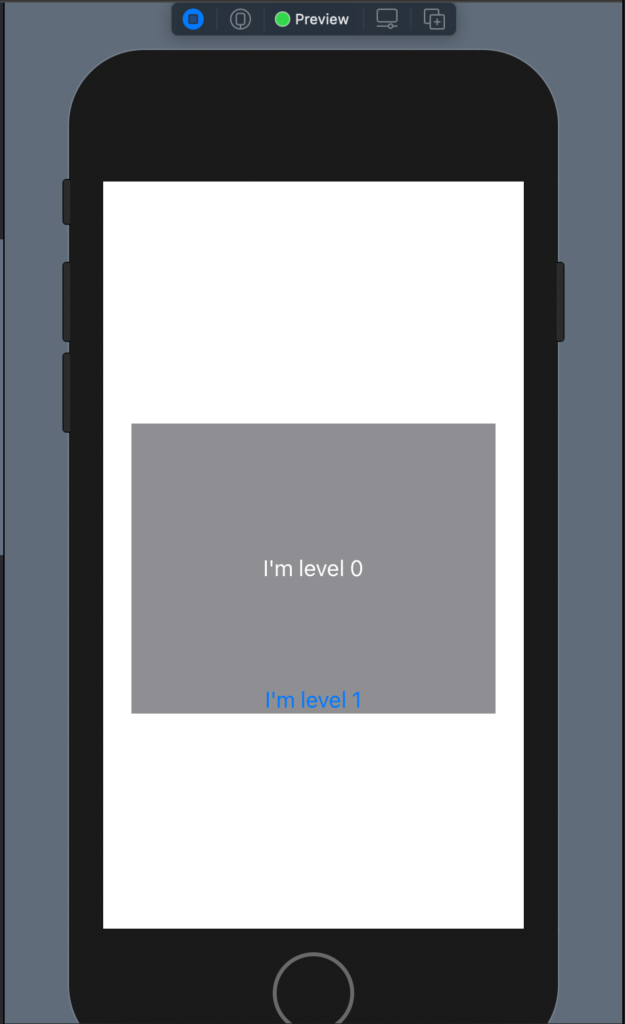
In this way it’s not helpful, to move the second label we can use the offset(x, y) where the X is relative to the beginning of the first element, the same for the Y.

struct ContentView: View {
    var body: some View {
        ZStack() {
            Text("I'm level 0")
                .foregroundColor(Color.white)
                .padding(100)
                .background(Color.gray)
            Text("I'm level 1")
                .foregroundColor(Color.blue)
                .offset(x: 0, y: 100)
        }
    }
}

To have:

It does not seem very cool example, but we’ll see nice things in the next post when I’ll show how to use the image.

Note: English is not my native language, so I’m sorry for some errors. I appreciate it if your correct me.
Button 2nd episode

Button Shape

In the previous post https://nicoladefilippo.com/text-and-button-with-swuiftui/, we saw how to create simple buttons, in this post we see also it’s possible also create a button with a particular shape, for example, a circle or ellipse.

struct ContentView: View {
    var body: some View {
        Button(action: {
            
        }) {
            Text("Press")
                .padding()
                .background(Color.red)
                .clipShape(Ellipse())
        }
    }
}

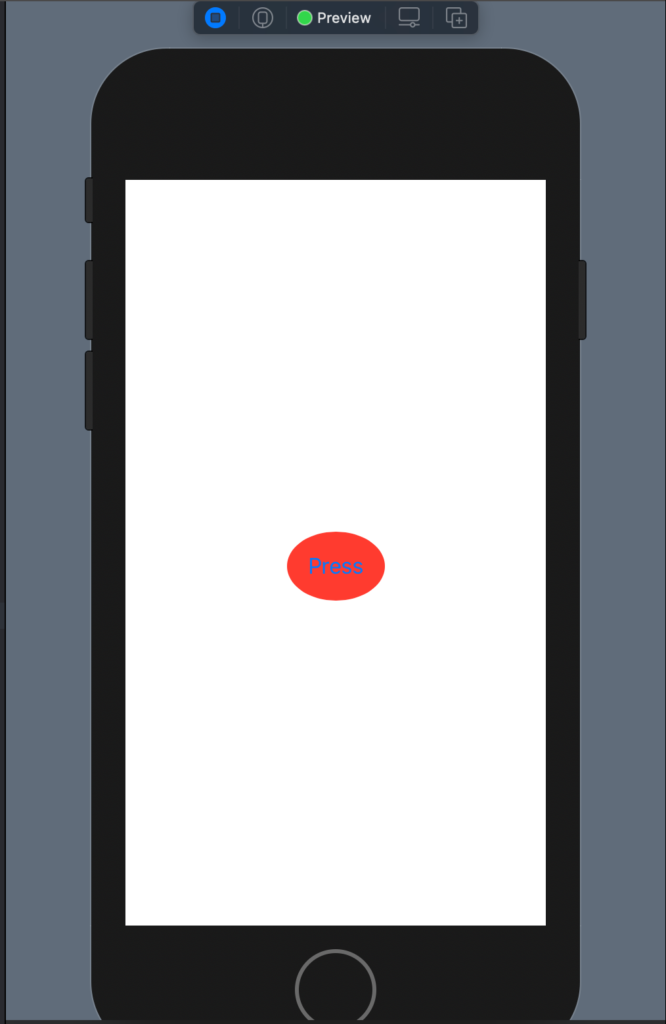
In this case, we have a Button with a text a red background and clipped has Ellipse. The result is:

You can try to use Circle() to see the different shape button.

Gradients

It’s possible also to use a gradient as a background instead of a simple color:

struct ContentView: View {
    var body: some View {
        Button(action: {
            
        }) {
            Text("Press")
                .padding()
                .foregroundColor(.white)
                .background(LinearGradient(gradient: Gradient(colors: [Color.yellow, Color.green]), startPoint: .trailing, endPoint: .leading))
                .clipShape(Ellipse())
        }
    }
}

In this case, we have a linear gradient that starts from the yellow colour to finish in green, note as the gradient start on the right (trailing), if you invert trailing and leading you to invert also the effect.

The code produces:

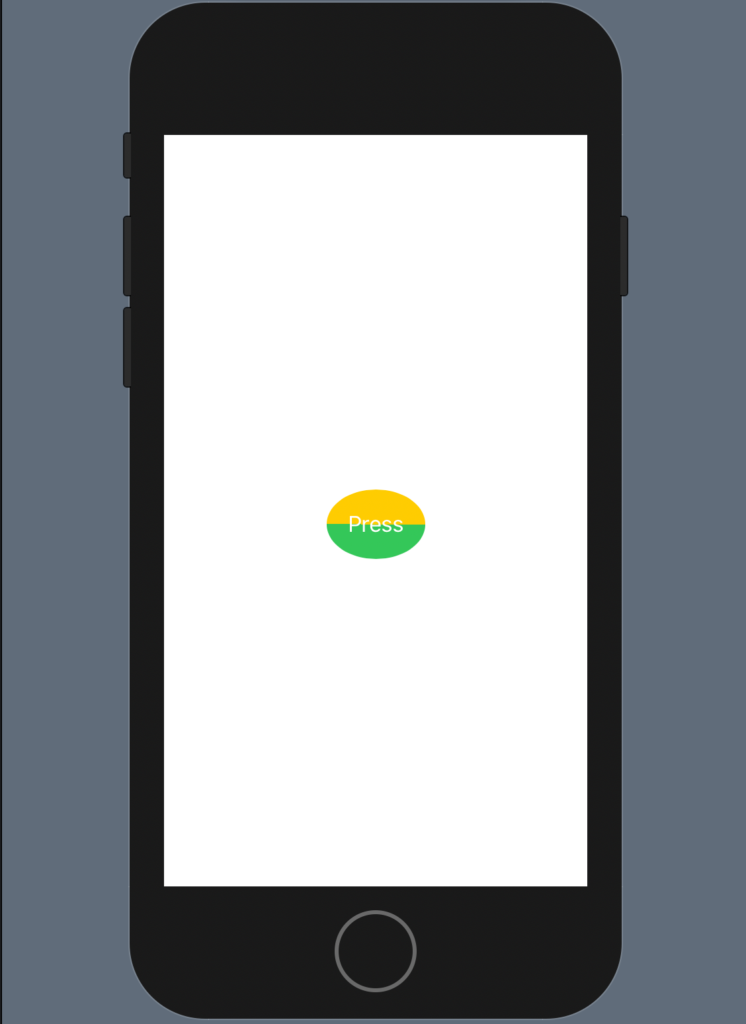
What happens if the start point is equal to the end point?

The code is:

struct ContentView: View {
    var body: some View {
        Button(action: {
            
        }) {
            Text("Press")
                .padding()
                .foregroundColor(.white)
                .background(LinearGradient(gradient: Gradient(colors: [Color.yellow, Color.green]), startPoint: .leading, endPoint: .leading))
                .clipShape(Ellipse())
        }
    }
}

Another nice example:

struct ContentView: View {
    var body: some View {
        Button(action: {
            
        }) {
            Text("Press")
                .padding()
                .foregroundColor(.white)
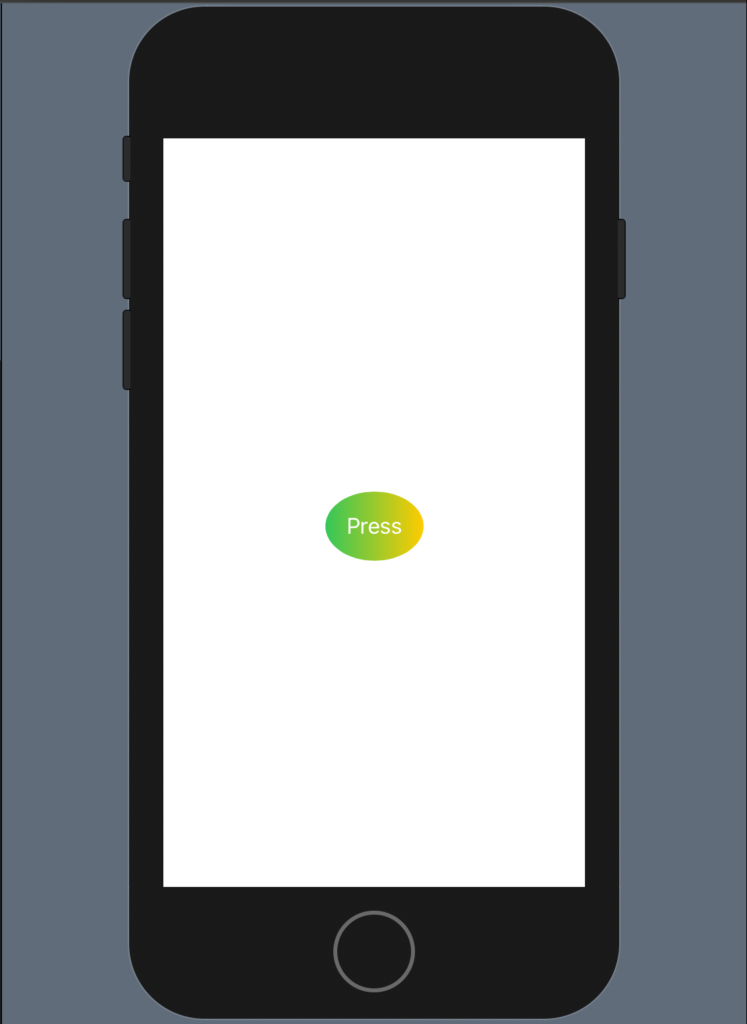
                .background(LinearGradient(gradient: Gradient(colors: [Color.black, Color.green]), startPoint: .trailing, endPoint: .leading
                ))
                .clipShape(Ellipse())
        }
    }
}

Note: English is not my native language, so I’m sorry for some errors. I appreciate it if your correct me.
Text And Button with SwuiftUI

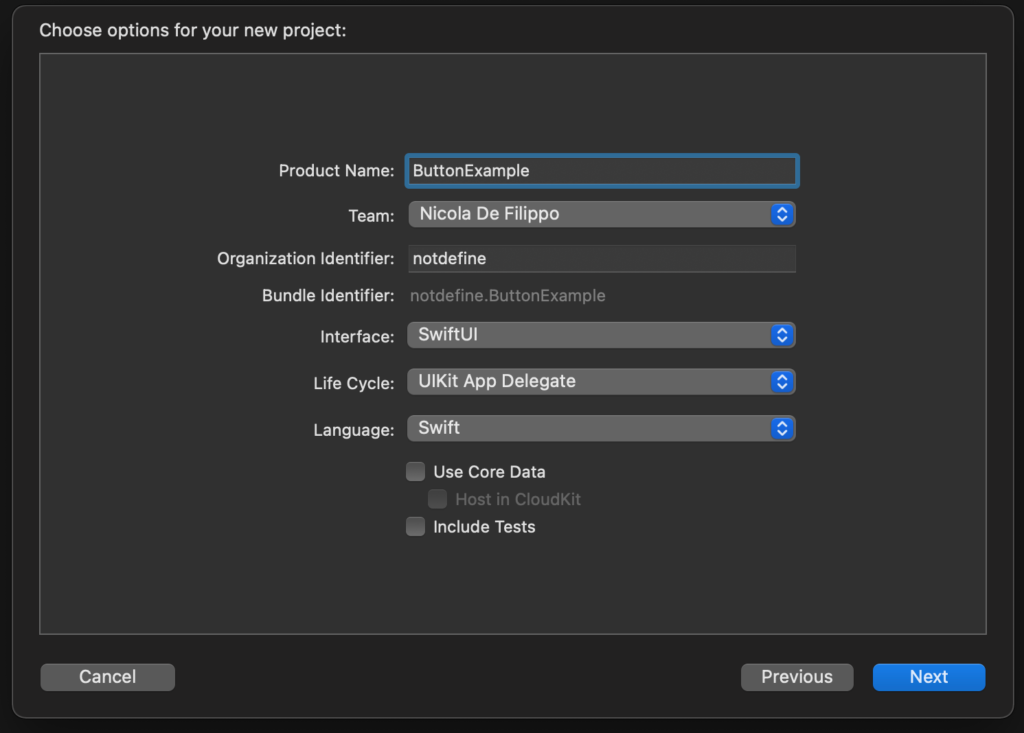
In 2019 Apple introduced the SwuifUI, a declarative language to develop the UI on Apple devices, in fact with this language is more simple to port an application from iPhone on the other devices type (AppleTV. iWatch, ..) and vice versa. Now in the Xcode, the default way to develop an application is to use SwuiftUI, instead is an optional use of UIKit (but it is not obsolete, in some case we need the uikit yet). Creating a new project we see the dialog to choose the project name and the Combobox to choose the toolkit.

After creating the project we see on the left sidebar the list of the files, in the centre the code and the preview, instead of on the right the property of the selected object.

The main word that we always will see in the SwiftUI is “view”, it’s a protocol, to show an object we need to use its protocol (to default it permits to use of default methods to manage the property of the objects). Another interesting word is “some”. This word means: “opaque type”. I find this nice post that explains that https://medium.com/@PhiJay/whats-this-some-in-swiftui-34e2c126d4c4 I suggest you read it. If you don’t want to read the full post about it, the main phase is: “Adding this keyword turns the return type into an opaque type which means that you and the compiler both know that this function will always return only one particular concrete type — you’ll just never know which one!”

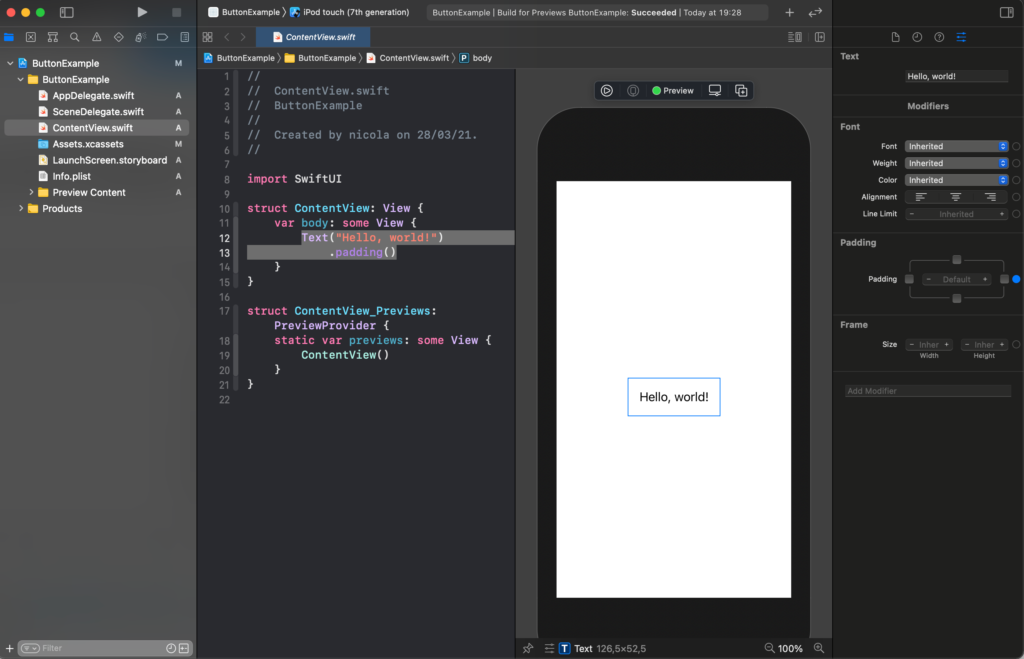
The default piece of the code for a new project is:

struct ContentView: View {
    var body: some View {
        Text("Hello, world!")
            .padding()
    }
}

struct ContentView_Previews: PreviewProvider {
    static var previews: some View {
        ContentView()
    }
}

The result is the text “Hello world” printed in the centre of the screen.

The ContentView_Previews is used to show the view in the preview window. This window has also a play button, so you can interact with the graphical object (how in a simulator).

Text

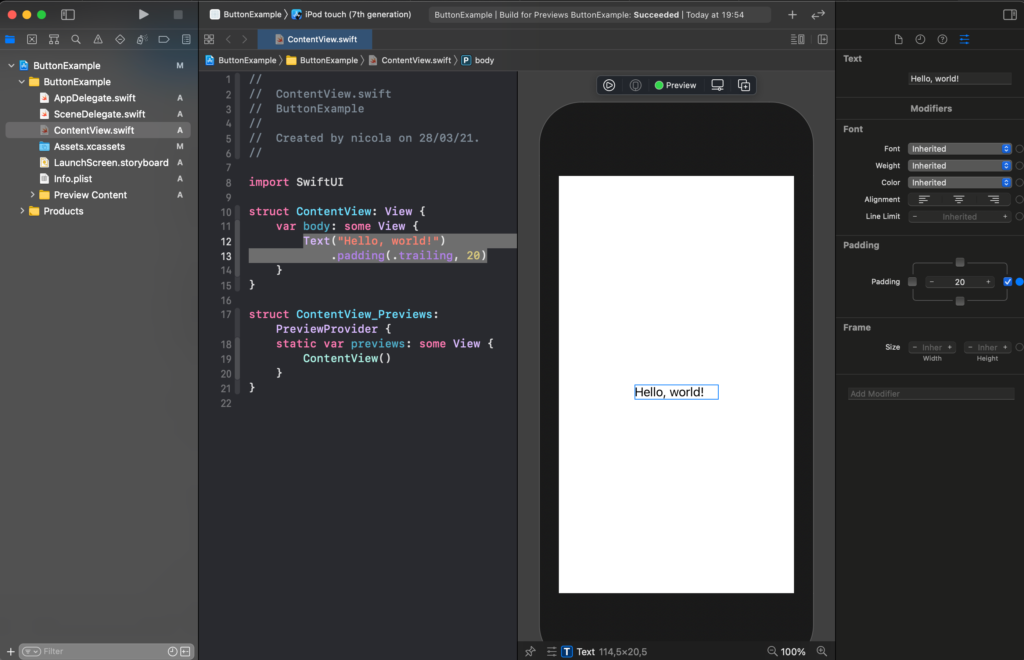
Come back to the text “Hello World”. It’s centred because every object is centred to default in the centre of the view. The padding is not a property of the whole label, but it’s a property of the text in the Label, in fact, if we change in:

struct ContentView: View {
    var body: some View {
        Text("Hello, world!")
            .padding(.trailing, 20)
    }
}

you will see space after the exclamation mark.

Note that in the SwuiftUI world, trailing means right and leading meanings left. So try to change .trailing in .leading and see the effect.

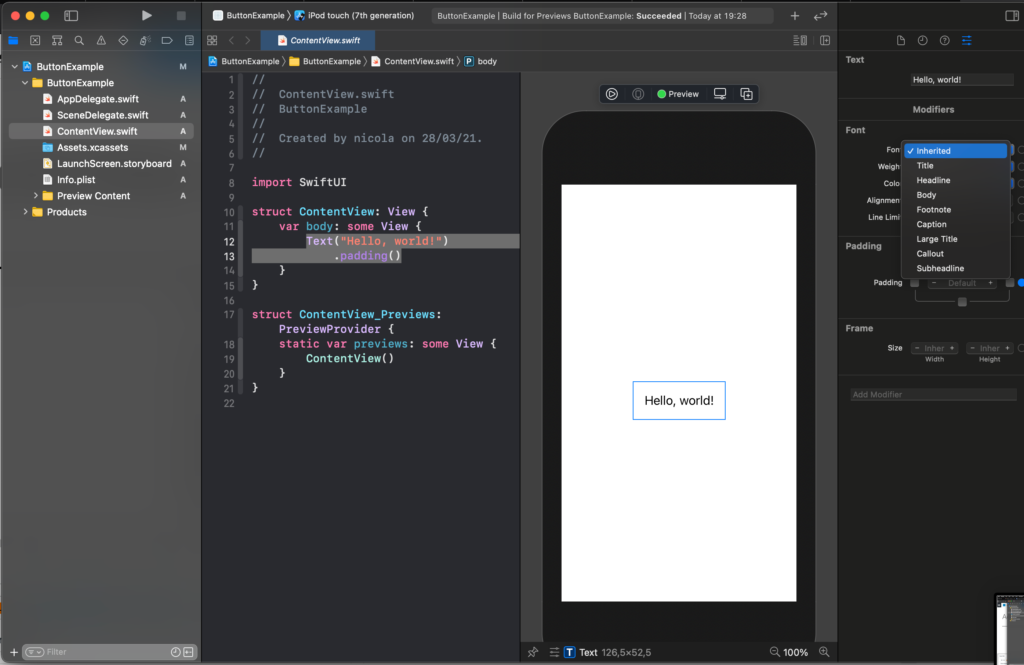
It’s possible to change the font properties, using the default system font, for example title

struct ContentView: View {
    var body: some View {
        Text("Hello, world!")
            .padding()
            .font(.title)
    }
}

To exercise you can try to see the other default size.

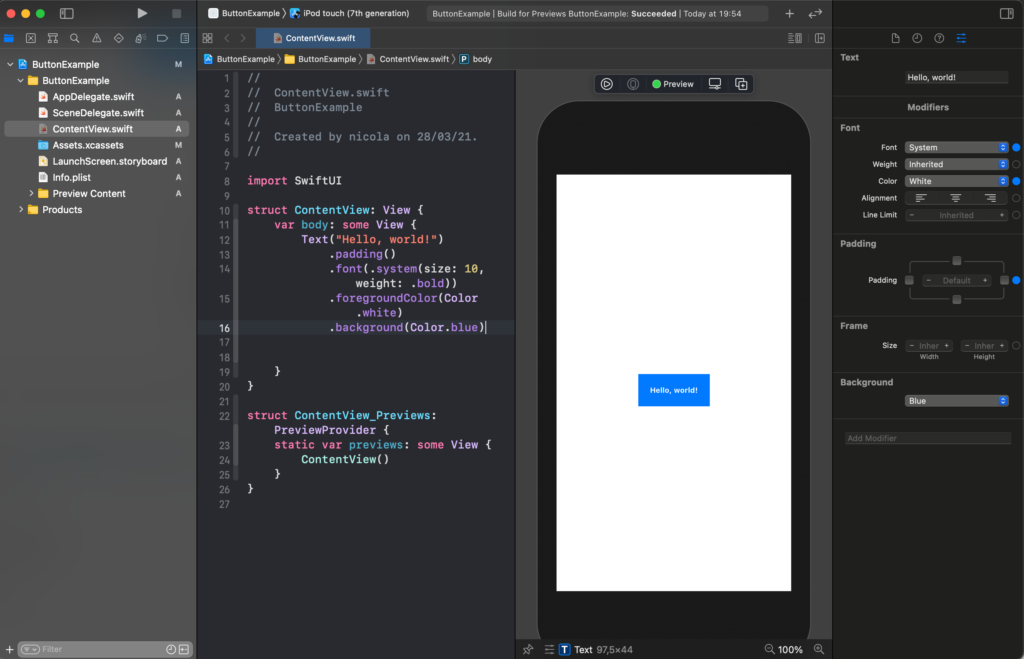
It’s possible also to use custom properties for, size, colour and so on.

struct ContentView: View {
    var body: some View {
        Text("Hello, world!")
            .padding()
            .font(.system(size: 10, weight: .bold))
            .foregroundColor(Color.white)
            .background(Color.blue)       
    }
}

To use a custom family font

struct ContentView: View {
    var body: some View {
        Text("Hello, world!")
            .padding()
            .font(.custom("Courier", size: 10))    
    }
}

A nice property is roudend, for the design.

struct ContentView: View {
    var body: some View {
        Text("Hello, world!")
            .fontWeight(.bold)
            .padding()
            .font(.system( .title, design: .rounded ))
    }
}

Note the order of the method, it’s not casual, the method is called in the order top to bottom, if you can try to invert, you can have errors or different output (try to move the padding at the end).

It’s possible to change the properties using the panel on the right (how in the picture) but I think is much helpful to see them directly in the code.

Buttons

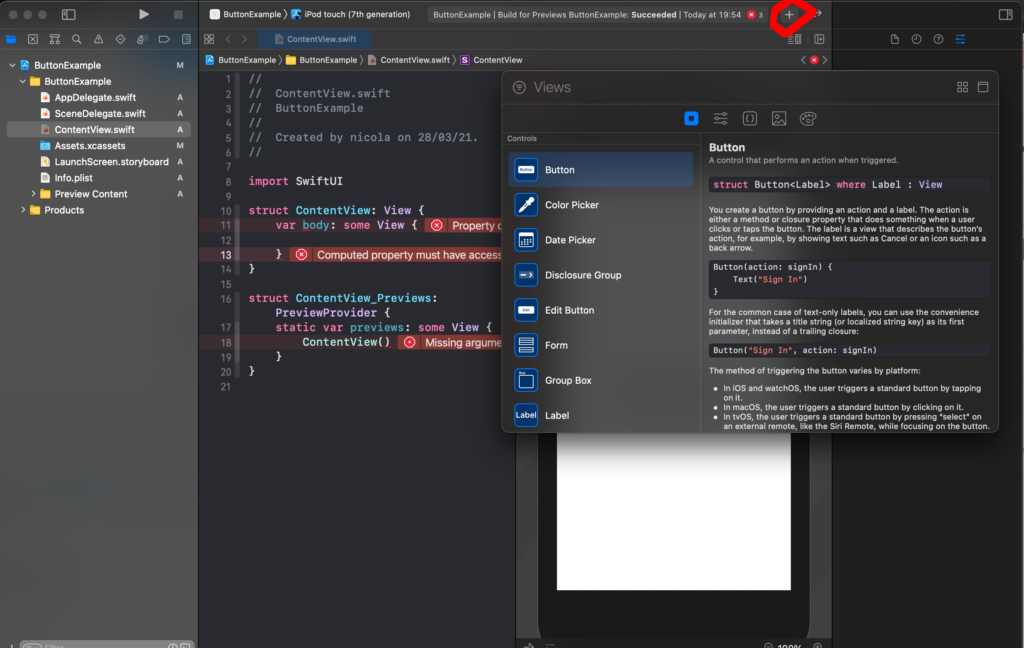
Now see the Button, cancel the code about the Text. Click on the plus button as in the figure and drag the button in the code.

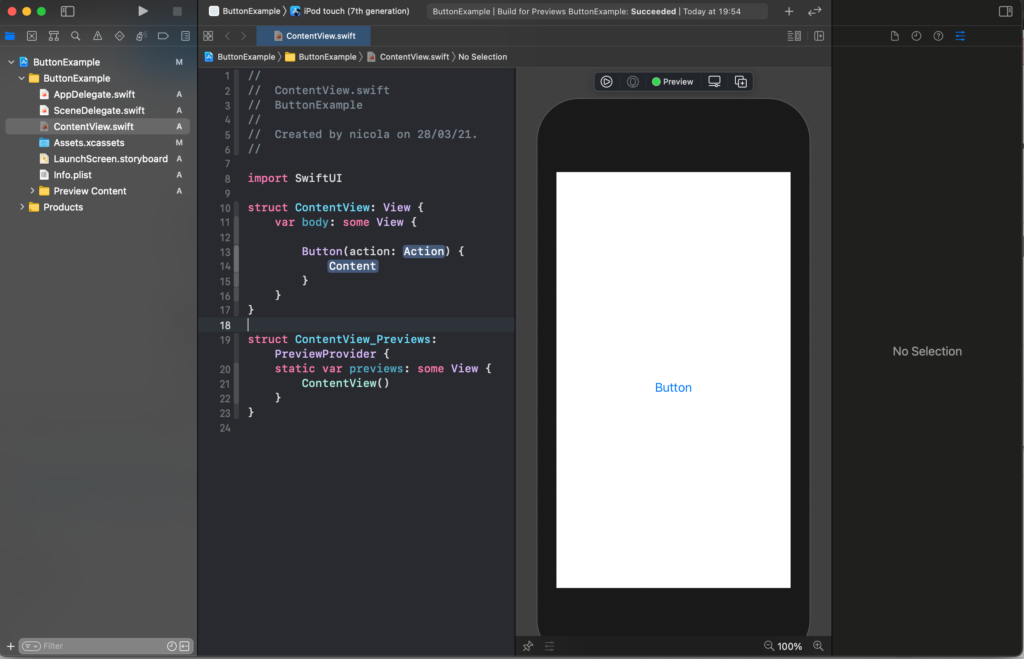
Now replace the Label and Action with our code

struct ContentView: View {
    var body: some View {

        Button(action: {}) {
            Text("Touch me")
        }
    }
}

For now, we replace the action label with empty code (no action) and the content with a Text object.

To modify the look of the button we have to change the content so in this case the Text object.

struct ContentView: View {
    var body: some View {

        Button(action: {}) {
            Text("Touch me")
                .padding(10)
                .background(Color.blue)
                .foregroundColor(.white)
                .cornerRadius(10)
        }
    }
}

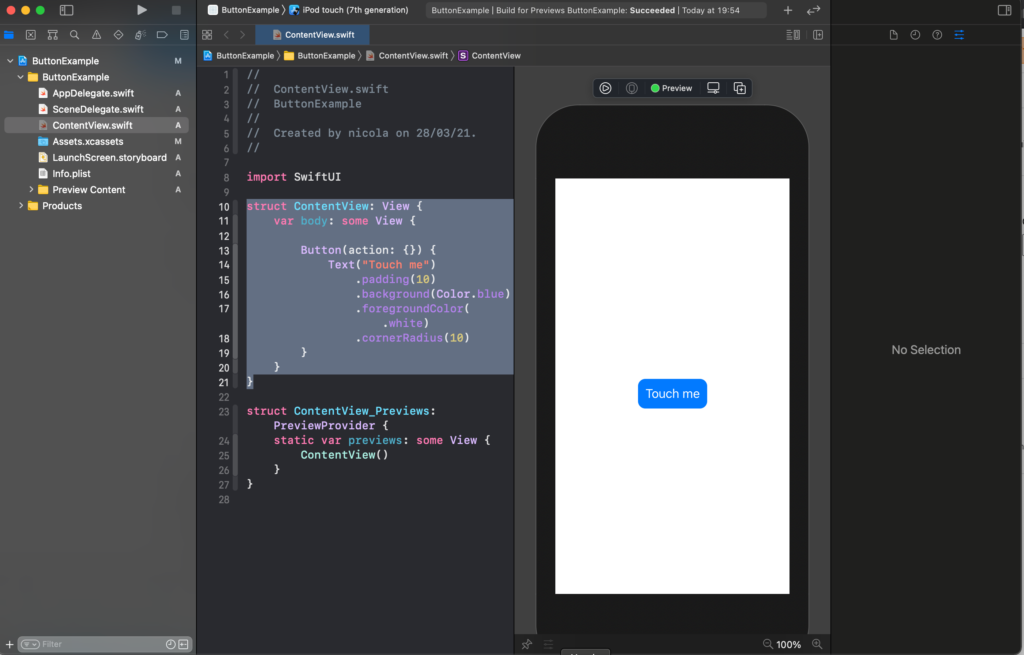
To have this button:

Used the method cornerRadius to have rounded corner

We can also use the system image (please download the San Francisco symbols from https://developer.apple.com/sf-symbols/)

struct ContentView: View {
    var body: some View {
        Button(action: {
            
        }) {
            Image(systemName: "cart")
                .foregroundColor(.purple)
                .font(.title)
        }
    }
}

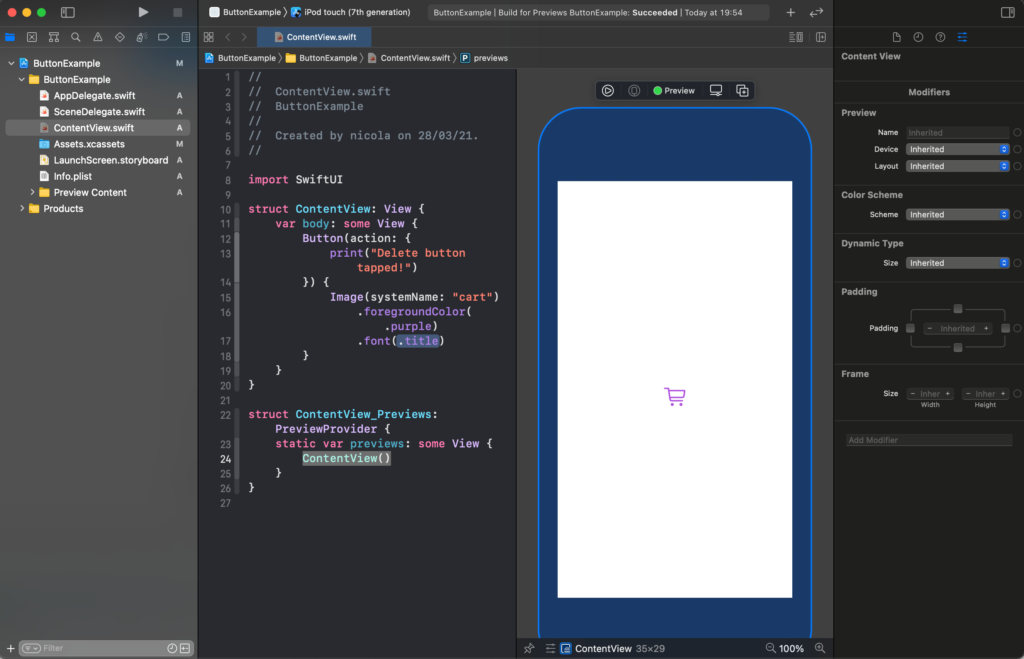
To have:

We applied the font properties to the system image.

For this week that’s all. In the next post, I’ll show how to have a nice effect on the button and how to interact with them.

Note: English is not my native language, so I’m sorry for some errors. I appreciate it if your correct me.
Worker or Craftsman

Yesterday morning I was contacted by an entrepreneur that needs to talk to me about his problem: He can’t find developers to make some tasks.

He says that pay is good (for every single task), I can also offer in future a part-time job (Wow – ironic).

My answer was nothing of special: the world needs developers but they are few, often also not qualified people do this job and so on (he already said that with no-code everyone can develop, I have a different idea about it, move the problem only on the next step, but it’s off-topic in this post).

In the end, I have suggested he try to find on the freelancer’s website, maybe asking some simple task to verify the quality of the developer.

Today morning, while I reading the last book of Adam Grant (Think again) I had a flash-bak, and rethink to these things, I remember his words: at the end I need workers.

Maybe I found the problem, what he thinks of the developers.

The problem is the word workers (also because honestly, there is always someone smart that want to do some little task for more money).

I respect the worker (an important job as every job) but the developer is more a craftsman than a worker, from a romantic point of view this job is science and art. Develop require focus, study, …

I think that any developers don’t want to be defined as a worker, he is a craftsman, he has relations with every software developed. So, my friend, maybe you don’t find it because you search for the wrong people. Good luck (i don’t know if I’ll advise you of the mistake, I’m a worker, not a psychologist).

The reference to the book can be casual, but if it interesting you https://amzn.to/3ciClHm