Images And Assets

In this post, we see how to use the images with SwiftUI and how to create some beautiful effect.

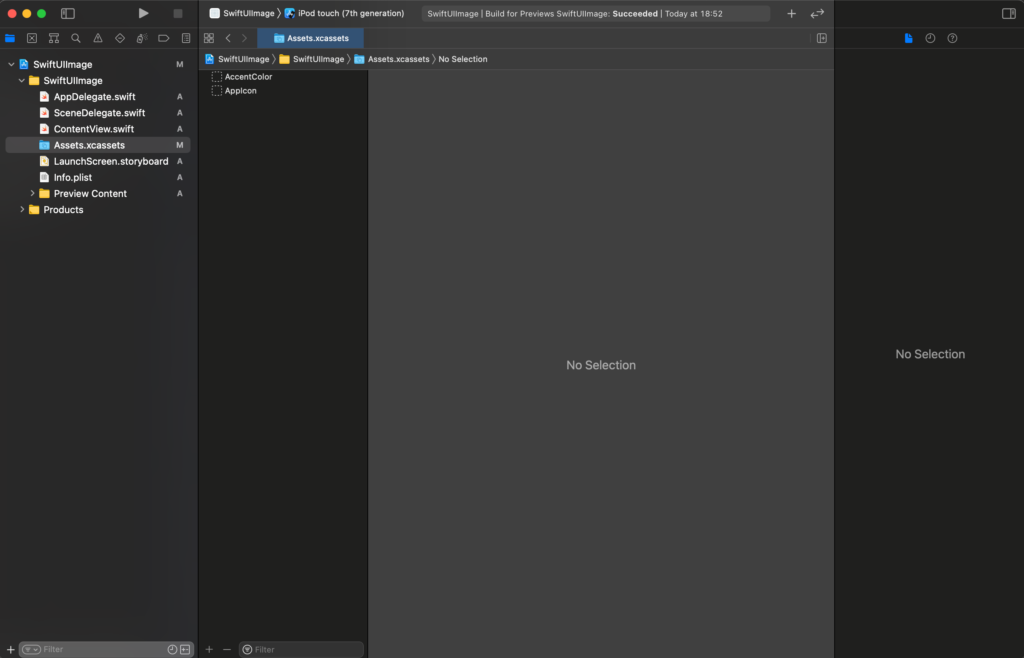
In beginning, we have to add an image to the assets of the XCode project. Click on the assets:

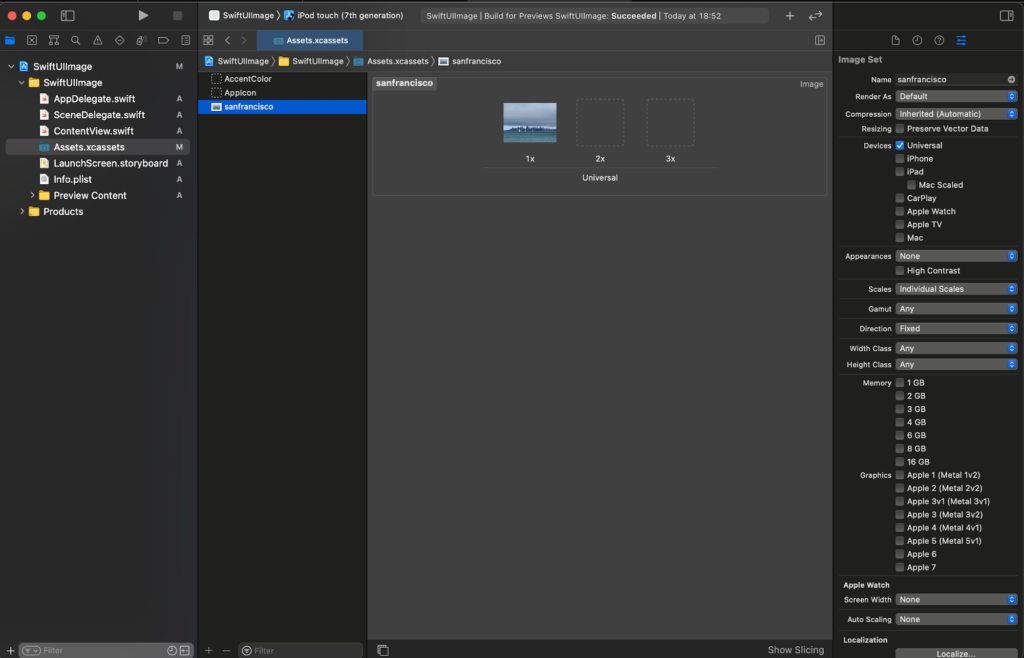
Drag your image under the AppIcon (you can use the image in the header of this post https://nicoladefilippo.com/wp-content/uploads/2021/04/sanfrancisco-1-1536×1152.jpg).

Upload sanfrancisco image

To use the image in the code:

import SwiftUI

struct ContentView: View {
    var body: some View {
        Image("sanfrancisco")
    }
}

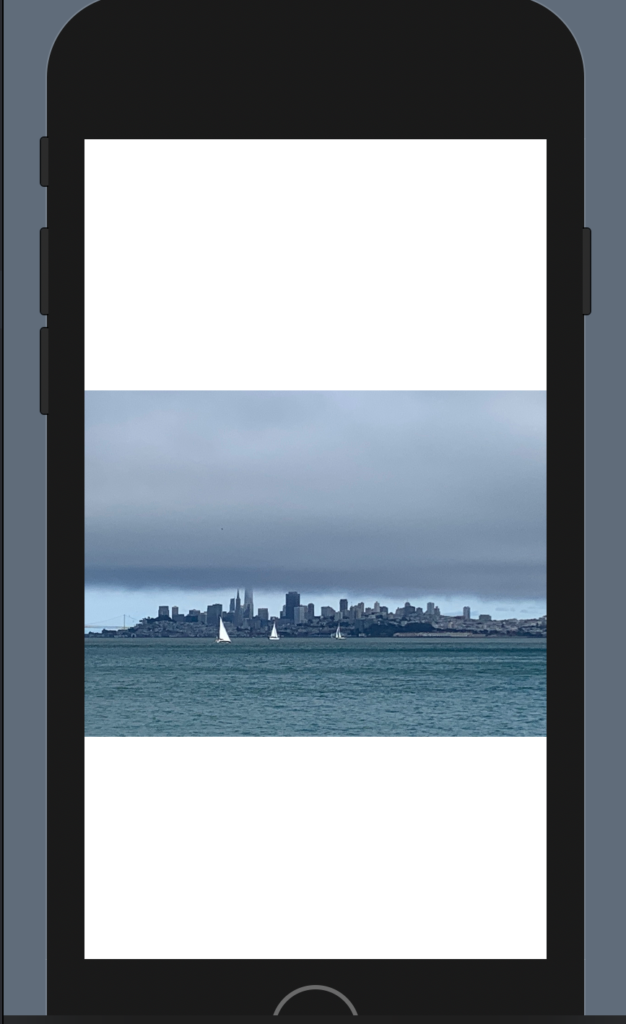
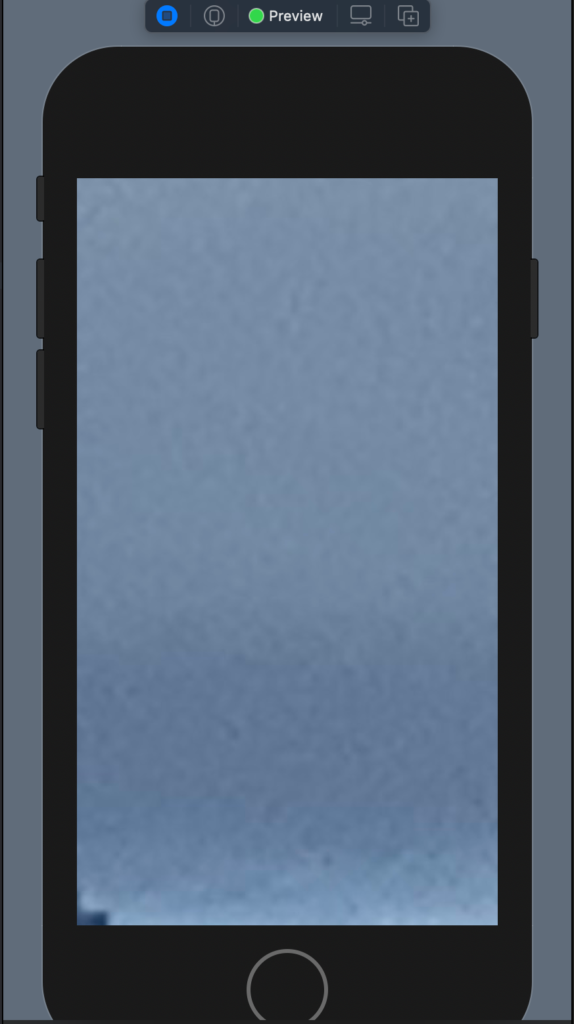
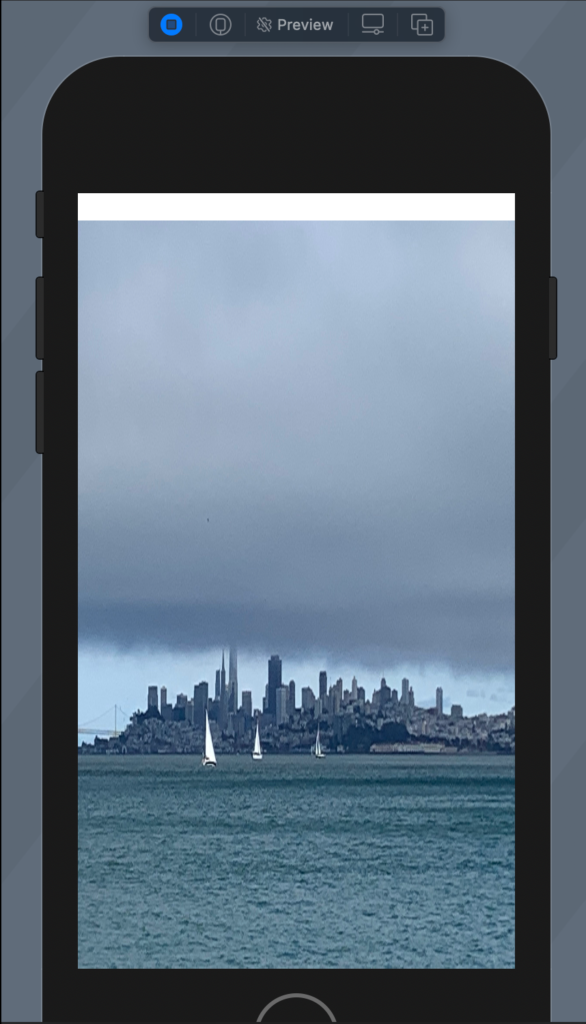
In this way we see the image in bad way:

To resize the image we have to add the resizable:

Image("sanfrancisco")
            .resizable()

To remove the white on the top we choose to ignore the safe area in this way:

struct ContentView: View {
    var body: some View {
        Image("sanfrancisco")
            .resizable()
            .aspectRatio(contentMode: .fill)
            .edgesIgnoringSafeArea(.all)
            
    }
}

Try this code and see what happen.

Aspect ratio

To default the aspect ratio is fill (fill the space but not preserve the aspect ratio), to preserve the aspect ratio:

struct ContentView: View {
    var body: some View {
        Image("sanfrancisco")
            .resizable()
            .aspectRatio(contentMode: .fit)
    }
}

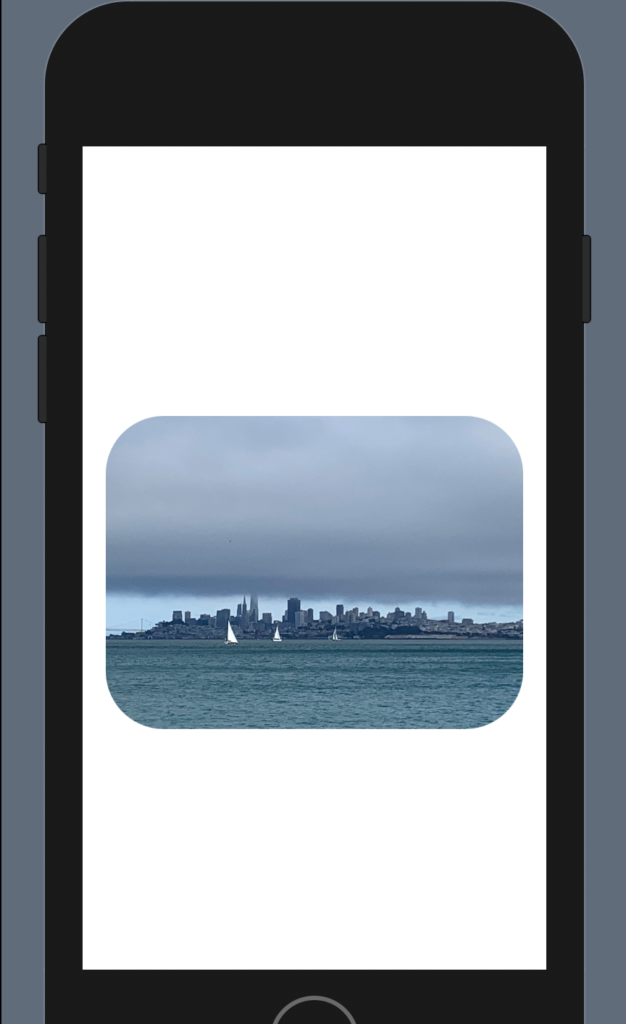
It’s not very nice, we can add rounded corner and padding:

struct ContentView: View {
    var body: some View {
        Image("sanfrancisco")
            .resizable()
            .aspectRatio(contentMode: .fit)
            .cornerRadius(40)
            .padding()
    }
}

To have:

Note: add the padding after the corner radius otherwise you will have the rounded corner.

Effects

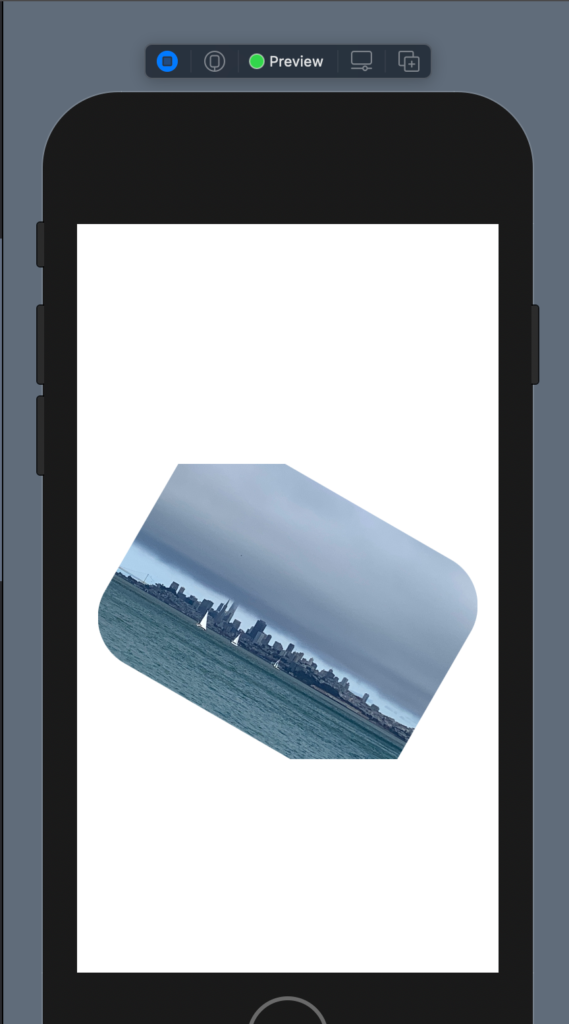
There is also another effect, for example, rotation, I show how to have a photo with a cut edges.

struct ContentView: View {
    var body: some View {
        Image("sanfrancisco")
            .resizable()
            .aspectRatio(contentMode: .fit)
            .cornerRadius(40)
            .padding()
            .rotationEffect(.init(degrees: 30))
            .cornerRadius(40)
            .padding()
    }
}

Shape

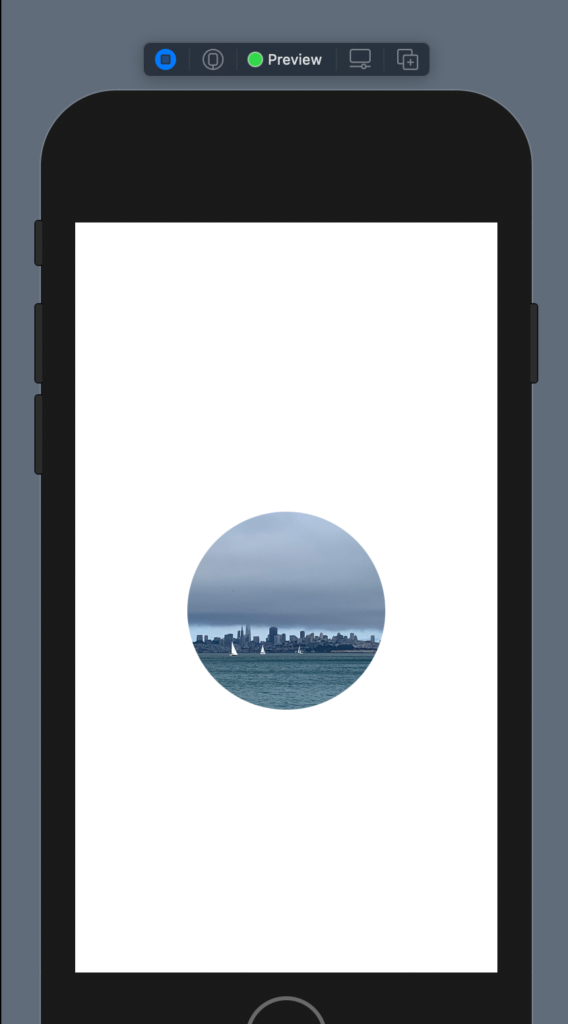
It’s possible also to give a shape and size to the image:

struct ContentView: View {
    var body: some View {
        Image("sanfrancisco")
            .resizable()
            .aspectRatio(contentMode: .fit)
            .clipShape(Circle())
            .frame(width: 200)
    }
}

Overlay

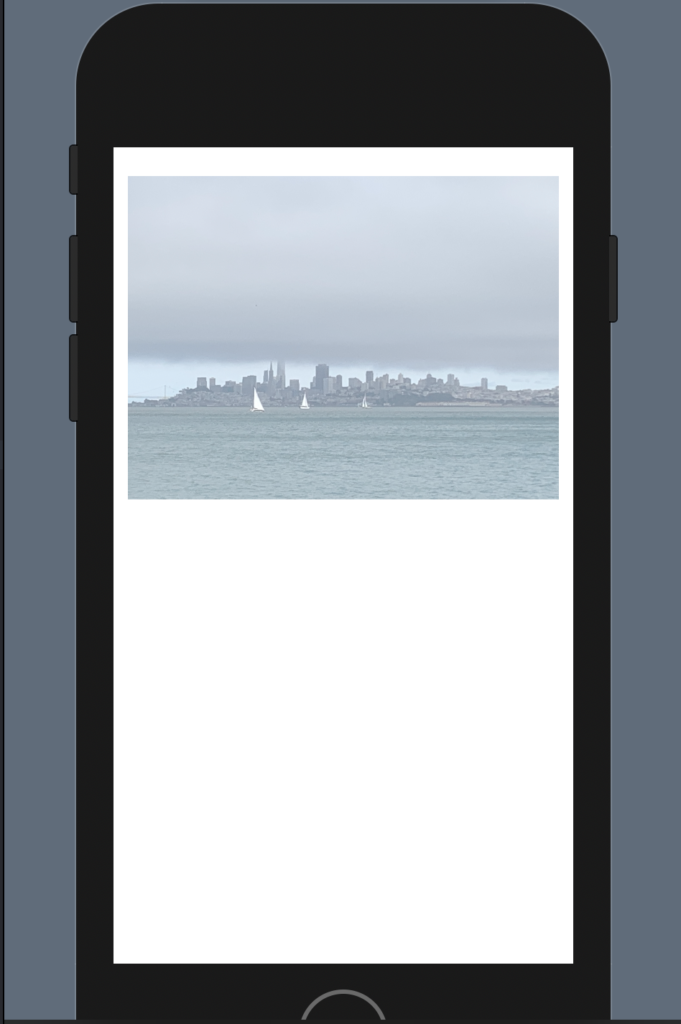
Now see how to overlay an object with another not using the ZStack. First, we push the image on the topo using a VStack and a spacer; change the size using a frame and change the opacity:

struct ContentView: View {
    var body: some View {
        VStack {
            Image("sanfrancisco")
            .resizable()
            .aspectRatio(contentMode: .fit)
            .frame(width: 300)
            .opacity(0.5)
            Spacer()
        }
            
    }
}

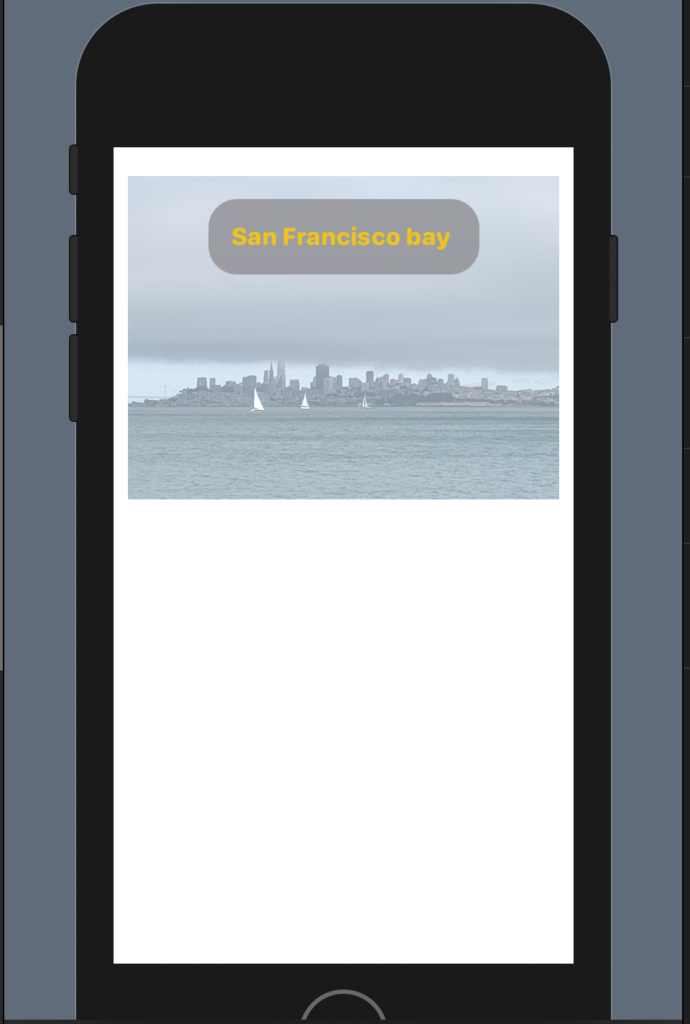
Now we want to add a title on the top of the photo:

The code:

struct ContentView: View {
    var body: some View {
        VStack {
            Image("sanfrancisco")
            .resizable()
            .aspectRatio(contentMode: .fit)
            .frame(width: 300)
            .opacity(0.5)
            .overlay(
                Text("San Francisco bay ")
                    .fontWeight(.heavy)
                    .font(.system(.headline, design: .rounded))
                    .foregroundColor(.yellow)
                    .padding()
                    .background(Color.gray)
                    .cornerRadius(20)
                    .opacity(0.8)
                    .padding(),
                    alignment: .top
                
                )
            Spacer()
        }
            
    }
}

We added an overlay with a Text with properties that we already know (from previous post https://nicoladefilippo.com/text-and-button-with-swuiftui/), note instead of the alignment, with this we say where to set the text. Alignment is a property of the overlay (note the comma after the last padding).

Note: English is not my native language, so I’m sorry for some errors. I appreciate it if your correct me.

Layout in SwiftUI

Vertical Stack

In the previous post we saw a single object in the view, but to build a nice and helpful interface we need to combine more objects. We start with a simple example, we want a text and a button.

VStack() {
            Button(action: {
                
            }) {
                Text("Press")
                    .padding()
                    .foregroundColor(.white)
                    .background(LinearGradient(gradient: Gradient(colors: [Color.black, Color.green]), startPoint: .trailing, endPoint: .leading
                    ))
                    .clipShape(Ellipse())
            }
            Text("Me")
                .foregroundColor(Color.red)
        }

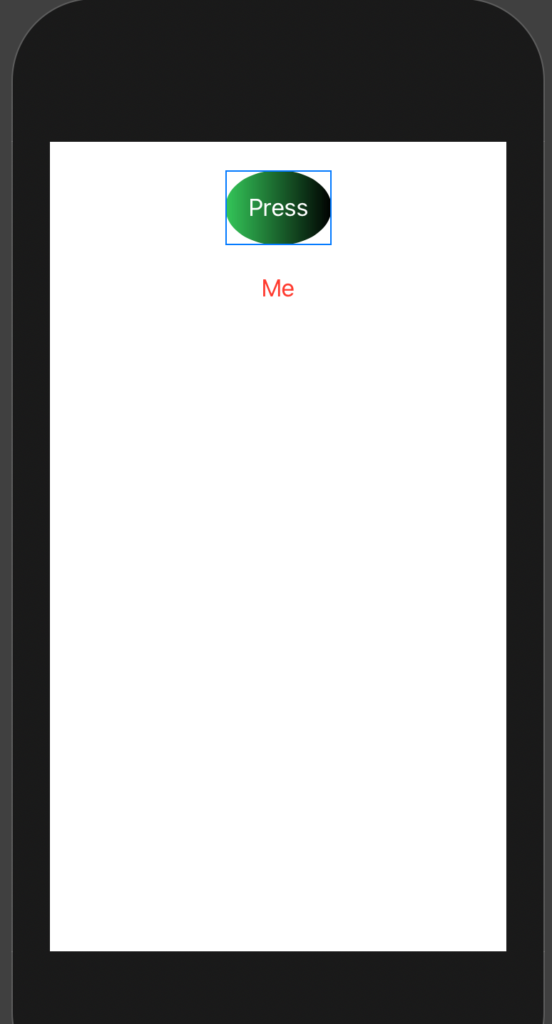
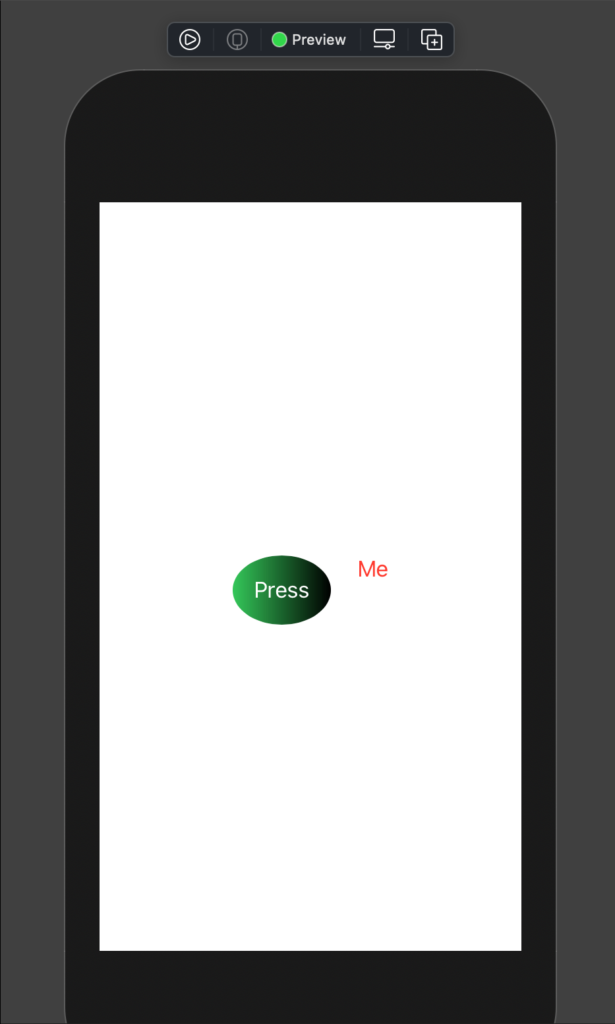
In the code, I used a vertical stack (VStack) the object is showed as in the column. See the picture:

It’s possible to also align the element in the stack, to leading (left), to right (trailing) or center (the default). To add the spacing between the elements it used the spacing property.

VStack(alignment: .leading, spacing: 20) {
            Button(action: {
                
            }) {
                Text("Press")
                    .padding()
                    .foregroundColor(.white)
                    .background(LinearGradient(gradient: Gradient(colors: [Color.black, Color.green]), startPoint: .trailing, endPoint: .leading
                    ))
                    .clipShape(Ellipse())
            }
            Text("Me")
                .foregroundColor(Color.red)
        }

To have:

How we can push the button and the text on the top of the view? We have to use the Spacer object:

struct ContentView: View {
    var body: some View {
        VStack(alignment: .center, spacing: 20) {
            Button(action: {
                
            }) {
                Text("Press")
                    .padding()
                    .foregroundColor(.white)
                    .background(LinearGradient(gradient: Gradient(colors: [Color.black, Color.green]), startPoint: .trailing, endPoint: .leading
                    ))
                    .clipShape(Ellipse())
            }
            Text("Me")
                .foregroundColor(Color.red)
            Spacer()
        }
    }
}

We added the Spacer object after the Text, so we fill the space and the other objects are pushed up.

If we push the Spacer before the button, the objects are pushed down.

Horizontal Stack

Dual of the Vertical Stack is the horizontal stack (HStack):

struct ContentView: View {
    var body: some View {
        HStack(alignment: .center, spacing: 20) {
            Button(action: {
                
            }) {
                Text("Press")
                    .padding()
                    .foregroundColor(.white)
                    .background(LinearGradient(gradient: Gradient(colors: [Color.black, Color.green]), startPoint: .trailing, endPoint: .leading
                    ))
                    .clipShape(Ellipse())
            }
            Text("Me")
                .foregroundColor(Color.red)

        }
    }
}

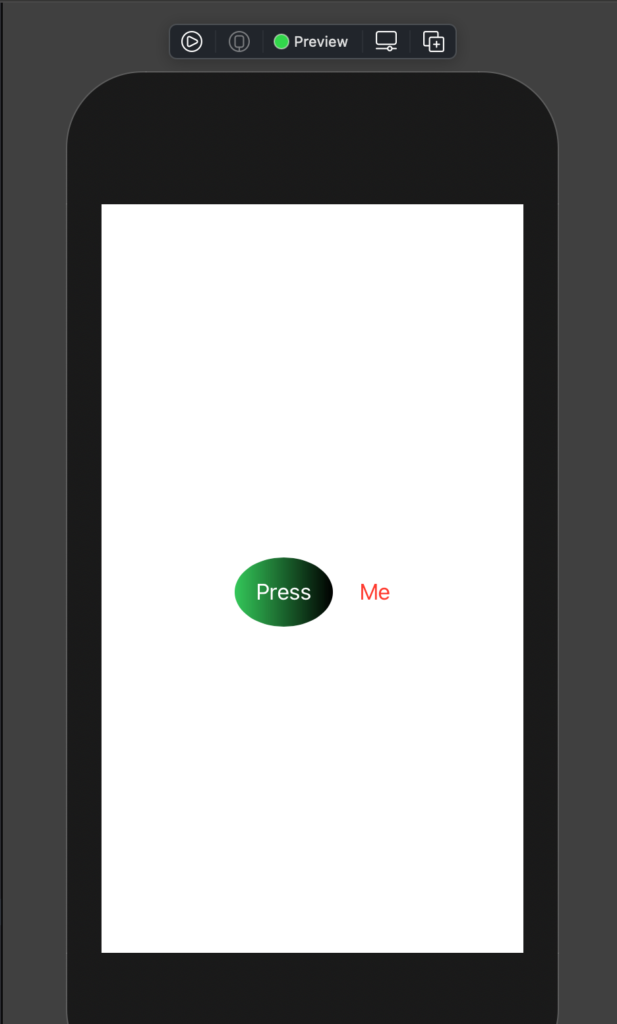
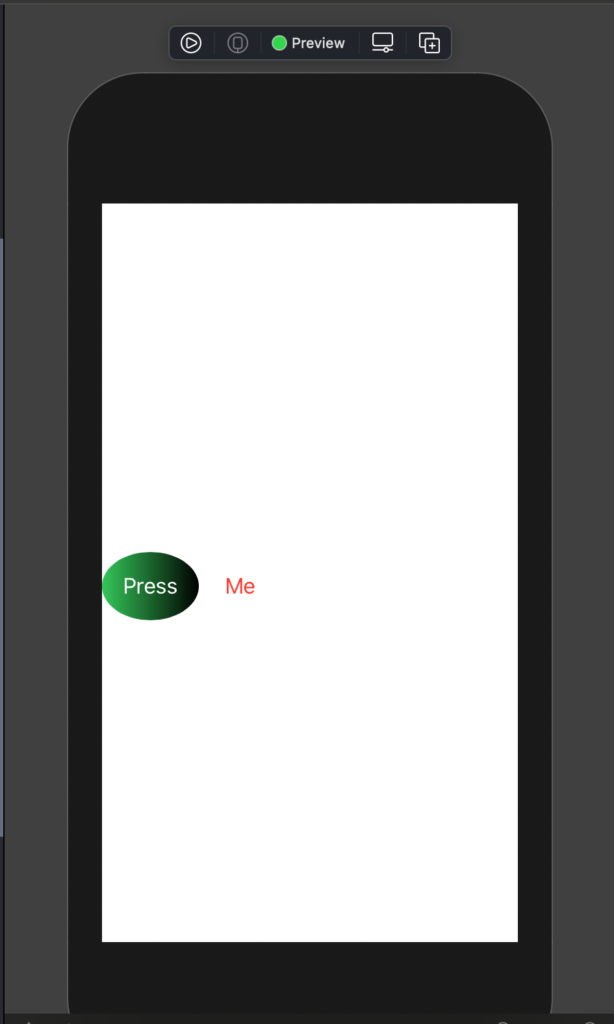
To have:

The alignment, in this case, is center, top and bottom. See top as an example:

struct ContentView: View {
    var body: some View {
        HStack(alignment: .top, spacing: 20) {
            Button(action: {
                
            }) {
                Text("Press")
                    .padding()
                    .foregroundColor(.white)
                    .background(LinearGradient(gradient: Gradient(colors: [Color.black, Color.green]), startPoint: .trailing, endPoint: .leading
                    ))
                    .clipShape(Ellipse())
            }
            Text("Me")
                .foregroundColor(Color.red)

        }
    }
}

It looks as:

With the HStack we using the Spacer to push the objects on the left or the right. For example, if we write the Spacer after the Text:

struct ContentView: View {
    var body: some View {
        HStack(alignment: .center, spacing: 20) {
            Button(action: {
                
            }) {
                Text("Press")
                    .padding()
                    .foregroundColor(.white)
                    .background(LinearGradient(gradient: Gradient(colors: [Color.black, Color.green]), startPoint: .trailing, endPoint: .leading
                    ))
                    .clipShape(Ellipse())
            }
            Text("Me")
                .foregroundColor(Color.red)
            Spacer()

        }
    }
}

To have:

ZStack

SwiftUI has also a ZStack, it’s as a pile. See the code:

struct ContentView: View {
    var body: some View {
        ZStack() {
            Text("I'm level 0")
                .foregroundColor(Color.white)
                .padding(100)
                .background(Color.gray)
            Text("I'm level 1")
                .foregroundColor(Color.blue)
        }
    }
}

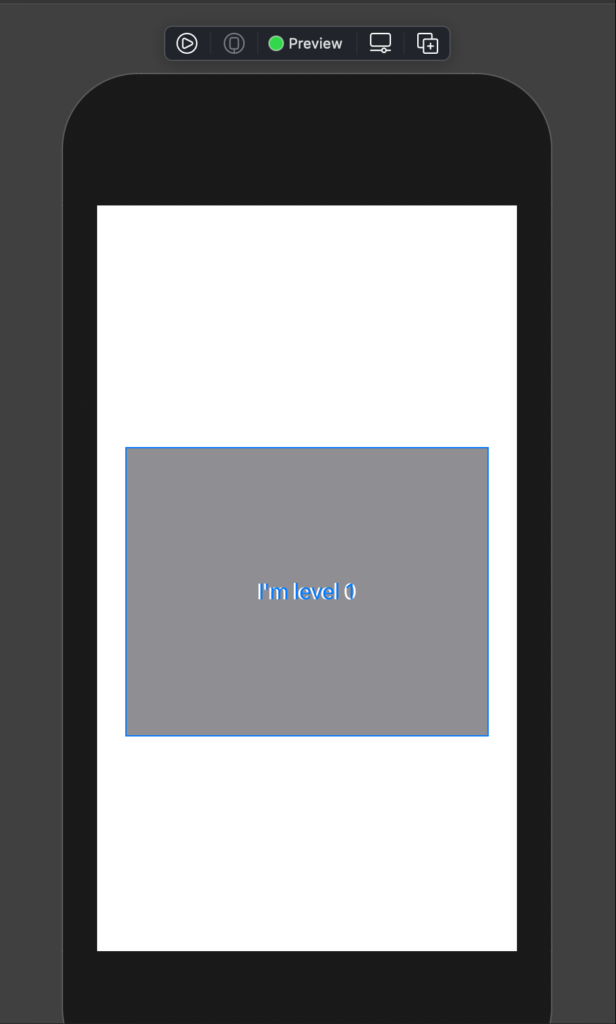
If we run this code we see that the second label (“I’m level 1”), override the first one:

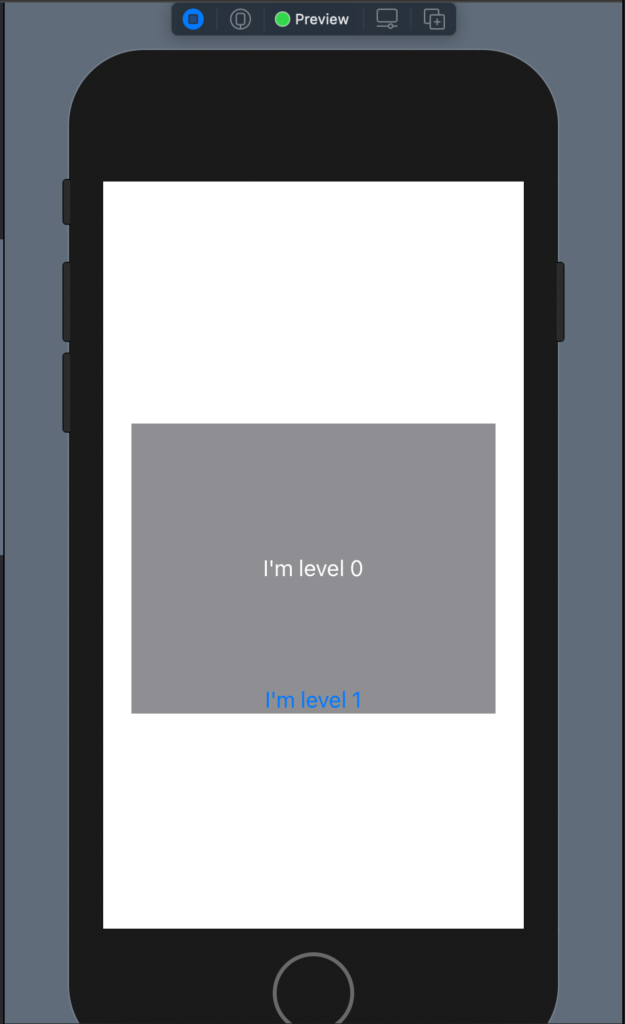
In this way it’s not helpful, to move the second label we can use the offset(x, y) where the X is relative to the beginning of the first element, the same for the Y.

struct ContentView: View {
    var body: some View {
        ZStack() {
            Text("I'm level 0")
                .foregroundColor(Color.white)
                .padding(100)
                .background(Color.gray)
            Text("I'm level 1")
                .foregroundColor(Color.blue)
                .offset(x: 0, y: 100)
        }
    }
}

To have:

It does not seem very cool example, but we’ll see nice things in the next post when I’ll show how to use the image.

Note: English is not my native language, so I’m sorry for some errors. I appreciate it if your correct me.
Button 2nd episode

Button Shape

In the previous post https://nicoladefilippo.com/text-and-button-with-swuiftui/, we saw how to create simple buttons, in this post we see also it’s possible also create a button with a particular shape, for example, a circle or ellipse.

struct ContentView: View {
    var body: some View {
        Button(action: {
            
        }) {
            Text("Press")
                .padding()
                .background(Color.red)
                .clipShape(Ellipse())
        }
    }
}

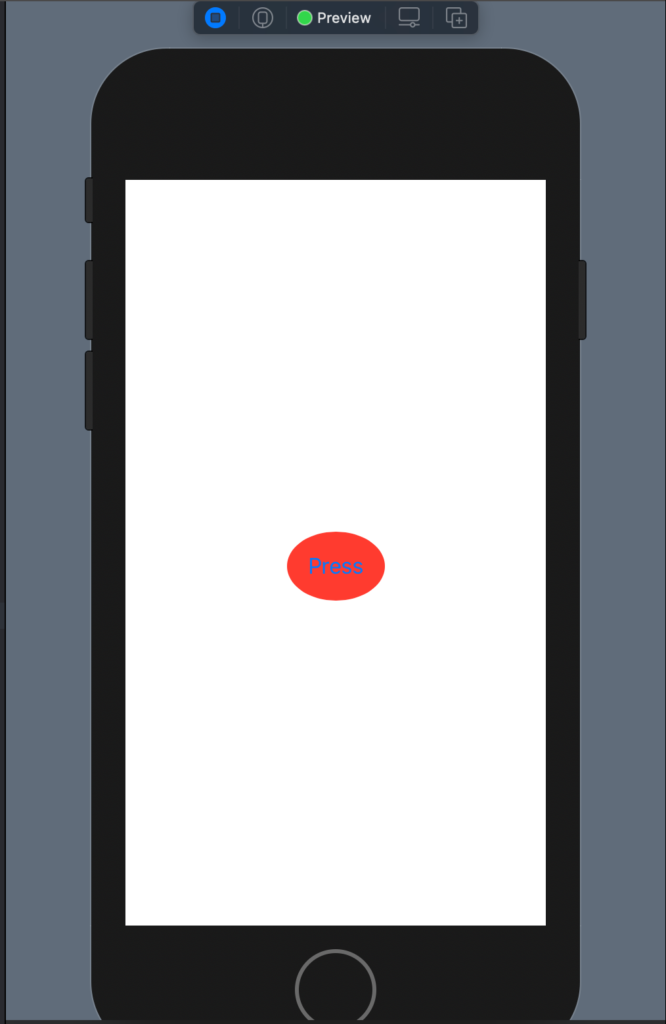
In this case, we have a Button with a text a red background and clipped has Ellipse. The result is:

You can try to use Circle() to see the different shape button.

Gradients

It’s possible also to use a gradient as a background instead of a simple color:

struct ContentView: View {
    var body: some View {
        Button(action: {
            
        }) {
            Text("Press")
                .padding()
                .foregroundColor(.white)
                .background(LinearGradient(gradient: Gradient(colors: [Color.yellow, Color.green]), startPoint: .trailing, endPoint: .leading))
                .clipShape(Ellipse())
        }
    }
}

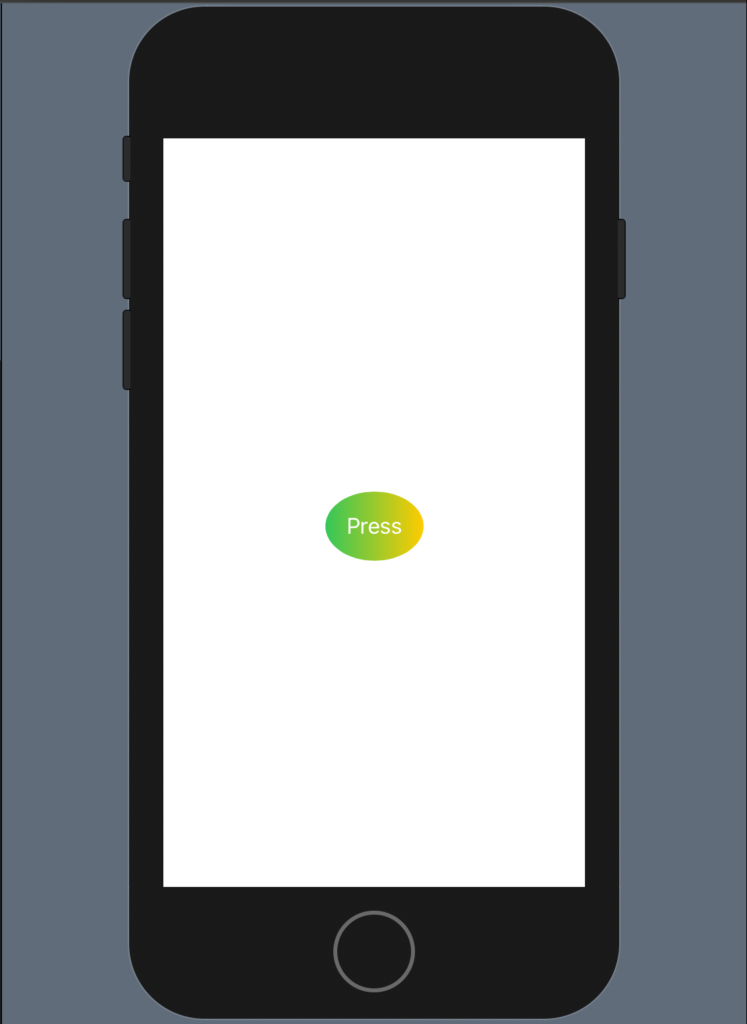
In this case, we have a linear gradient that starts from the yellow colour to finish in green, note as the gradient start on the right (trailing), if you invert trailing and leading you to invert also the effect.

The code produces:

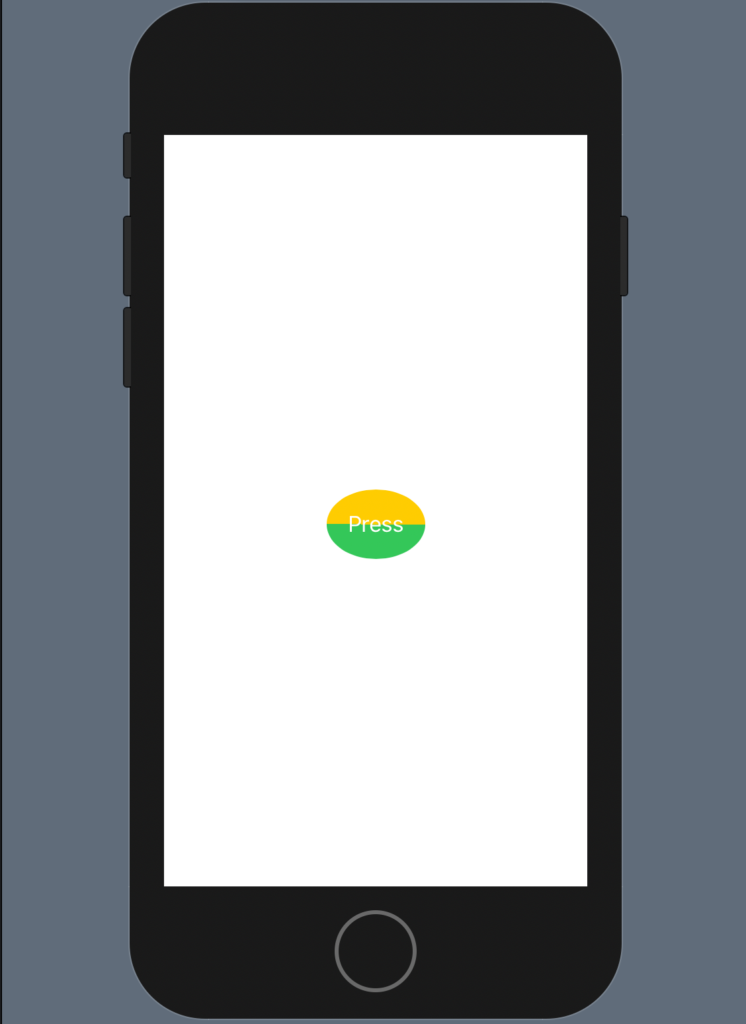
What happens if the start point is equal to the end point?

The code is:

struct ContentView: View {
    var body: some View {
        Button(action: {
            
        }) {
            Text("Press")
                .padding()
                .foregroundColor(.white)
                .background(LinearGradient(gradient: Gradient(colors: [Color.yellow, Color.green]), startPoint: .leading, endPoint: .leading))
                .clipShape(Ellipse())
        }
    }
}

Another nice example:

struct ContentView: View {
    var body: some View {
        Button(action: {
            
        }) {
            Text("Press")
                .padding()
                .foregroundColor(.white)
                .background(LinearGradient(gradient: Gradient(colors: [Color.black, Color.green]), startPoint: .trailing, endPoint: .leading
                ))
                .clipShape(Ellipse())
        }
    }
}

Note: English is not my native language, so I’m sorry for some errors. I appreciate it if your correct me.
Text And Button with SwuiftUI

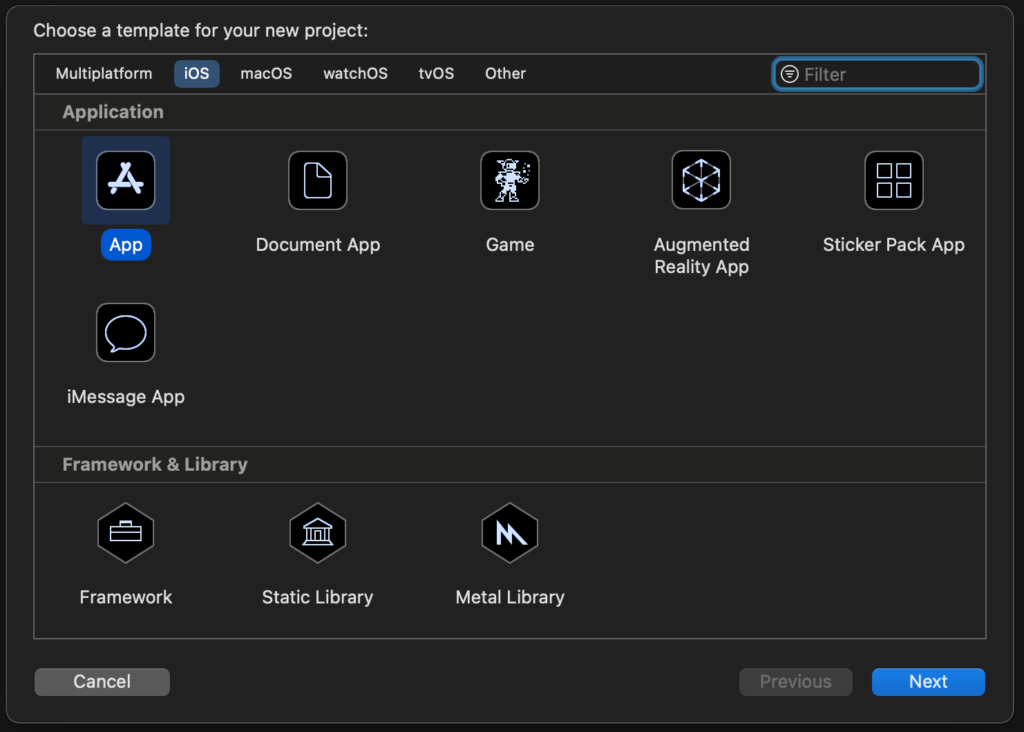
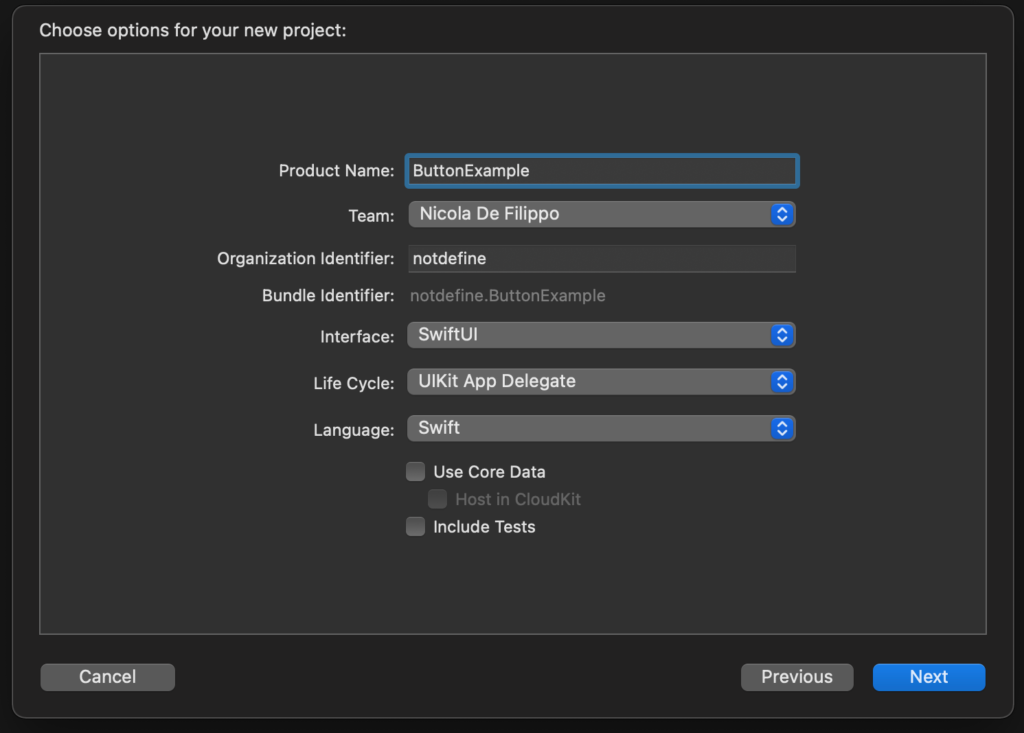
In 2019 Apple introduced the SwuifUI, a declarative language to develop the UI on Apple devices, in fact with this language is more simple to port an application from iPhone on the other devices type (AppleTV. iWatch, ..) and vice versa. Now in the Xcode, the default way to develop an application is to use SwuiftUI, instead is an optional use of UIKit (but it is not obsolete, in some case we need the uikit yet). Creating a new project we see the dialog to choose the project name and the Combobox to choose the toolkit.

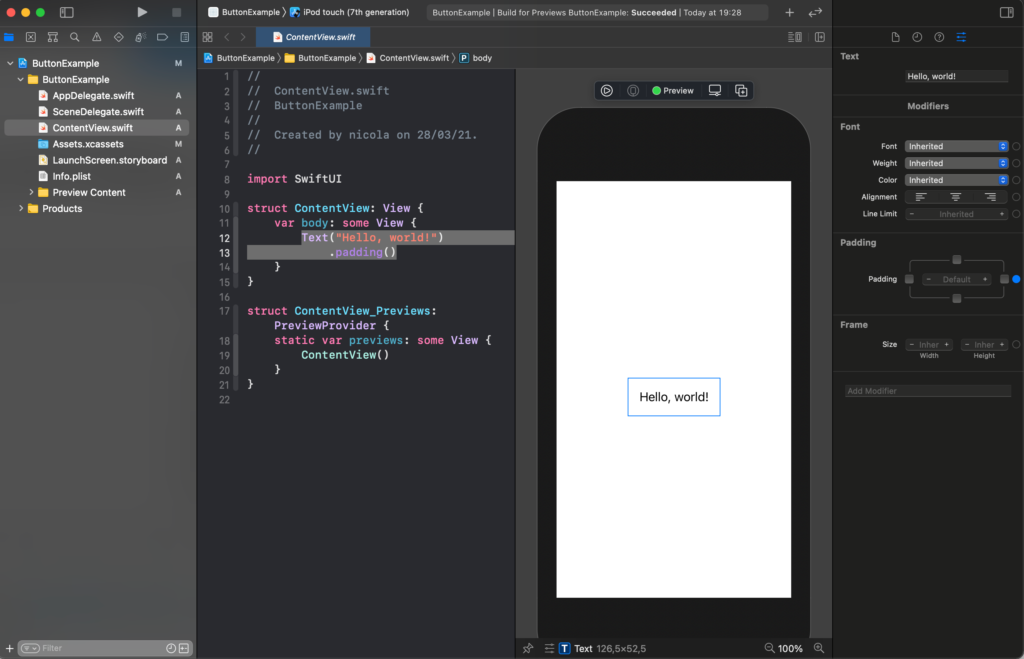
After creating the project we see on the left sidebar the list of the files, in the centre the code and the preview, instead of on the right the property of the selected object.

The main word that we always will see in the SwiftUI is “view”, it’s a protocol, to show an object we need to use its protocol (to default it permits to use of default methods to manage the property of the objects). Another interesting word is “some”. This word means: “opaque type”. I find this nice post that explains that https://medium.com/@PhiJay/whats-this-some-in-swiftui-34e2c126d4c4 I suggest you read it. If you don’t want to read the full post about it, the main phase is: “Adding this keyword turns the return type into an opaque type which means that you and the compiler both know that this function will always return only one particular concrete type — you’ll just never know which one!”

The default piece of the code for a new project is:

struct ContentView: View {
    var body: some View {
        Text("Hello, world!")
            .padding()
    }
}

struct ContentView_Previews: PreviewProvider {
    static var previews: some View {
        ContentView()
    }
}

The result is the text “Hello world” printed in the centre of the screen.

The ContentView_Previews is used to show the view in the preview window. This window has also a play button, so you can interact with the graphical object (how in a simulator).

Text

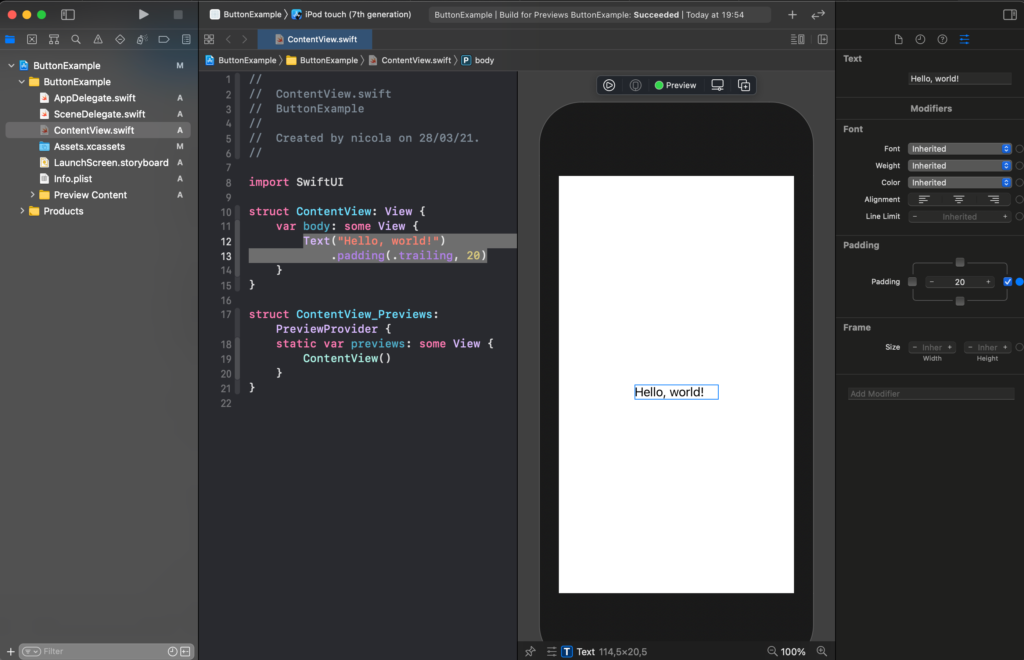
Come back to the text “Hello World”. It’s centred because every object is centred to default in the centre of the view. The padding is not a property of the whole label, but it’s a property of the text in the Label, in fact, if we change in:

struct ContentView: View {
    var body: some View {
        Text("Hello, world!")
            .padding(.trailing, 20)
    }
}

you will see space after the exclamation mark.

Note that in the SwuiftUI world, trailing means right and leading meanings left. So try to change .trailing in .leading and see the effect.

It’s possible to change the font properties, using the default system font, for example title

struct ContentView: View {
    var body: some View {
        Text("Hello, world!")
            .padding()
            .font(.title)
    }
}

To exercise you can try to see the other default size.

It’s possible also to use custom properties for, size, colour and so on.

struct ContentView: View {
    var body: some View {
        Text("Hello, world!")
            .padding()
            .font(.system(size: 10, weight: .bold))
            .foregroundColor(Color.white)
            .background(Color.blue)       
    }
}

To use a custom family font

struct ContentView: View {
    var body: some View {
        Text("Hello, world!")
            .padding()
            .font(.custom("Courier", size: 10))    
    }
}

A nice property is roudend, for the design.

struct ContentView: View {
    var body: some View {
        Text("Hello, world!")
            .fontWeight(.bold)
            .padding()
            .font(.system( .title, design: .rounded ))
    }
}

Note the order of the method, it’s not casual, the method is called in the order top to bottom, if you can try to invert, you can have errors or different output (try to move the padding at the end).

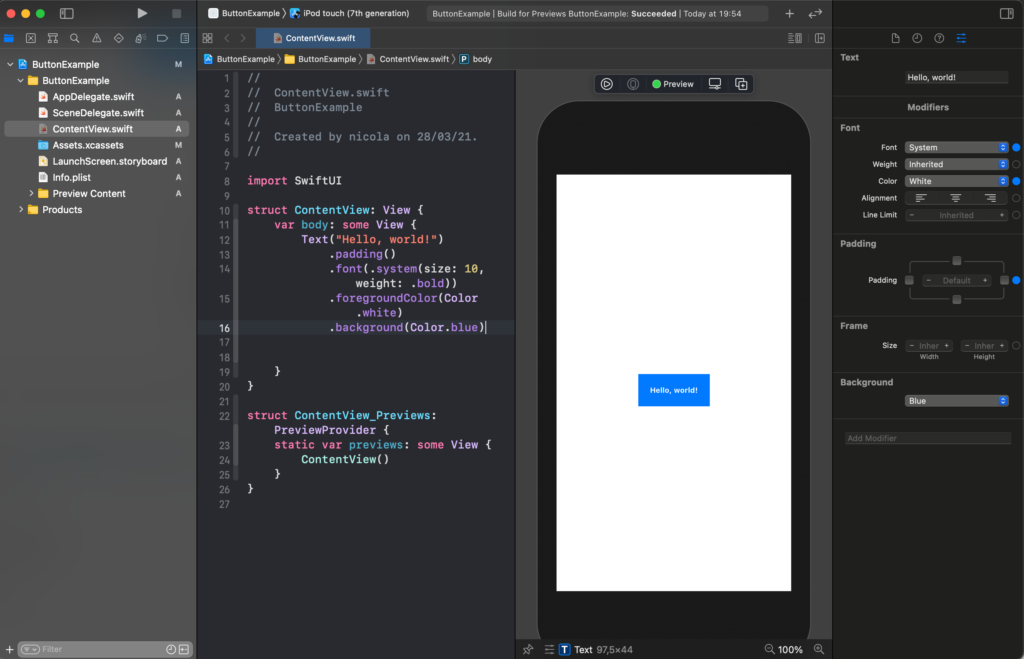
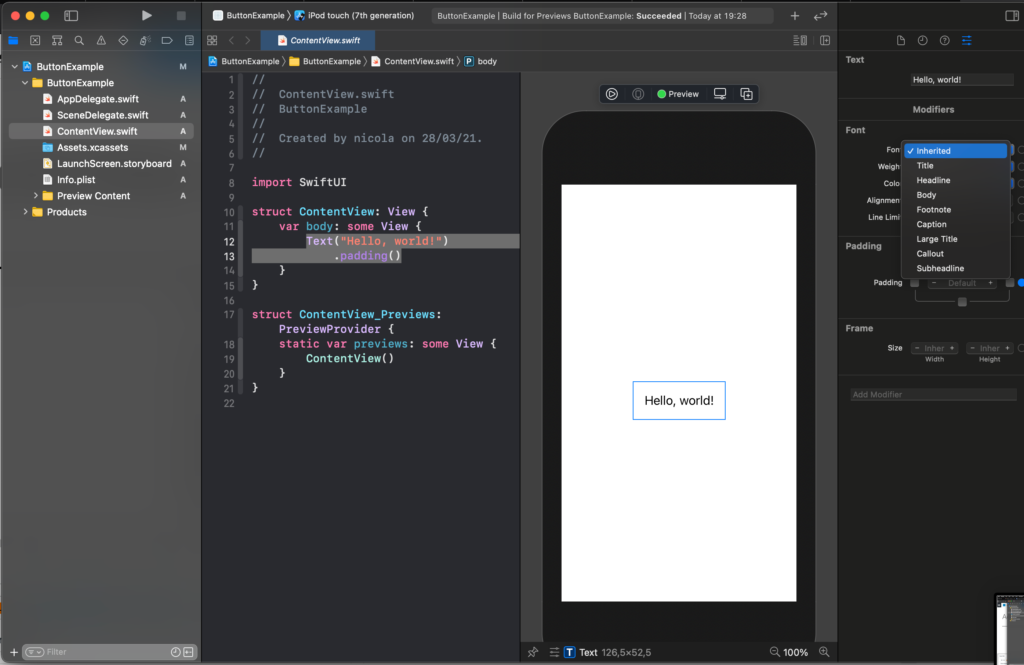
It’s possible to change the properties using the panel on the right (how in the picture) but I think is much helpful to see them directly in the code.

Buttons

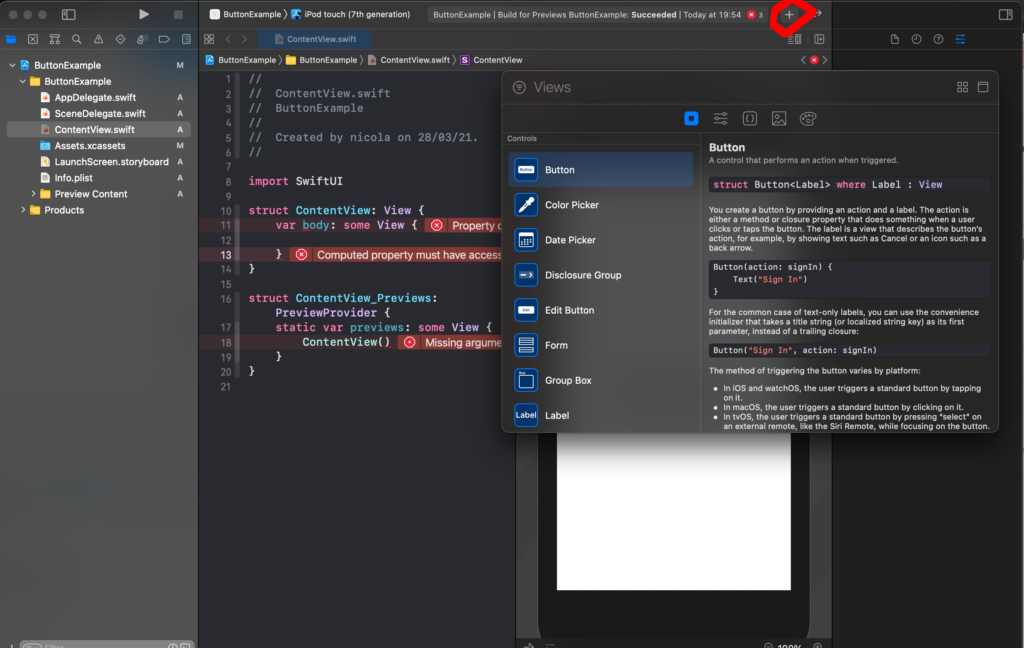
Now see the Button, cancel the code about the Text. Click on the plus button as in the figure and drag the button in the code.

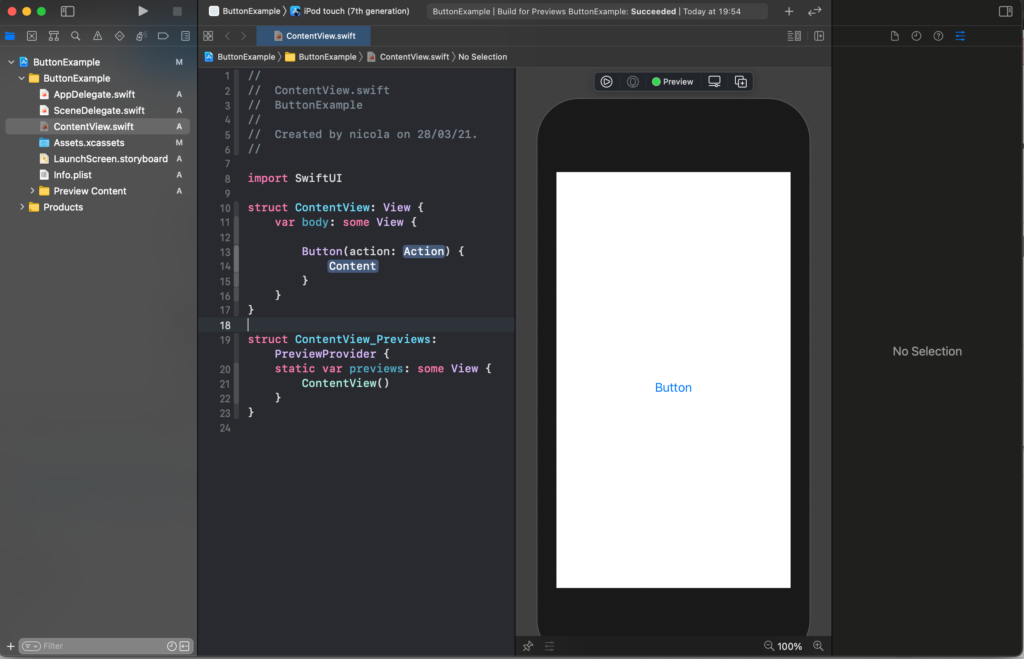
Now replace the Label and Action with our code

struct ContentView: View {
    var body: some View {

        Button(action: {}) {
            Text("Touch me")
        }
    }
}

For now, we replace the action label with empty code (no action) and the content with a Text object.

To modify the look of the button we have to change the content so in this case the Text object.

struct ContentView: View {
    var body: some View {

        Button(action: {}) {
            Text("Touch me")
                .padding(10)
                .background(Color.blue)
                .foregroundColor(.white)
                .cornerRadius(10)
        }
    }
}

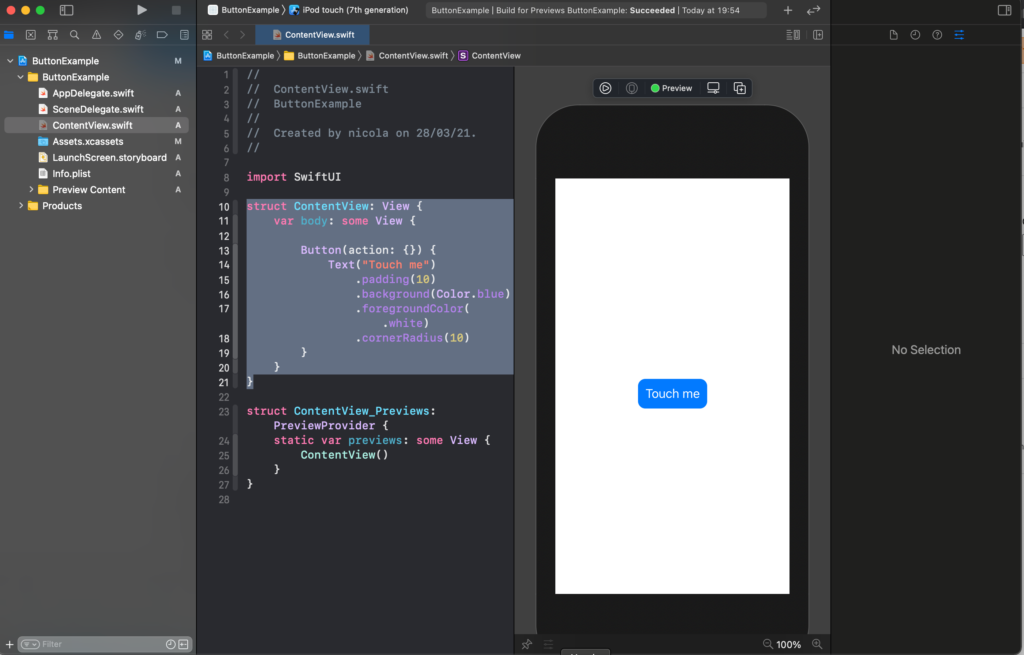
To have this button:

Used the method cornerRadius to have rounded corner

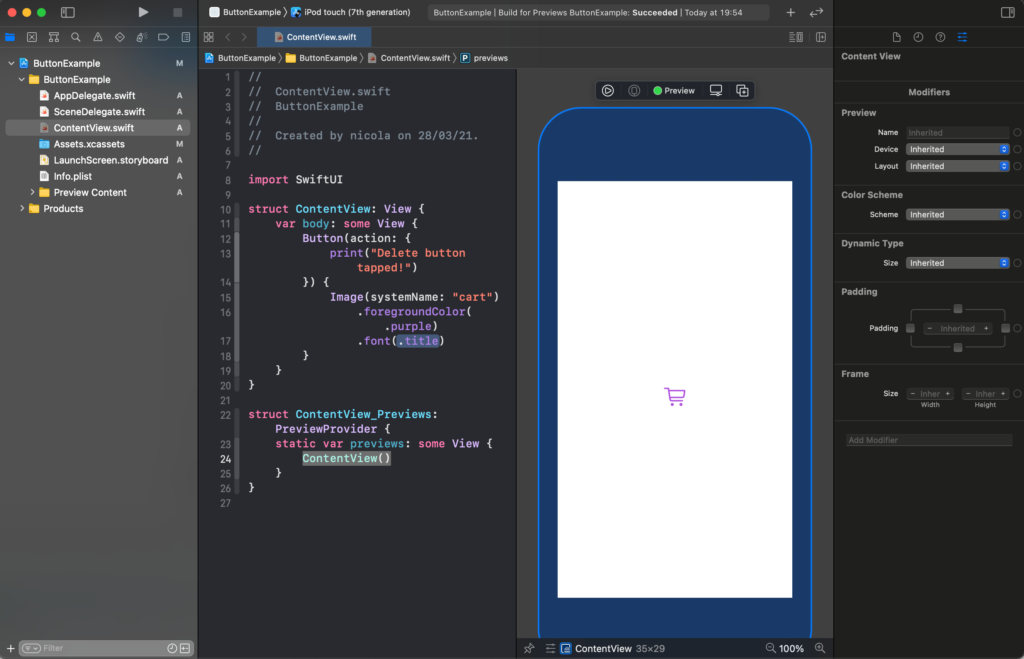
We can also use the system image (please download the San Francisco symbols from https://developer.apple.com/sf-symbols/)

struct ContentView: View {
    var body: some View {
        Button(action: {
            
        }) {
            Image(systemName: "cart")
                .foregroundColor(.purple)
                .font(.title)
        }
    }
}

To have:

We applied the font properties to the system image.

For this week that’s all. In the next post, I’ll show how to have a nice effect on the button and how to interact with them.

Note: English is not my native language, so I’m sorry for some errors. I appreciate it if your correct me.
Swift in five minutes

In this post, I’ll show the fundamentals of the Swift language. It’s the first of a series where I’ll show how to build a chat app using Swift and SwiftUI.

Let’s start with the simpler things, comments, variables and constants:

// It's a line comment

/*
   This is a multiline
   comment
*/

// Variable definition:
// var varname: Type = Initial value

var name: String = "Nicola"

The variables are defined using the “var” keyword, a name, after the “:” we must write the type of the variable (String, Double, Float, Array, Set,..)

The variable can be also declared shortly, omitting the type and setting directly the value, in this case, the variable gets the type of the value.

// declaring an int variable omitting the type
var age: 10 // age is an integer

The constants are declared in the same way, apart from using the “let” keyword and that they can get only a value that can be changed.

let pi = 3.14

pi = 4 // Error can't change costant value

In Swift we can declare a variable as optional, the variable can assume every value of the type defined and the “null” value. In this way, the nulla value became a possible value for that variable. An optional variable is defined appending the “?” to the type:

var myOpt: Int?
myOpt = 3

// to get the myOpt value
if let value = myOpt { 
    print("Value \(value)")
} else {
    print("null")
}

// it's equivalent to
if myOpt != nul {
  var value = myOpt!
  print("Value \(value)")
} else {
  print("null")
}

Note the “!” after myOpt, using the “!” we force to get the value of myOpt. Use it only when you are sure that the variable is not null, otherwise you can have some crash due to null pointer exception.

About the conditional statement, you find the classic:

if condtion {
} else if condition {
} else {
}

// Locic operator
// && for a and b
// || for a or b
// == for a equal b
// != for b not equal b

In swift the “condition” not need to have enclosed in () how in other languages (i.e. C).

See other types: Array, Tuple and Set.

// Array declaration
// var name: Array<Type>

// Example
var numbers: Array<Int> // at this moment the numbers is nill

// To be able to make operation on the array we must initialize

numbers = Array<Int>() // now we have an empty array

numbers.append(3) // add the number 3
numbers.append(1) // add the number 1

To iterate the elements of the array (or other collections) we need the control flow, in this case, the for loop.

for i in 0..<numbers.count { // from zero to 1
    print("numbers[\(i)] = \(numbers[i])")
}

In the previous code we iterate the numbers vector operating on a sequence in the range 0..<numbers.count . In this case 0..<2, mean that i can assume the value 0,1.

A range can be defined in this way:

var firstTenA = 0...10 // all the number from 0 to 10
var firstTenB = 0..<11 // all the number from 0 to 10
// with the < we exclude the value on the right
// Other version of the for loop see before
for i in 0...(numbers.count - 1) { // from zero to 1
    print("numbers[\(i)] = \(numbers[i])")
}

Note if you want to iterate in reverse order, you must use the reverse method :

for i in (0..<numbers.count).reversed() { 
    print("numbers[\(i)] = \(numbers[i])")
}

It possible also iterate directly on the vector:

for elem in numbers {
    print(elem)
}

About the iteration, look at the String, we can’t iterate the string with int index but using the indices.

var name: String = "Bob"
// write every single character of the string
for i in name.indices {
    print(name[i])
}

Other controls flow: while and repeat while

var counter = 10
while counter > 0 {
    print(counter)
    counter = counter - 1
}

repeat {
    print(counter)
    counter = counter + 1
} while counter < 10


How in other programming languages the code in the while is executed until the condition is true, instead of with the repeat while, the code is executed at least one time.

Another collection type is the dictionary, it’s a list of pair key and value.

var dict: [Int: String] = [Int: String]()
dict[404] = "Not found"

for key in dict.keys {
    print(key)
}

for value in dict.values {
    print(value)
}


In the code, we see the declaration of a dictionary where the key is an Int and the value is a String. It’s possible to access the element using the key in [], instead, it’s possible to iterate the key and the values using the methods keys and values.

The next step is to see how to declare and use the functions.

func nameLastName(name a: String, lastname b: String ) {
    print("Name \(a) Lastname \(b)")
}

The function is declared using the keyword func, the parameters are passed indicating a label, a name of the parameter and the type.

You can see the label as a help for the programmer, it explains what the parameter means, instead the name is used in the body of the function. To invoke that function:

nameLastName(name: "Bob", lastname: "Rossi")

It’s possible to declare also the function without the labels:

func nameLastName(a: String, b: String ) {
    print("Name \(a) Lastname \(b)")
}

// In this case the function is called in this way
nameLastName(a: "Bob", b: "Rossi")

In the end, it’s possible to declare the function to avoid the use of the name in the call.

func nameLastName(_ a: String, b: String ) {
    print("Name \(a) Lastname \(b)")
}

// In this case the function is called in this way
nameLastName("Bob", b: "Rossi")

The function can return also a value:

// Function that returns an Int
func squareRect(width: Int, height: Int) -> Int {
    let sup = width * height
    return sup
}

print(squareRect(width: 4, height: 5))

The type returned is indicated by the symbol “->”.

In Swift the parameter are passed for value, it means that we can’t change the value of the parameters in the body of the function, to make it we have to use the keyword inout in this way:

// Swap the value of two element
func swap(a: inout Int, b: inout Int) {
    let dum = a
    a = b
    b = dum
}

var first = 3
var second = 4

// Call the functions using "&" near the parameters
swap(a: &first, b: &second)

A type a bit different from other languages is the Enum. Here an example:

enum Polar: Int {
    case north = 1
    case sud, west, est
    func description() -> String{
        switch self {
        case .north:
            return "North"
        case .est:
            return "Est"
        case .west:
            return "West"
        case .sud:
            return "Sud"
        }
    }
}

The enum can have also a type (Int in the example), it’s possible to assign a specified value at every element of the enum. The big difference in Swift is that it’s possible to declare also e function in an Enum and invoke it.

var sanFrancisco = Polar.west

print(sanFrancisco.description()) // print "West"

Now see the data structure, the first one is the struct.

struct Coordinate {
    var lat: Double
    var long: Double
    
    func xy() {
       print("Lat = \(lat) and Long = \(long)")
    }
}

How in the example the struct is a data structure that can contain properties (variables, constants) and methods (function).

Very similar is also the declaration of the class:

class ClassCoordinate {
    var lat: Double
    var lon: Double
    init(lat: Double, lon: Double) {
        self.lat = lat
        self.lon = lon
    }
    
    func invert() {
        let dum = lat
        lat = lon
        lon = dum
    }
    
    func coord() -> String {
        return ("(\(lat),\(lon))")
    }
}

The big difference between class and the structures is that the struct is a value type, so if we have two variables of the same structure type, and assign the second to one, in the first is copied the value of the second.

var coordA = Coordinate(lat: 37.3382, long: 121.8863)
var coordB = Coordinate(lat: 37.3382, long: 121.8864)
var coordC = Coordinate(lat: 37.3382, long: 121.8865)

print("Point A \(coordA) Point B \(coordB)")
coordA = coordB
print("Point A \(coordA) Point B \(coordB)")
coordB = coordC
print("Point A \(coordA) Point B \(coordB)")

/*
Produce this output
Point A Coordinate(lat: 37.3382, long: 121.8863) Point B Coordinate(lat: 37.3382, long: 121.8864)
Point A Coordinate(lat: 37.3382, long: 121.8864) Point B Coordinate(lat: 37.3382, long: 121.8864)
Point A Coordinate(lat: 37.3382, long: 121.8864) Point B Coordinate(lat: 37.3382, long: 121.8865)
*/

With the class it’s is different, the class is a reference type, so when a second class is assigned to the first class, is not copied the value but the reference, so they are the same object. If you change one, change the values of the other.

var coordClassA = ClassCoordinate(lat: 37.3382, lon: 121.8863)
var coordClassB = ClassCoordinate(lat: 37.3382, lon: 121.8864)

print("Point A \(coordClassA.coord()) Point B \(coordClassB.coord())")
coordClassA = coordClassB
print("Point A \(coordClassA.coord()) Point B \(coordClassB.coord())")
coordClassB.lat = 1
coordClassB.lon = 2
print("Point A \(coordClassA.coord()) Point B \(coordClassB.coord())")

/*
The output is
Point A Coordinate(lat: 37.3382, long: 121.8863) Point B Coordinate(lat: 37.3382, long: 121.8864)
Point A Coordinate(lat: 37.3382, long: 121.8864) Point B Coordinate(lat: 37.3382, long: 121.8864)
Point A Coordinate(lat: 37.3382, long: 121.8864) Point B Coordinate(lat: 37.3382, long: 121.8865)
Point A (37.3382,121.8863) Point B (37.3382,121.8864)
Point A (37.3382,121.8864) Point B (37.3382,121.8864)
Point A (1.0,2.0) Point B (1.0,2.0)
*/

When to use the struct and when to use the class? When the data struct is big is better to use a class because the reference doesn’t duplicate data (and consuming memory) but the reference requires more attention.

To conclude I introduce the protocol, it’s defined in the Swift documentation as: “A protocol defines a blueprint of methods, properties, and other requirements that suit a particular task or piece of functionality”. If a class have to conform to a protocol it must implement the function and property request from the protocol.

protocol PrintProtocol {
    var simpleLabel: String {get}
    mutating func translate()
}

class CoordinateClass: PrintProtocol {
    var lat: Double
    var lon: Double
    var simpleLabel: String = ""
    
    init(a: Double, b: Double)
    {
        self.lat = a
        self.lon = b
    }
    func translate() {
        self.lat = self.lat * 2
        self.lon = self.lon * 2
    }
}

In this case, the PrintProtocol requires that a class that using it, have to declare a variable simpleLabel (get, it possible read the value) and implement a function translate. This function is mutating, it can modify the property of the class.

In the next post, I’ll start to talk about SwiftUI. This post is not frozen, I’ll change it to improve or add important things that I skipped for now.

Note: English is not my native language, so I’m sorry for some errors. I appreciate it if your correct me.