Onboarding with a pager

To help you with creating an onboarding screen using a custom pager with a custom font, custom color, and button, I’ll guide you through the steps:

Create the Pager Component:

  • The pager will typically be a component or a view that allows the user to swipe through different screens (each representing a step in the onboarding process).

Custom Font and Color:

  • To apply a custom font, first add the font files to your project. Then, set the font for the text elements in your pager screens.
  • For custom colors, define the color values (like hex codes or RGB) in your project’s color resources or stylesheet. Apply these colors to the text, background, or other elements as needed.

Adding a Button:

  • Create a custom button

First, take a look how to create a pager:

TabView {
      Text("First page")
      Text("Second page")
      Text("Third page")
}.tabViewStyle(.page)

Now see how add a font:

  • download Fredoka from here https://fonts.google.com/specimen/Fredoka
  • add it to the project select from the File menu “Add file to your project” and select the font file
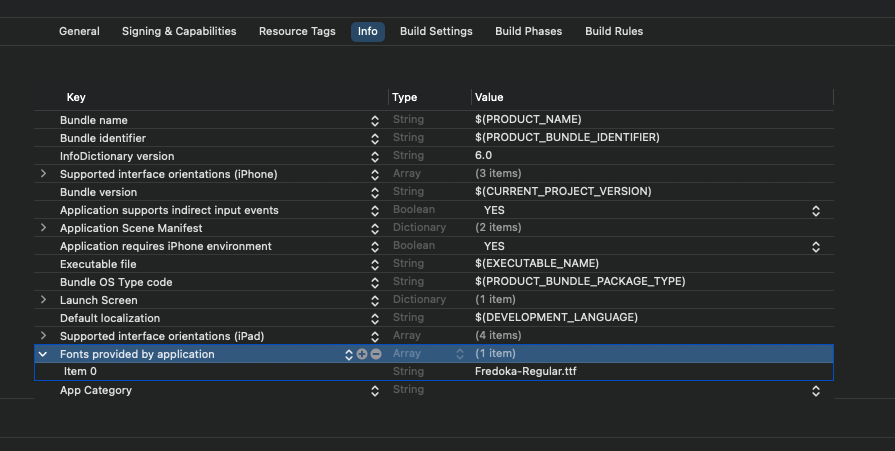
  • write the font file mane in the info section “Font provided by application

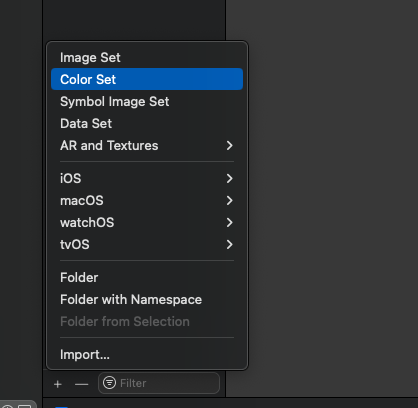
Now add a custom color, in the project open assets and add color:

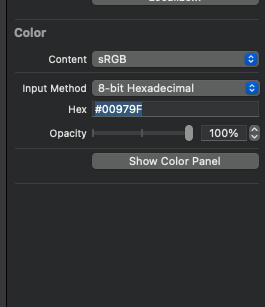
Set a name for the color and in the right panel set the color value.

Now create three views, using the custom color and the custom font, and please download also the san Francisco symbols (https://developer.apple.com/sf-symbols/) for the images.

struct ContentView: View {
    var body: some View {
        TabView {
            VStack {
                Image(systemName: "car")
                    .resizable()
                    .frame(width: 100, height: 100)
                Text("Welcome - first screen")
                    .font(Font.custom("Fredoka-Regular", size: 30, relativeTo: .largeTitle))
            }
            VStack {
                Image(systemName: "bolt.car")
                    .resizable()
                    .frame(width: 100, height: 100)
                Text("Welcome - second screen")
                    .font(Font.custom("Fredoka-Regular", size: 30, relativeTo: .largeTitle))
            }
        }.tabViewStyle(.page)
        .background(Color("onboardingColor"))
        .foregroundStyle(.white)
    }
}

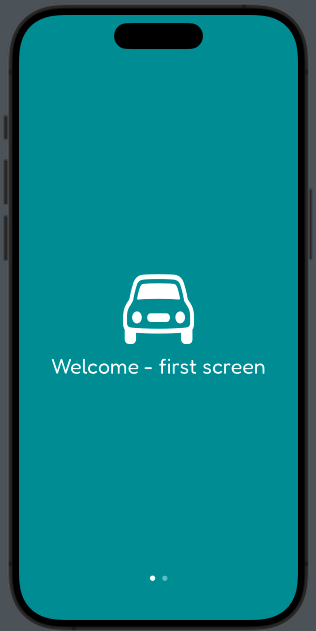
The first screen is:

To add custom button with a white border:

VStack {
       Image(systemName: "bolt.car")
       .resizable()
       .frame(width: 100, height: 100)
       Text("Welcome - second screen")
       .font(Font.custom("Fredoka-Regular", size: 30, relativeTo: .largeTitle))

       Button("Start") {

       }
       .padding()
       .overlay(
           Capsule()
           .stroke(Color.white, lineWidth: 2)
                    
        )
 }

To add the border to the button we use an overlay with a capsule shape empty with only a white border.

Enjoy creating your onboarding screen. Remember, a well-designed onboarding experience can significantly enhance user engagement and understanding of your app.

Exploring SwiftUI Shapes: Utilizing @ViewBuilder for Dynamic View Creation

In this post, we explore how to use the @ViewBuilder annotation. It’s particularly useful when we need a function to return a View. While it’s a simple concept, it’s a classic example of something straightforward yet not always well-known.

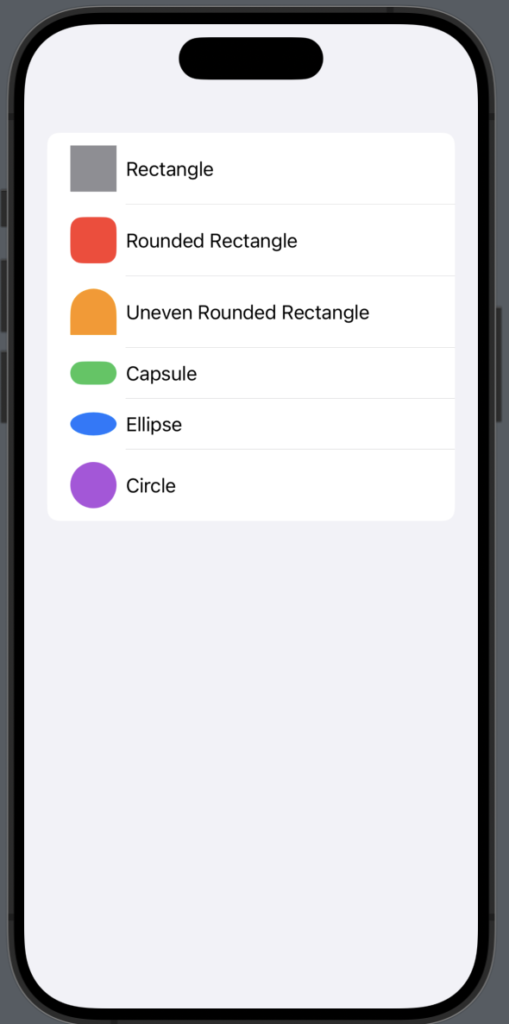
In our example, we aim to showcase all the basic shapes that can be created in SwiftUI, including Rectangle, RoundedRectangle, Uneven Rounded Rectangle, Ellipse, Capsule, and Circle, as demonstrated here:

First, create an enum to represent the different shapes:

enum Shapes {
    case Rectangle, RoundedRectangle, Uneven, Capsule, Ellipse, Circle
}

Now, define the structure to store the information about the shape:

struct ShapeDescription: Identifiable {
    let id = UUID()
    var type: Shapes
    var name: String
}

In the view, create an array containing all the shape information:

struct ContentView: View {
    var shapes: Array<ShapeDescription> = 
[ShapeDescription(type: .Rectangle, name: "Rectangle"), ShapeDescription(type: .RoundedRectangle, name: "Rounded Rectangle"), ShapeDescription(type: .Uneven, name: "Uneven Rounded Rectangle"), ShapeDescription(type: .Capsule, name: "Capsule"),
ShapeDescription(type: .Ellipse, name: "Ellipse"),
ShapeDescription(type: .Circle, name: "Circle")]

To display all the information, use a list:

var body: some View {
        NavigationStack {
            List(shapes) { shape in
                HStack {
                    Text(shape.name)
                }
            }
        }
    }
}

Currently, we only display the name. To show the shapes, one basic approach could be to add a switch statement based on the shape type within the list, but this would be inefficient. Instead, let’s create a function that returns a shape corresponding to its type:

    NavigationStack {
            List(shapes) { shape in
                HStack {
                    getShape(shape: shape.type)
                    Text(shape.name)
                }
            }
        }

Take a look at the getShape function:

@ViewBuilder
func getShape(shape: Shapes) -> some View {
    switch(shape) {
    case .Rectangle:
        Rectangle()
        .fill(.gray)
        .frame(width: 40, height: 40)
    case .RoundedRectangle:
    RoundedRectangle(cornerRadius: 10)
        .fill(.red)
        .frame(width: 40, height: 40)
    case .Uneven:
    UnevenRoundedRectangle(cornerRadii: .init(topLeading: 50, topTrailing: 50))
        .fill(.orange)
        .frame(width: 40, height: 40)
    case .Capsule:
    Capsule()
        .fill(.green)
        .frame(width: 40, height: 20)
    case .Ellipse:
    Ellipse()
        .fill(.blue)
        .frame(width: 40, height: 20)
    case .Circle:
    Circle()
        .fill(.purple)
        .frame(width: 40, height: 40)

    }
}

Use the @ViewBuilder annotation to specify that the function ‘builds’ a view, in fact returning some View. This function simply contains a switch statement to return the appropriate shape.

That’s all. Enjoy and stay tuned.

SwiftUI and REST (Episode III)

In this final post, we’ll take a look at one of the latest features introduced at WWDC 23 last June: the new Observation framework.

The idea is that this framework will replace Combine, so for those starting to develop on iOS now, it’s better to start with it – it’s the future. Let’s see how it works using the structures from the first episode SwiftUI and REST (Episode I). Our goal is to download a list of books using the Google Books API.

Just for the lazy ones, I’m reposting the structures here:

struct GoogleBooks: Codable {
    var kind: String = ""
    var totalItems: Int = 0
    var items: Array<GoogleBook> = []
}

struct GoogleBook: Codable {
    var id: String
    var volumeInfo: VolumeInfo?
    init(from decoder: Decoder) throws {
        let container = try decoder.container(keyedBy: CodingKeys.self)
        id = try container.decode(String.self, forKey: .id)
        volumeInfo = try container.decodeIfPresent(VolumeInfo.self, forKey: .volumeInfo)
    }
}

struct VolumeInfo: Codable {
    var title: String
    var subtitle: String?
    var authors: Array<String>?
    var imageLinks: ImagesLink
    init(from decoder: Decoder) throws {
        let container = try decoder.container(keyedBy: CodingKeys.self)
        subtitle = try container.decodeIfPresent(String.self, forKey: .subtitle)
        title = try container.decode(String.self, forKey: .title)
        authors = try container.decodeIfPresent(Array<String>.self, forKey: .authors)
        imageLinks = try container.decode(ImagesLink.self, forKey: .imageLinks)
    }
}

struct ImagesLink: Codable {
    var smallThumbnail: String
}

Just a quick refresher before we dive into the new content: It’s important to remember that in Swift, Codable is a type alias for the Decodable and Encodable protocols. This means it can both decode from and encode to external representations, like JSON. Also, it’s worth noting that decodeIfPresent is crucial for decoding optional fields. This method allows us to safely decode data which might or might not be present, without crashing our app if the field is missing.

Observable

Now, let’s introduce the latest updates:

@Observable
class BookViewModel {
    var books: [GoogleBook] = []
    var state: State = .Loaded
    
    enum State {
        case Loading, Loaded, Error
    }
    
    func loadBooks() async {
        state = .Loading
        guard let url = URL(string: "https://www.googleapis.com/books/v1/volumes?q=intitle:swift") else {
            print("Invalid URL")
            state = .Error
            return
        }
        do {
            let (data, _) = try await URLSession.shared.data(from: url)
            let decoder = JSONDecoder()
            do {
                let decodedResponse = try decoder.decode(GoogleBooks.self, from: data)
                books = decodedResponse.items
                state = .Loaded
                return
            } catch let DecodingError.dataCorrupted(context) {
                print(context)
            } catch let DecodingError.keyNotFound(key, context) {
                print("Key '\(key)' not found:", context.debugDescription)
                print("codingPath:", context.codingPath)
            } catch let DecodingError.valueNotFound(value, context) {
                print("Value '\(value)' not found:", context.debugDescription)
                print("codingPath:", context.codingPath)
            } catch let DecodingError.typeMismatch(type, context)  {
                print("Type '\(type)' mismatch:", context.debugDescription)
                print("codingPath:", context.codingPath)
            } catch {
                print("error: ", error)
            }
        } catch {
            print("error: ", error)
            
        }
        state = .Error
    }
}

The key aspect of our approach is that the BookViewModel class is defined as Observable. This means that each property of the class is observed, allowing us to catch and respond to any changes. In this model, the books property stores the retrieved books, while the state property keeps track of the status of the GET operation, which can be Loading, Loaded, or Error.

Now, let’s explore how to use this model effectively:

  1. Observing Changes: Since BookViewModel is observable, any changes to its properties will automatically update the views that depend on this data. This is extremely handy for reactive UI updates.
  2. Managing State: The state property of our view model allows us to easily handle different states in our UI. For example, we can show a loading indicator when the state is Loading, display the data when it’s Loaded, or show an error message if it’s Error.
  3. Fetching Data: To fetch data, we can call a method on our view model (loadBooks) which will update the books and state properties based on the result of the API call.
  4. Building the UI: In our SwiftUI view, we can use @State to instantiate our view model. SwiftUI will then re-render the view whenever the observed properties of the view model change.
  5. Error Handling: The Error state in our view model can be used to trigger alerts or error messages in our UI, informing the user if something goes wrong during the data fetching process.

Below the code snippet demonstrating how to integrate BookViewModel into a SwiftUI view.


struct ContentView: View {
    @State var booksModel = BookViewModel()
    var body: some View {
        NavigationStack {
            switch booksModel.state {
            case .Loading:
                ProgressView()
            case .Error:
                Text("Error")
            case .Loaded:
                List {
                    ForEach(booksModel.books, id:\.id) { book in
                        if let volumeInfo = book.volumeInfo {
                            Text(volumeInfo.title)
                        }
                    }
                }
            }
        }.task {
            await booksModel.loadBooks()
        }
    }
}

When the view appears, we initiate loadBooks. Depending on the status, users may see a ProgressView, a list of books, or an error message.

This approach is cleaner compared to what we saw in the previous episode, and I highly recommend it for its clarity and efficiency.

(For those who prefer using Combine, I suggest pairing it with Alamofire. This famous framework is well-known in the developer community and doesn’t need much introduction from me.)

Conclusion

As we reach the end of this short series, I’d like to introduce another new tool: swift-openapi-generator. This tool enables the automatic generation of client and server code using a YAML file that defines an API with the OpenAPI-Specification. This is particularly useful for larger projects where such documentation is essential to define the API, acting as a “contract” between different applications involved (backend, frontend, and mobile). Here is the swift-openapi-generator-tutorial. Keep in mind that it’s not entirely stable yet, and some aspects may still change. In the future, I might write more about it. Stay tuned.

SwiftUI and REST (Episode II)

In the first episode SwiftUI and REST (Episode I), we explored how to use a REST API with GET requests. In this episode, we’ll learn how to perform POST requests and use a bearer token to access REST APIs that require authentication. At the end of the post, you’ll find a link to the GitHub project, which includes the code for the mobile application as well as a simple server for testing purposes.

Post

First, let’s define the structure we’ll use, starting with the information to be sent to the server for login (note that the server already has a user x@y.com with the password 123456).

struct UserInfo: Codable {
    var email: String
    var password: String
}

This structure is Codable, meaning it can both decode and encode. In this case, we’ll use it to encode the information to be sent with the POST request.

let encoder = JSONEncoder()
let credentials = UserInfo(email: username, password: password)
let data = try encoder.encode(credentials)

The POST request should return a token that must be used to call the other APIs exposed by the server. To retrieve it, define the following structure:

struct LoginResponse: Codable {
    var user: UserAuth
}

struct UserAuth: Codable {
    var id: String?
    var email: String?
    var token:  String?
    
    init(from decoder: Decoder) throws {
        let container = try decoder.container(keyedBy: CodingKeys.self)
        id = try container.decodeIfPresent(String.self, forKey: .id)
        email = try container.decodeIfPresent(String.self, forKey: .email)
        token = try container.decodeIfPresent(String.self, forKey: .token)
    }
}

Now, let’s merge everything into the LoginView:

struct LoginView: View {
    @State var password = ""
    @State var username = ""
    @Binding var token: String
    var body: some View {
        VStack {
            TextField("Username", text: $username)
            SecureField("Password", text: $password)
            Button("Login") {
                Task {
                    await login()
                }
            }
        }.padding()
    }
    func login() async {
        
        guard let url = URL(string: "YOUR_IP:8080/api/v1/user/login") else {
            print("Invalid URL")
            return
        }
        do {
            var request = URLRequest(url: url)
            request.setValue("application/json", forHTTPHeaderField: "Content-Type")
            request.httpMethod = "POST"
            let encoder = JSONEncoder()
            let credentials = UserInfo(email: username, password: password)
            let data = try encoder.encode(credentials)
            request.httpBody = data
            let (dataResponse, response) = try await URLSession.shared.data(for: request)
            
            let httpResponse = response as? HTTPURLResponse
            print(httpResponse!.statusCode)
            
            if httpResponse!.statusCode != 200 {
                print("Login error")
                return
            }
            let decoder = JSONDecoder()
            do {
                print(response)
                let decodedResponse = try decoder.decode(LoginResponse.self, from: dataResponse)
                let resultString = String(data: dataResponse, encoding: .utf8)
                print("Data in String: \(String(describing: resultString))")
                print(decodedResponse.user.token ?? "")
                self.token = decodedResponse.user.token ?? ""
            } catch let DecodingError.dataCorrupted(context) {
                print(context)
            } catch let DecodingError.keyNotFound(key, context) {
                print("Key '\(key)' not found:", context.debugDescription)
                print("codingPath:", context.codingPath)
            } catch let DecodingError.valueNotFound(value, context) {
                print("Value '\(value)' not found:", context.debugDescription)
                print("codingPath:", context.codingPath)
            } catch let DecodingError.typeMismatch(type, context)  {
                print("Type '\(type)' mismatch:", context.debugDescription)
                print("codingPath:", context.codingPath)
            } catch {
                print("error: ", error)
            }
        } catch {
            print("Invalid data")
        }
    }
}

This view defines three variables: username, password, and token. Please note that token is defined as @Binding because we want this token to be used also in other views that call additional APIs.

Here is the piece of code

let resultString = String(data: dataResponse, encoding: .utf8)
print("Data in String: \(String(describing: resultString))")

It can be helpful to check what information is received from the server.

There’s another trick that’s used for the preview, which is necessary when a view uses a @Binding:

#Preview {
    @State var t = ""
    return LoginView(password: "", username: "", token: $t)
}

Now, let’s take a look at the main view:

struct ContentView: View {
    @State var token: String = ""
    var body: some View {
        NavigationStack {
            if token.count == 0 {
                LoginView(token: $token)
            } else {
                BooksView(token: $token)
            }
        }
    }
}

The token, which will be bound by the LoginView, is defined here. Therefore, this view is displayed when the token is empty. Otherwise, the BooksView is shown, which receives the token as a parameter.

Now, let’s take a look at this last view, but first, let’s examine the structures used:

struct ResponseBook: Codable { // the response for the books operation
    var books: Array<Book>?
    var error: String?
    var total: Int
    init(from decoder: Decoder) throws {
        let container = try decoder.container(keyedBy: CodingKeys.self)
        books = try container.decodeIfPresent(Array<Book>.self, forKey: .books)
        total = try container.decode(Int.self, forKey: .total)
        error = try container.decodeIfPresent(String.self, forKey: .error)
    }
}

struct Book: Codable {
    var id: String
    var title: String
    var subtitle: String?
    init(from decoder: Decoder) throws {
        let container = try decoder.container(keyedBy: CodingKeys.self)
        id = try container.decode(String.self, forKey: .id)
        title = try container.decode(String.self, forKey: .title)
        subtitle = try container.decodeIfPresent(String.self, forKey: .subtitle)
    }
}

If you have any doubts about the init function, please refer to the previous post.

Call API with authentication

What we aim to do is receive the list of books for our user, identified by the token, and return a JSON object that contains the list of books, the number of books, and an error message if one is present. The books should be displayed in a list.

Here’s the first piece of code:

struct BooksView: View {
    @State var books = [Book]()
    @Binding var token: String
    let host = "YOUR_IP:8080"
    var body: some View {
        List {
            ForEach(books, id: \.id) { item in
                Text(item.title)
            }
        }.navigationTitle("Books")
            .task {
                await loadBooks()
            }
    }

For each book show the title, the books are loaded with this function:

    
        guard let url = URL(string: host + "/api/v1/books") else {
            print("Invalid URL")
            return
        }
        do {
            var request = URLRequest(url: url)
            request.setValue( "Bearer \(token)", forHTTPHeaderField: "Authorization")
            request.httpMethod = "GET"

            let (dataResponse, _) = try await URLSession.shared.data(for: request)
            let decoder = JSONDecoder()
            do {
                // process data
                let decodedResponse = try decoder.decode(ResponseBook.self, from: dataResponse)
                let resultString = String(data: dataResponse, encoding: .utf8)
                print("Data in String: \(String(describing: resultString))")
                if let books = decodedResponse.books {
                    self.books = books
                }
            } catch let DecodingError.dataCorrupted(context) {
                print(context)
            } catch let DecodingError.keyNotFound(key, context) {
                print("Key '\(key)' not found:", context.debugDescription)
                print("codingPath:", context.codingPath)
            } catch let DecodingError.valueNotFound(value, context) {
                print("Value '\(value)' not found:", context.debugDescription)
                print("codingPath:", context.codingPath)
            } catch let DecodingError.typeMismatch(type, context)  {
                print("Type '\(type)' mismatch:", context.debugDescription)
                print("codingPath:", context.codingPath)
            } catch {
                print("error: ", error)
            }
        } catch {
            print("Invalid data")
        }
    }

The new thing is:

var request = URLRequest(url: url)

request.setValue( "Bearer \(token)", forHTTPHeaderField: "Authorization")

request.httpMethod = "GET"

With this code, set the bearer token and specify that we are making a GET request. The rest of the code is very similar to what we used in the previous example.

In the code, replace YOUR_IP with the IP address of the computer that runs the server. To run the server, you need to install Docker Desktop. After that, go to the my-library-be directory and execute docker-compose up.

https://github.com/niqt/rest-swiftui

SwiftUI and REST (Episode I)

With this post, I am starting a series of three episodes about the use of REST in SwiftUI. In this episode, we will see how to implement a GET request. In the next one, we’ll explore how to make a POST request, and in the last one, we’ll examine different solutions.

Suppose we want to search for books using the Google Books API: https://www.googleapis.com/books/v1/volumes?q=intitle:your-word. The idea is to write the search text in the search bar, press enter, and then search for a book with the word typed in the title.

In the screenshot provided earlier, we see a part of the result for the search term ‘lean’. We use this to define the structure of the data that we want to retrieve and decode.

In a Swift file named ‘Book’, we create the following structure:

struct GoogleBooks: Codable {
    var kind: String
    var totalItems
    var items: Array<GoogleBook>
}

struct GoogleBook: Codable {
    var id: String
    var volumeInfo: VolumeInfo
}

struct VolumeInfo: Codable {
    var title: String
    var subtitle: String
    var authors: Array<String>
    var industryIdentifiers: Array<Identifier>
    var imageLinks: ImagesLink
}

struct ImagesLink: Codable {
    var smallThumbnail: String
}

We create structures that map only the information that we want use in our application. Each structure implement Codable, “A type that can convert itself into and out of an external representation”. It’s necessary to decode (or encode) information from a json.

What happen if some field is null? Using the structure above, we would encounter decode errors in the application. To avoid this problem, we can rewrite the structures in the following way:

struct GoogleBook: Codable {
    var id: String
    var volumeInfo: VolumeInfo?
    init(from decoder: Decoder) throws {
        let container = try decoder.container(keyedBy: CodingKeys.self)
        id = try container.decode(String.self, forKey: .id)
        volumeInfo = try container.decodeIfPresent(VolumeInfo.self, forKey: .volumeInfo)
    }
}

struct VolumeInfo: Codable {
    var title: String
    var subtitle: String?
    var authors: Array<String>?
    var industryIdentifiers: Array<Identifier>?
    var imageLinks: ImagesLink
    init(from decoder: Decoder) throws {
        let container = try decoder.container(keyedBy: CodingKeys.self)
        subtitle = try container.decodeIfPresent(String.self, forKey: .subtitle)
        title = try container.decode(String.self, forKey: .title)
        authors = try container.decodeIfPresent(Array<String>.self, forKey: .authors)
        industryIdentifiers = try container.decodeIfPresent(Array<Identifier>.self, forKey: .industryIdentifiers)
        imageLinks = try container.decode(ImagesLink.self, forKey: .imageLinks)
    }
}

struct ImagesLink: Codable {
    var smallThumbnail: String
}

Now, the fields that can be null are defined as Optional, and an initialization function is added.

In this function, we need to decode all the fields present in the structure that are not optional, in the following way:

id = try container.decode(String.self, forKey: .id)

This for the optionals:

authors = try container.decodeIfPresent(Array<String>.self, forKey: .authors)

In this manner, a field is decoded only if it is present.

Now, let’s jump into the UI part.

struct ContentView: View {
    @State var searchText: String = "lean"
    @State private var results: GoogleBooks = GoogleBooks()
    @State var books = [GoogleBook]()
    @State var loading = true
    let url = "https://www.googleapis.com/books/v1/volumes?q=intitle:"
    var body: some View {
        NavigationStack {
            if loading {
                ProgressView()
            } else {
                List {
                    ForEach(books, id: \.id) { item in
                        Text(item.volumeInfo!.title)
                    }
                }.searchable(text: $searchText)
                .onSubmit(of: .search) {
                    Task {
                        await loadData()
                    }
                }
                .navigationTitle("Books")
            }
        }.task {
            await loadData()
        }
        
    }
    func loadData() async {
    }

In the first part, we define the variables we will use. ‘searchText’ is initialized to ‘lean’ to load at the start. ‘GoogleBooks’ contains all the search results, ‘books’ holds the list of books, and ‘loading’ is a Boolean variable used to hide or show a ProgressView while loading the data. The last one is the URL.

In the view, we set a searchable text field. When the user taps enter, the submit action calls the async ‘loadData’ function within a Task. The same happens when the view loads for the first time. Honestly, I don’t like setting a default search, but I implemented it in this example just to show how to load data at the start.

Last but not least, and never has this phrase been truer than in this case, take a look at the ‘loadData’ function, the core of the application:

func loadData() async {
        
        guard let url = URL(string: url + searchText) else {
            print("Invalid URL")
            return
        }
        do {
            let (data, _) = try await URLSession.shared.data(from: url)
            let decoder = JSONDecoder()
            do {
                // process data
                let decodedResponse = try decoder.decode(GoogleBooks.self, from: data)
                results.items = decodedResponse.items
                results.totalItems = decodedResponse.totalItems
                books = results.items
            } catch let DecodingError.dataCorrupted(context) {
                print(context)
            } catch let DecodingError.keyNotFound(key, context) {
                print("Key '\(key)' not found:", context.debugDescription)
                print("codingPath:", context.codingPath)
            } catch let DecodingError.valueNotFound(value, context) {
                print("Value '\(value)' not found:", context.debugDescription)
                print("codingPath:", context.codingPath)
            } catch let DecodingError.typeMismatch(type, context)  {
                print("Type '\(type)' mismatch:", context.debugDescription)
                print("codingPath:", context.codingPath)
            } catch {
                print("error: ", error)
            }
        } catch {
            print("Invalid data")
        }
        self.loading = false
    }

It’s an async function, due we have to run in this way to avoid that the user interface is blocked waiting the result.

The first step i check that the url is valid, after that get the data with

await URLSession.shared.data(from: url)

Therefore, create a decoder and attempt to decode the data. If there is a problem with decoding, use the catch block to map every possible error (I recommend this, as logs are fundamental in the art of programming).

At the end, ‘loading’ is set to false, so the ProgressView disappears and the list is shown.

That’s all for this episode. Check the blog for the next one.