
In Swiftui we have three special purpose buttons:
- EditButton
- RenameButton
- PasteButton
EditButton
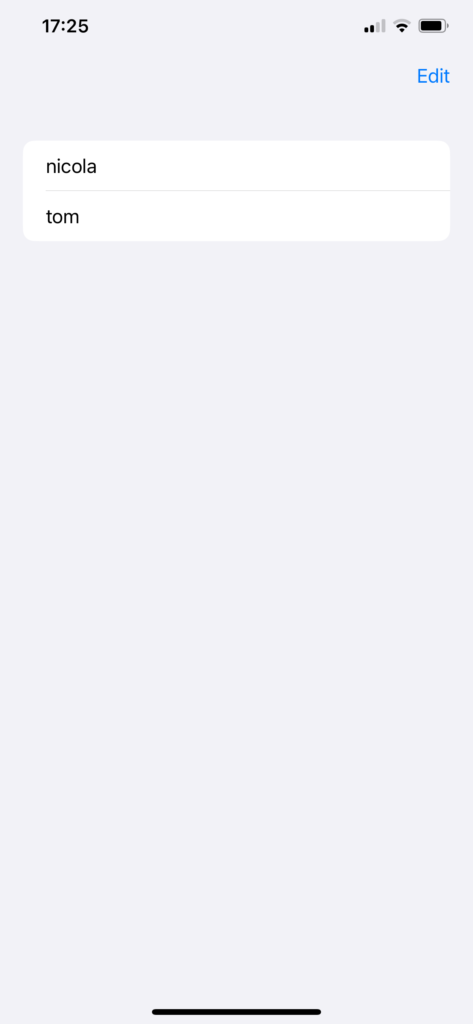
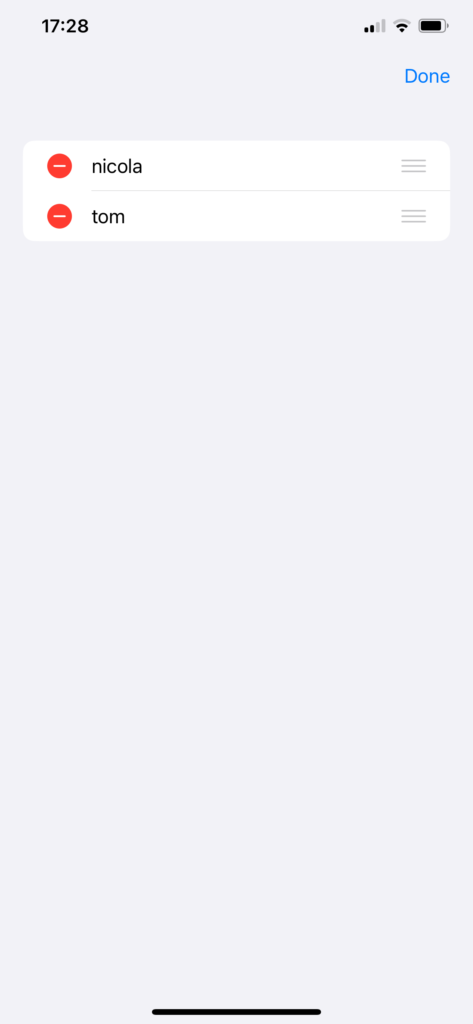
Clicking on the EditButton, the items of the list are displayed with the delete (if onDelete is defined) and move (if onMove is defined) actions. Take a look at the code:
struct ContentView: View {
    var names = ["nicola", "tom"]
    @State private var pastedText: String = ""

    var body: some View {
        NavigationStack {
            List {
                ForEach (names, id:\.self) { name in
                    Text(name)

                }
                .onDelete(perform: {_ in

                })
                .onMove(perform: { indices, newOffset in

                })
            }
            .toolbar {
                ToolbarItem(placement: .navigationBarTrailing) {
                    EditButton()
                }
            }
        }
    }
}
Very simple and powerful button.
RenameButton
The RenameButton is displayed as a pencil icon and triggers the rename action.
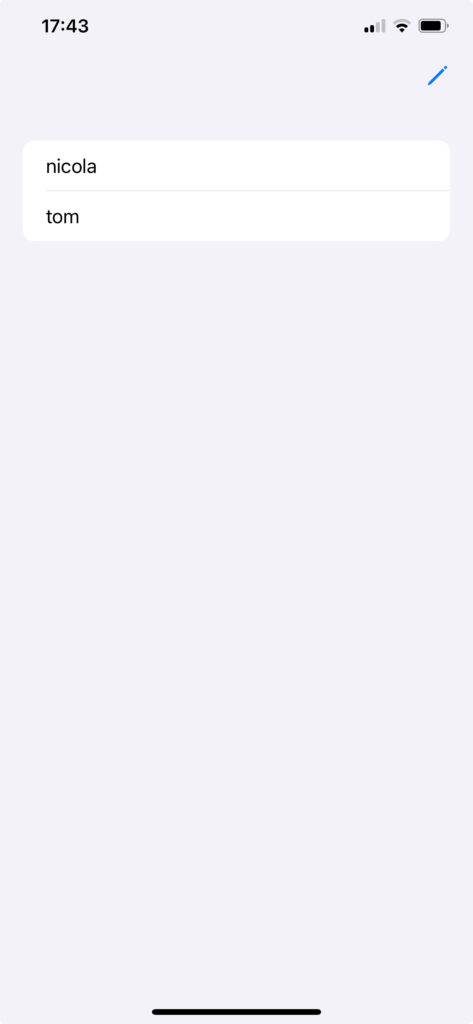
The code:
struct ContentView: View {
    var names = ["nicola", "tom"]
    @State private var pastedText: String = ""

    var body: some View {
        NavigationStack {
            List {
                ForEach (names, id:\.self) { name in
                    Text(name)
                }
            }
            .toolbar {
                ToolbarItem(placement: .navigationBarTrailing) {
                    RenameButton()
                }
            }.renameAction {
                // Your code
            }
        }
    }
}
PasteButton
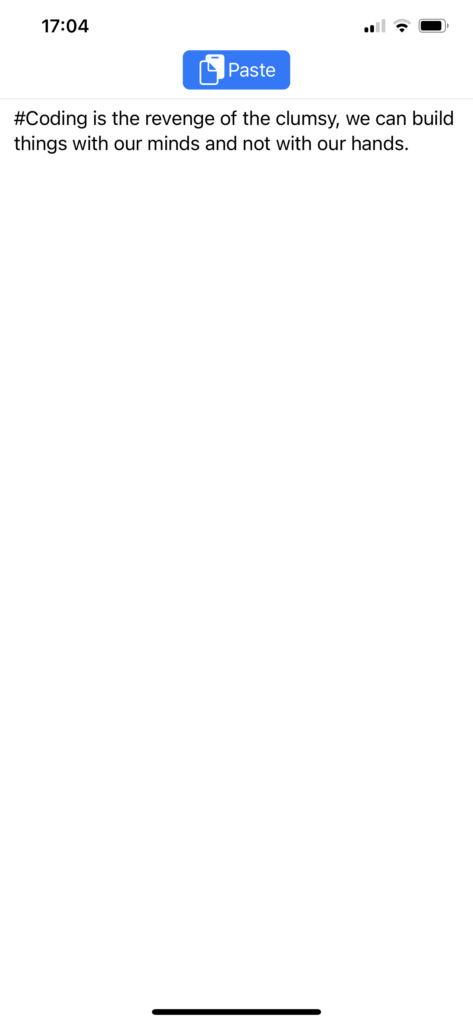
Clicking on the PasteButton pastes the code that we copied earlier from another place (in this case, it was copied by X).
Take a look at the code:
struct ContentView: View {
    @State private var pastedText: String = "

    var body: some View {
        VStack {
            PasteButton(payloadType: String.self) { strings in
                pastedText = strings[0]
            }
            Divider()
            Text(pastedText)
            Spacer()
        }
    }
}
Thus, tapping the button pastes the item (in this case, a string, which is copied into a string variable).
If you want to copy and paste an image, the code is this:
import SwiftUI
import UniformTypeIdentifiers

struct ContentView: View {
    @State private var image: UIImage?

    var body: some View {
        VStack {
            PasteButton(supportedContentTypes: [UTType.image]) { info in
                for item in info {
                    item.loadObject(ofClass: UIImage.self) { item, error in
                        if let img = item as? UIImage {
                            image = img
                        }
                    }
                }
            }
            Divider()
            Image(uiImage: image ?? .init())
        }
        .padding()
    }
}
Happy buttons.
Note: English is not my native language, so I apologize for any errors. I use AI solely to generate the banner of the post; the content is human-generated.