SwiftUI and REST (Episode III)

In this final post, we’ll take a look at one of the latest features introduced at WWDC 23 last June: the new Observation framework.

The idea is that this framework will replace Combine, so for those starting to develop on iOS now, it’s better to start with it – it’s the future. Let’s see how it works using the structures from the first episode SwiftUI and REST (Episode I). Our goal is to download a list of books using the Google Books API.

Just for the lazy ones, I’m reposting the structures here:

struct GoogleBooks: Codable {
    var kind: String = ""
    var totalItems: Int = 0
    var items: Array<GoogleBook> = []
}

struct GoogleBook: Codable {
    var id: String
    var volumeInfo: VolumeInfo?
    init(from decoder: Decoder) throws {
        let container = try decoder.container(keyedBy: CodingKeys.self)
        id = try container.decode(String.self, forKey: .id)
        volumeInfo = try container.decodeIfPresent(VolumeInfo.self, forKey: .volumeInfo)
    }
}

struct VolumeInfo: Codable {
    var title: String
    var subtitle: String?
    var authors: Array<String>?
    var imageLinks: ImagesLink
    init(from decoder: Decoder) throws {
        let container = try decoder.container(keyedBy: CodingKeys.self)
        subtitle = try container.decodeIfPresent(String.self, forKey: .subtitle)
        title = try container.decode(String.self, forKey: .title)
        authors = try container.decodeIfPresent(Array<String>.self, forKey: .authors)
        imageLinks = try container.decode(ImagesLink.self, forKey: .imageLinks)
    }
}

struct ImagesLink: Codable {
    var smallThumbnail: String
}

Just a quick refresher before we dive into the new content: It’s important to remember that in Swift, Codable is a type alias for the Decodable and Encodable protocols. This means it can both decode from and encode to external representations, like JSON. Also, it’s worth noting that decodeIfPresent is crucial for decoding optional fields. This method allows us to safely decode data which might or might not be present, without crashing our app if the field is missing.

Observable

Now, let’s introduce the latest updates:

@Observable
class BookViewModel {
    var books: [GoogleBook] = []
    var state: State = .Loaded
    
    enum State {
        case Loading, Loaded, Error
    }
    
    func loadBooks() async {
        state = .Loading
        guard let url = URL(string: "https://www.googleapis.com/books/v1/volumes?q=intitle:swift") else {
            print("Invalid URL")
            state = .Error
            return
        }
        do {
            let (data, _) = try await URLSession.shared.data(from: url)
            let decoder = JSONDecoder()
            do {
                let decodedResponse = try decoder.decode(GoogleBooks.self, from: data)
                books = decodedResponse.items
                state = .Loaded
                return
            } catch let DecodingError.dataCorrupted(context) {
                print(context)
            } catch let DecodingError.keyNotFound(key, context) {
                print("Key '\(key)' not found:", context.debugDescription)
                print("codingPath:", context.codingPath)
            } catch let DecodingError.valueNotFound(value, context) {
                print("Value '\(value)' not found:", context.debugDescription)
                print("codingPath:", context.codingPath)
            } catch let DecodingError.typeMismatch(type, context)  {
                print("Type '\(type)' mismatch:", context.debugDescription)
                print("codingPath:", context.codingPath)
            } catch {
                print("error: ", error)
            }
        } catch {
            print("error: ", error)
            
        }
        state = .Error
    }
}

The key aspect of our approach is that the BookViewModel class is defined as Observable. This means that each property of the class is observed, allowing us to catch and respond to any changes. In this model, the books property stores the retrieved books, while the state property keeps track of the status of the GET operation, which can be Loading, Loaded, or Error.

Now, let’s explore how to use this model effectively:

  1. Observing Changes: Since BookViewModel is observable, any changes to its properties will automatically update the views that depend on this data. This is extremely handy for reactive UI updates.
  2. Managing State: The state property of our view model allows us to easily handle different states in our UI. For example, we can show a loading indicator when the state is Loading, display the data when it’s Loaded, or show an error message if it’s Error.
  3. Fetching Data: To fetch data, we can call a method on our view model (loadBooks) which will update the books and state properties based on the result of the API call.
  4. Building the UI: In our SwiftUI view, we can use @State to instantiate our view model. SwiftUI will then re-render the view whenever the observed properties of the view model change.
  5. Error Handling: The Error state in our view model can be used to trigger alerts or error messages in our UI, informing the user if something goes wrong during the data fetching process.

Below the code snippet demonstrating how to integrate BookViewModel into a SwiftUI view.


struct ContentView: View {
    @State var booksModel = BookViewModel()
    var body: some View {
        NavigationStack {
            switch booksModel.state {
            case .Loading:
                ProgressView()
            case .Error:
                Text("Error")
            case .Loaded:
                List {
                    ForEach(booksModel.books, id:\.id) { book in
                        if let volumeInfo = book.volumeInfo {
                            Text(volumeInfo.title)
                        }
                    }
                }
            }
        }.task {
            await booksModel.loadBooks()
        }
    }
}

When the view appears, we initiate loadBooks. Depending on the status, users may see a ProgressView, a list of books, or an error message.

This approach is cleaner compared to what we saw in the previous episode, and I highly recommend it for its clarity and efficiency.

(For those who prefer using Combine, I suggest pairing it with Alamofire. This famous framework is well-known in the developer community and doesn’t need much introduction from me.)

Conclusion

As we reach the end of this short series, I’d like to introduce another new tool: swift-openapi-generator. This tool enables the automatic generation of client and server code using a YAML file that defines an API with the OpenAPI-Specification. This is particularly useful for larger projects where such documentation is essential to define the API, acting as a “contract” between different applications involved (backend, frontend, and mobile). Here is the swift-openapi-generator-tutorial. Keep in mind that it’s not entirely stable yet, and some aspects may still change. In the future, I might write more about it. Stay tuned.

Pass by Reference and Value in Swift

A concept not simple to understand in every programming language (mainly for the “new” developer) is to realize the difference between “Pass by reference and Pass by value”.

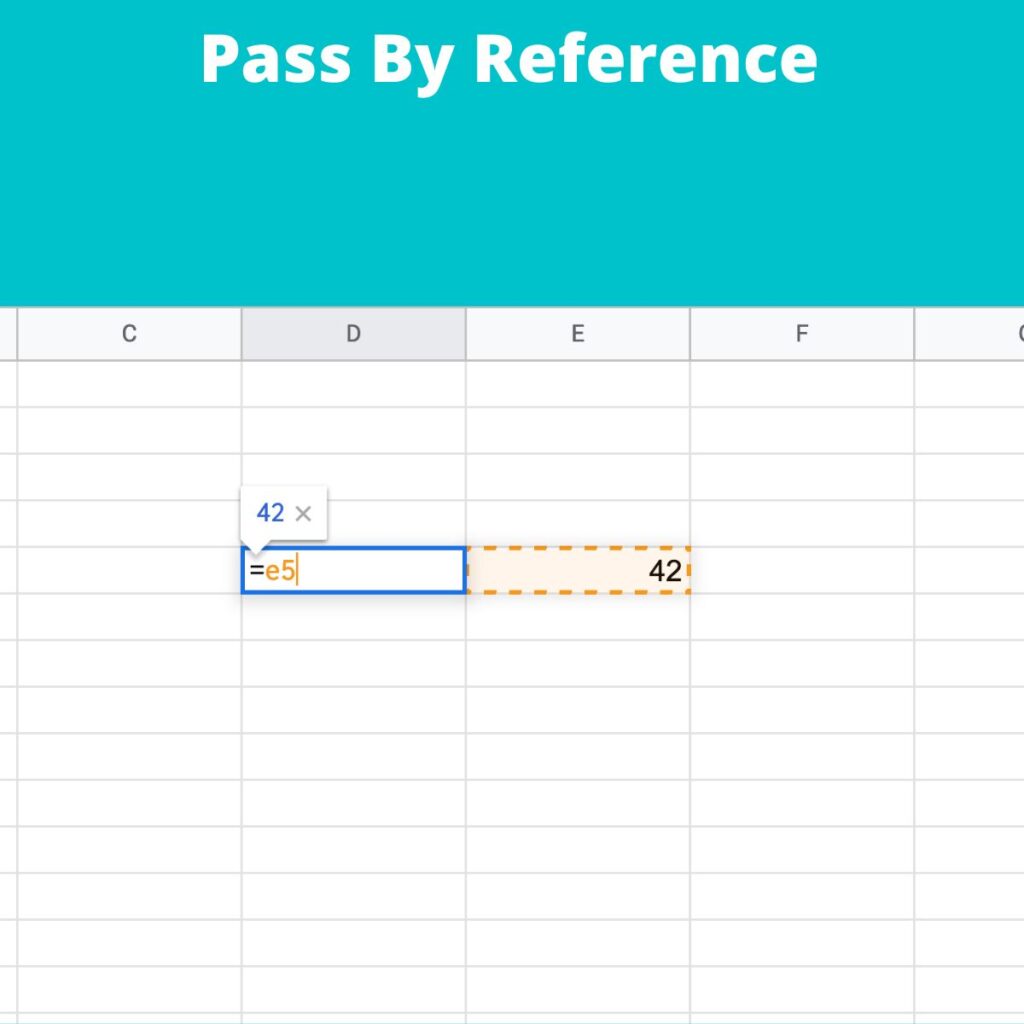
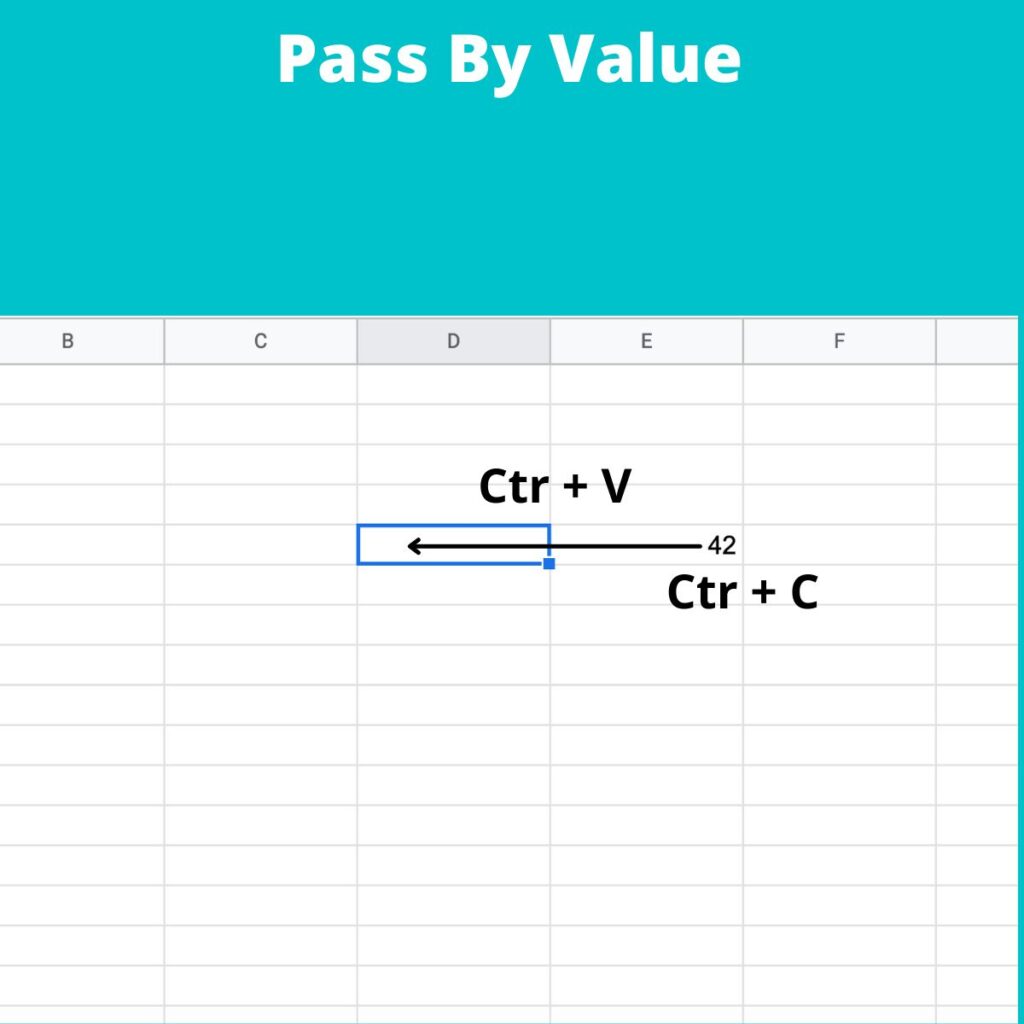
Pass by value means: “copy a value from a location of memory to another location of the memory.” Instead, pass by reference mean that we don’t copy a value in the destination but the reference (address) to the source.

I like to use these images to explain the differences:

Pass by value
Pass by Value
Pass by reference
Pass by reference

Thus, when we pass by value is like copying a cell value from one cell to another, instead, when passing by reference, we set in the destination cell the address of the source (e5 in the example).

Let’s see with swift:

struct BoxStruct {
    var width = 0
    var height = 0
}

var littleBox = BoxStruct(width: 2, height: 3)
var bigBox = BoxStruct(width: 57, height: 84)

littleBox = bigBox

print("Little box: width \(littleBox.width) height \(littleBox.height)")
print("Bix box: width \(bigBox.width) height \(bigBox.height)")

bigBox.width = 150
bigBox.height = 333

print("Little box: width \(littleBox.width) height \(littleBox.height)")
print("Big box: width \(bigBox.width) height \(bigBox.height)")

Executing this code have:

Little box: width 57 height 84
Big box: width 57 height 84
Little box: width 57 height 84
Big box: width 150 height 333

In this case, we have a copy by value. We copy the content from bigBox to littleBox, thus both the boxes have the same value; after we change the value of bigBox and then the two boxes will contain different values.

Let’s see what happen with the class:

class TriangleClass {
    var width: Int
    var height: Int
    
    init(width: Int, height: Int) {
        self.width = width
        self.height = height
    }
}

var littleTriangle = TriangleClass(width: 2, height: 3)
var bigTriangle = TriangleClass(width: 57, height: 84)

littleTriangle = bigTriangle

print("Little Triangle: width \(littleTriangle.width) height \(littleTriangle.height)")
print("Big Triangle: width \(bigTriangle.width) height \(bigTriangle.height)")

bigTriangle.width = 150
bigTriangle.height = 333

print("Little Triangle: width \(littleTriangle.width) height \(littleTriangle.height)")
print("Big Triangle: width \(bigTriangle.width) height \(bigTriangle.height)")

Now we have this output:

Little Triangle: width 57 height 84
Big Triangle: width 57 height 84
Little Triangle: width 150 height 333
Big Triangle: width 150 height 333

This time is different! After the copy, the triangles have the same value; after we change the dimensions of the bigTriangle but happen a magic thing, the dimensions of the littleTriangle are changed! Why? For the class, the copy is done by reference, so writing “littleTrianlge = bigTriangle”, we are not copying the content of the big in the little, we are copying the reference like in the sheet example. Now every change in the big will be visible also in the little.

The same happen in the function, if we want modify the original value of the parameter passed to a function, these have be passed by reference, in this way:

func swap(a : inout Int, b: inout Int) {
    let dum = a
    a = b
    b = dum
}

var first = 2
var second = 5

swap(a:&first, b:&second)

// now first = 5 and second = 2

For exercise try to remove the keyword “inout” and see what happen.

Expand List Item

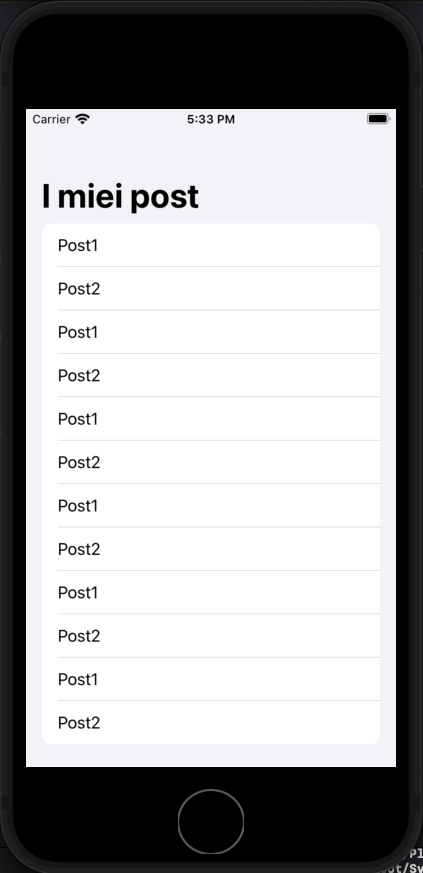
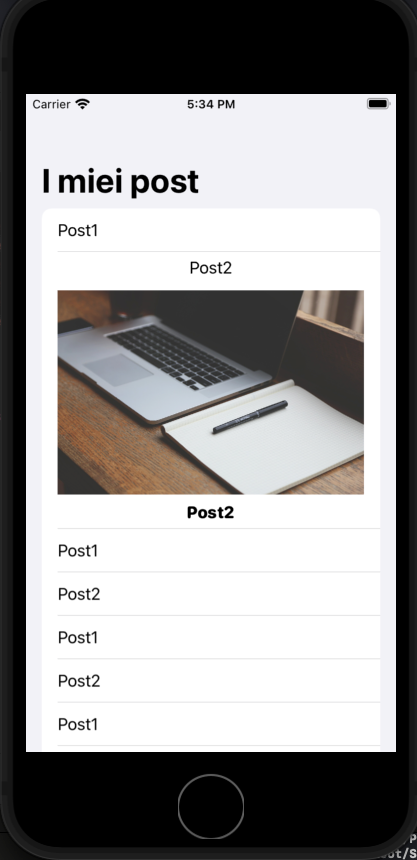
In this post, we see how to expand a list item of a list. To do this is not complicated, the principle is simple when the user taps the row, we insert the current Item in a Set. The view used to show the current item change the visualization type if the current item is in the set of selected items.

Before starting copy the images: https://nicoladefilippo.com/wp-content/uploads/2021/05/blogger-336371_1920-1536×1024.jpg and https://nicoladefilippo.com/wp-content/uploads/2021/05/desk-593327_1920-1536×1024.jpg in your assets directory, renaming them blogger and desktop (you can use also other images if you prefer).

The final behaviour is:

Define the data model for the list:

struct Post: Identifiable, Hashable {
    var id = UUID()
    var title: String
    var image: String
}

The view:

struct ExpandCardUIView: View {
    @State private var selection: Set<Post> = []
    
    var posts = [Post(title: "Post1", image: "blogger"), Post(title: "Post2", image: "desk"),
                 Post(title: "Post1", image: "blogger"), Post(title: "Post2", image: "desk"),
                 Post(title: "Post1", image: "blogger"), Post(title: "Post2", image: "desk"),
                 Post(title: "Post1", image: "blogger"), Post(title: "Post2", image: "desk"),
                 Post(title: "Post1", image: "blogger"), Post(title: "Post2", image: "desk"),
                 Post(title: "Post1", image: "blogger"), Post(title: "Post2", image: "desk"),
    ]
    var body: some View {
        NavigationView {
            List(posts) { post in
                RowView(post: post, isExpanded: self.selection.contains(post))
                .onTapGesture {
                    self.selectDeselect(post)
                }
                
            }
            .navigationBarTitle("I miei post")
        }
    }
    
    private func selectDeselect(_ post: Post) {
            if selection.contains(post) {
                selection.remove(post)
            } else {
                selection.insert(post)
            }
        }
}

Take a look at the logic, at beginning define:

@State private var selection: Set<Post>

In this Set are added the Post when the user Tap the row. If the user re-tap the row, the Post is removed from the Set. This is done by calling the function selectDeselect.

The row is shown with:

struct RowView: View {
    var post: Post
    let isExpanded: Bool
    var body: some View {
        VStack {
            HStack {
                Text(post.title)
            }
            if isExpanded {
                HStack {
                    BigRow(post:post)
                }
            }
        }
    }
    
}

The isEpanded is true when the selection (the Set) contains a post, in that case, the row shows also the BigRow, simply an image and another title in the body.

struct BigRow: View {
    var post: Post
    var body: some View {
        VStack {
            Image(post.image)
                .resizable()
                .aspectRatio(contentMode: .fit)
                
            Text(post.title)
                .fontWeight(.heavy)
                .font(.system(.headline, design: .rounded))
        }
    }
}

Note: English is not my native language, so I’m sorry for some errors. I appreciate it if your correct me.

SearchBar with SwiftUI

From September 2021 is finally available native SwiftUI SearchBar component, so is not anymore necessary to attach UIKit things to have the search bar in a SwiftUI application, but there is a condition, can be restrictive for someone, to use iOS 15.

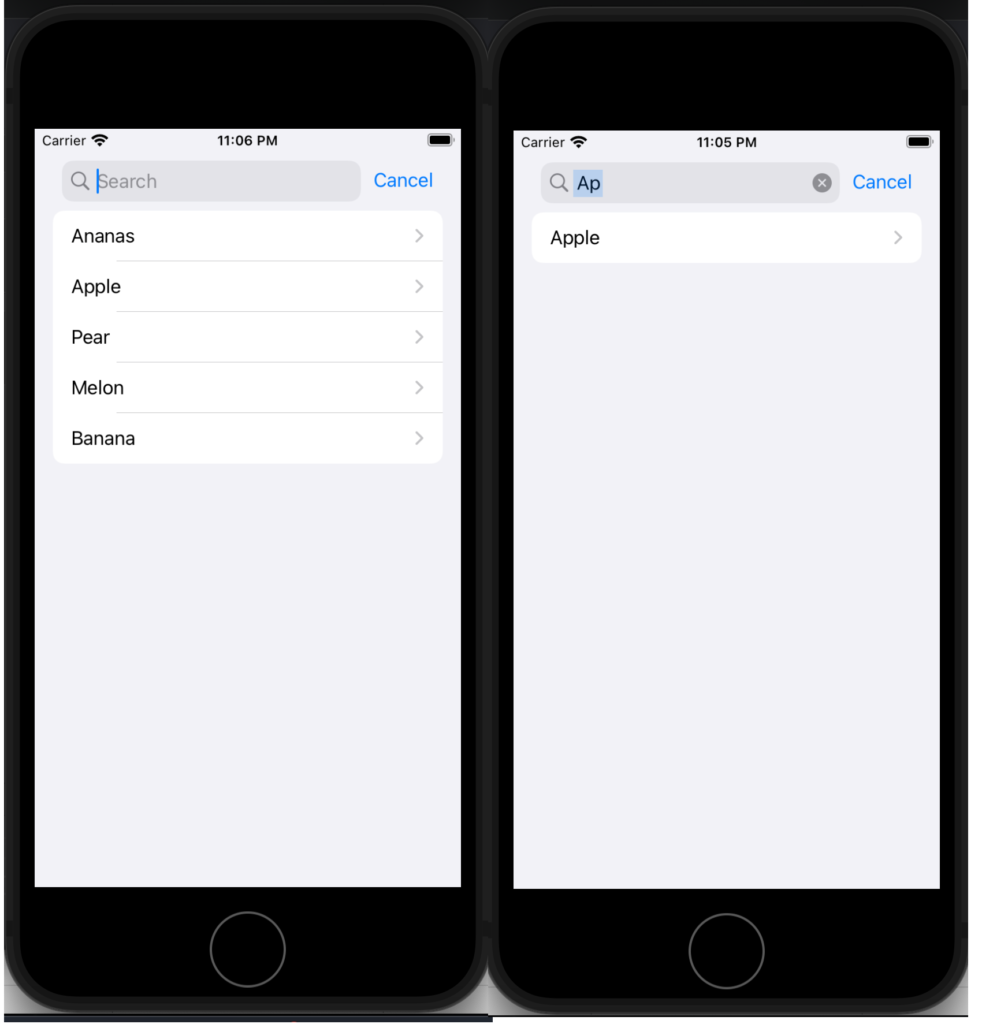
First look at a simple example, use the searchbar to search a string in a list of fruit.

struct SimpleSearchUIView: View {
    let names = ["Ananas", "Apple", "Pear", "Melon", "Banana"]
    @State private var searchText = ""
    
    var body: some View {
        NavigationView {
            List {
                ForEach(searchResults, id: \.self) { name in
                    NavigationLink(destination: Text(name)) {
                        Text(name)
                    }
                }
            }
            .searchable(text: $searchText)
            .navigationTitle("Fruits")
        }
    }
    
    var searchResults: [String] {
        if searchText.isEmpty {
            return names
        } else {
            return names.filter {$0.lowercased().contains(searchText.lowercased())}
        }
    }
}

First thing, add a searchable to a List. The searchable is waiting for a text, and the written text is saved in a state variable, in this case, searchText.

The ForEach is not working on a list but with a variable that contains the fruits filtered using the search text. Simply it applies a filter on the names array.

Now see an example using an array of complex type, simply Post type, so defined:

struct Post: Identifiable, Hashable {
    var id = UUID()
    var title: String
    var image: String
}

Now the List and the searchbar working in this way:

struct SerarchUIView: View {
    @State private var searchText = ""
    var posts = [
        Post(title: "Toolbar and Customization", author: "Nicola De Filippo"),
        Post(title: "SwiftUI App Chat – Episode II°", author: "Nicola De Filippo"),
        Post(title: "SwiftUI App Chat – Episode I°", author: "Nicola De Filippo"),
        Post(title: "Navigation", author: "NDF"),
        Post(title: "SwiftUI App Chat – Episode II°", author: "Nicola De Filippo"),
        Post(title: "List in SwiftUI", author: "NDF"),
        Post(title: "State, Binding and Refactoring", author: "Nicola De Filippo")
        
    ]
    var body: some View {
        NavigationView {
            List(searchResults) { post in
                VStack(alignment: .leading) {
                    Text(post.title)
                        .font(.headline)
                    Text(post.author)
                        .font(.caption)
                }
            }.searchable(text: $searchText)
            .navigationBarTitle("My posts", displayMode: .automatic)
        }
    }
    
    var searchResults: [Post] {
        if searchText.isEmpty {
            return posts
        } else {
            return posts.filter { (post: Post) in
                return post.title.lowercased().contains(searchText.lowercased())
            }
        }
    }
}

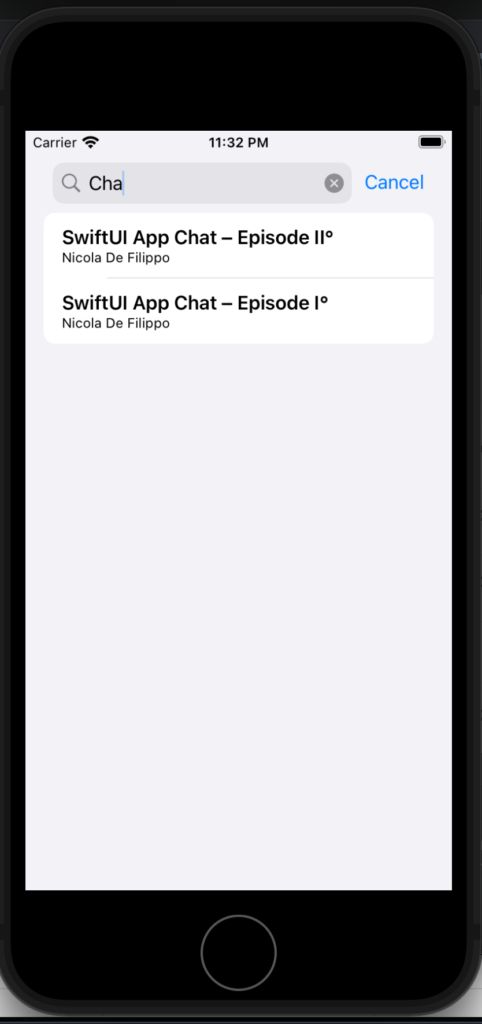
Now the list iterates on a list of posts, the searchable works with a text, instead of the search result in this case filter the array using the title. If everything is ok, you should have:

Note: English is not my native language, so I’m sorry for some errors. I appreciate it if your correct me.

SwiftUI and Shake Gesture

There isn’t a way to catch the shake gesture only using SwiftUI, so it’s necessary use these frameworks: Uikit and Combine.

Combine is very helpful in this case because how is wrote in the Apple documentation: “Combine declares publishers to expose values that can change over time, and subscribers to receive those values from the publishers.”

In the example, the goal is catch the Shake gesture with the UiKit, with the Combine framework we publish this event and get the combine published info in the SwiftUI view that is a subscriber. Let’s start.

We must create a Swift file, ShakeGestureManager.swift

import Foundation
import SwiftUI
import Combine
let messagePublisher = PassthroughSubject<Void, Never>()
class ShakeViewController: UIViewController {
override func motionBegan(_ motion: UIEvent.EventSubtype,
                              with event: UIEvent?) {
        guard motion == .motionShake else { return }
        messagePublisher.send()
    }
}
struct ShakeViewRepresentable: UIViewControllerRepresentable {
    
    func makeUIViewController(context: Context) ->
        ShakeViewController {
            ShakeViewController()
    }
func updateUIViewController(_ uiViewController: ShakeViewController,
                                context: Context) {
        
    }
}


Where the PassthroughSubject is a “A subject that broadcasts elements to downstream subscribers.” (from the Apple documentation). We need it to communicate with the SwiftUI View.

The ShakeViewController is a simple UIViewController that catches the shake Gesture. Like in the case of the Map, it’s not possible to use the UIViewController in the SwiftUI so we must create a struct that implement the UIViewControllerRepresentable that we can use in the SwiftUI View.

Now see the SwiftUI view:

import SwiftUI
struct ContentView: View {
    @State var shaked = false
    
    var body: some View {
        NavigationView {
            VStack{
                ZStack {
                    ShakeViewRepresentable()
                                .allowsHitTesting(false)
                    VStack {
                        Text("Shake device to change view!")
                    }
                    
                }.onReceive(messagePublisher) { _ in
                    self.shaked = true
                }
                NavigationLink(destination: SecondView(), isActive: $shaked) {
                    EmptyView()
                }
            }
        }
    }
}


The state variable shaked it used to store the shaked event. In the navigationview there is a ZStack, where at the bottom (first element) there is the ShakeViewRepresentable that can’t get touch event from the user because allowsHitTesting is false, on the top there is a simple Text message.

When the ZStack receives the messagePublisher, the shaked variable become true and the NavigationLink become active so the view navigates to the SecondView (that you can create how you want). Note the use of the EmptyView from the NavigationLink, it used to show nothing but to have a working link.

That’s all. I hope that it can be helpful. You can get the code here.