Mastering Customization: Configuring the Look and Feel of Lists in SwiftUI

In this post, we’ll learn how to configure the look and feel of a list. The image we’re using is from unsplash,; rename it ‘zoe’ and copy it into the assets.

Let’s start from the end and begin by envisioning what we want to create:
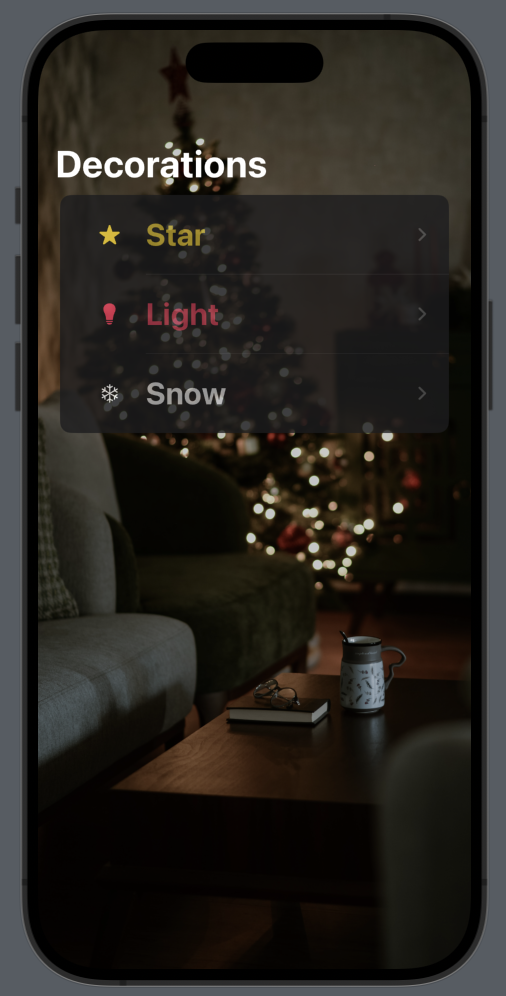
First, install the San Francisco symbols (if you haven’t already), then create the data structure that we want to display in the list:

struct Decoration: Identifiable {
    let id = UUID()
    var name: String
    var color: Color
    var image: String
}

The struct implement the Identifiable protocol, because we need add an unique identifier.

In the ContentView, we initialize the data:

struct ContentView: View {
    var decorations = [Decoration(name: "Star", color: .yellow, image:  "star.fill"), Decoration(name: "Light", color: .pink, image: "lightbulb.fill"), Decoration(name: "Snow", color: .white, image:"snowflake")]
    

We add only three Christmas decorations.

In the body:

var body: some View {
        NavigationStack {
            List(decorations) { decoration in
                NavigationLink(destination: EmptyView()) {
                    HStack {
                        Image(systemName: decoration.image)
                            .foregroundStyle(decoration.color)
                            .frame(width: 50, height: 50)
                        Text(decoration.name)
                            .foregroundColor(decoration.color)
                            .opacity(0.7)
                            .font(.title)
                            .fontWeight(.bold)
                    }
                }.listRowBackground(Color(red: 0.1, green: 0.1, blue: 0.1))
                .listRowSeparatorTint(.white)
                    
            }
            .navigationTitle("Decorations")
            .background(Image("zoe").resizable().aspectRatio(contentMode: .fill)
                .edgesIgnoringSafeArea(.all)
            )
            .scrollContentBackground(.hidden)
            .opacity(0.8)
            
        }
    }

The content of each row is displayed using an HStack, which includes the name, color and the image of the decoration, utilizing the data from the decoration array.

Now, let’s take a look at the individual customizations:

.listRowBackground(Color(red: 0.1, green: 0.1, blue: 0.1))

With this, we set the background of the row to a custom gray, instead of the default white (in light mode) or black (in dark mode).

.listRowSeparatorTint(.white)

To enhance the visibility of the row separator, we use this code to change its default color.

.background(Image("zoe").resizable().aspectRatio(contentMode: .fill)
.edgesIgnoringSafeArea(.all))
.opacity(0.8)
.scrollContentBackground(.hidden)

Therefore, we set the image as the background with a certain opacity and use all the available screen space, ignoring the safe area on every edge. Note that this last property is applied to the image, not to the background. Finally, we hide the background of the content so that the image is fully visible.

If you execute this code, you will see the title with the default black color (when using light mode). However, we want the title to always be in white. To achieve this, we add the init function to ContentView:

init() {
      // Large Navigation Title
      UINavigationBar.appearance().largeTitleTextAttributes =  [.foregroundColor: UIColor.white]
      // Inline Navigation Title
      UINavigationBar.appearance().titleTextAttributes = [.foregroundColor: UIColor.white]
    }

In this way, we set the text color for large and inline titles. Note the ‘UI’ prefix, which means that we are using functions from UIKit.

Note: English is not my native language, so I’m sorry for some errors. I appreciate if your correct me.


SwiftUI Sheets Demystified (Episode II°)

In the previous episode (SwiftUI Sheets Demystified (Episode I°)), we learned how to open a sheet. In this episode, we will learn how to open the sheet by passing a selected value. Here’s a brief overview of what we’ll cover:

  • Selecting a color name from a list, passing the selected color to the sheet, and using it as the background color.
  • How to tap a row in a list that has an empty zone

First, let’s define the color struct:

struct IColor: Identifiable {
    let id = UUID()
    var name: String
    var value: Color
}

This struct implements the Identifiable protocol so we add the id identifier. The name contains the color name, instead the value the color.

Now, let’s take a look at the ContentView::

struct ContentView: View {
    var colors = [IColor(name: "red", value: .red), IColor(name: "blue", value: .blue), IColor(name: "green", value: .green)]
    @State var colorSelected: IColor?
    var body: some View {
        NavigationStack {
            List{
                ForEach(colors) { color in
                    HStack() {
                        Text(color.name)
                        Spacer()                           
                    }.contentShape(Rectangle())
                    .onTapGesture {
                        colorSelected = color
                    }
                }
            }.sheet(item: $colorSelected) { color in
                SheetUIView(color: $colorSelected)
            }
        }
    }
}

We have a list of three colors. We define a state variable colorSelected as an optional because initially, no color is selected.

The list of colors is displayed using a horizontal stack comprising a Text and a Spacer (to fill the entire row of the list).

We define the onTapGesture to set colorSelected to the chosen color. Then, the sheet is opened when the colorSelected variable changes its value. In this case, it opens with the SheetUIView that receives the selected color.

The SheetUIView is this:

struct SheetUIView: View {
    @Environment(\.dismiss) private var dismiss
    @Binding var color: IColor?
    var body: some View {
        ScrollView {
        }.overlay(
            HStack {
                Spacer()
                VStack {
                    Button(action: {
                        dismiss()
                    }, label: {
                        Image(systemName: "chevron.down.circle.fill")
                            .font(.largeTitle)
                            .foregroundColor(.white)
                    })
                        .padding(.trailing, 20)
                        .padding(.top, 10)
                    Spacer()
                }
            }
        ).ignoresSafeArea(.all)
            .background(
                color?.value ?? .white
            )
    }
}

The view is identical to that of the first episode, with only two differences: the image has been removed for brevity, and it’s added the

.background(
     color?.value ?? .white
)

Note that the default color value is set to white. It’s essential to define a default value not only for when the sheet is opened, but also for when it’s closed. Without a default value, the selected color would be null when the sheet is closed, potentially causing the app to crash.

One consideration to keep in mind, take a look in the ContentView at:

.contentShape(Rectangle())

It’s necessary to make the entire row clickable. If we omit this, only the text area of the row will be clickable.

To conclude, in the SheetUIView, use the following preview instruction to avoid errors:

#Preview {
    @State var color: IColor? = IColor(name: "white", value: .white)
    return SheetUIView(color: $color)
}

Note: English is not my native language, so I’m sorry for some errors. I appreciate if your correct me.
SwiftUI Sheets Demystified (Episode I°)

In this post, we learn how to use sheets in SwiftUI. We will cover:

  • Open and close a not full screen sheet
  • Open and close a full screen sheet

In this example i use this image unsplash

Creating a Non-Full-Screen Sheet

Begin by creating the project and adding the image to the assets. I’ve renamed it susan.

struct ContentView: View {
    @State var isPresented = false
    var body: some View {
        NavigationStack {
            Text("Sheet")
                .toolbar {
                    ToolbarItem(placement: .confirmationAction) {
                        Button("+") {
                            isPresented = true
                        }.font(.largeTitle)
                    }
                }
        }
        .sheet(isPresented: $isPresented, content: {
            SheetUIView()
        })
    }
}

First, we add a ‘plus’ button to the toolbar. When this button is tapped, the variable isPresented is set to true. Once isPresented becomes true, the sheet is presented, displaying the SheetUIView.

Define the SheetUIView:

struct SheetUIView: View {
    @Environment(\.dismiss) private var dismiss
    var body: some View {
        ScrollView {
            VStack {
                Image("susan")
                .resizable()
                .aspectRatio(contentMode: .fit)
                Text("The sheet")
            }
        }.overlay(
            HStack {
                Spacer()
                VStack {
                    Button(action: {
                        dismiss()
                    }, label: {
                        Image(systemName: "chevron.down.circle.fill")
                            .font(.largeTitle)
                            .foregroundColor(.white)
                    })
                        .padding(.trailing, 20)
                        .padding(.top, 10)
                    Spacer()
                }
            }
        )
    }
}

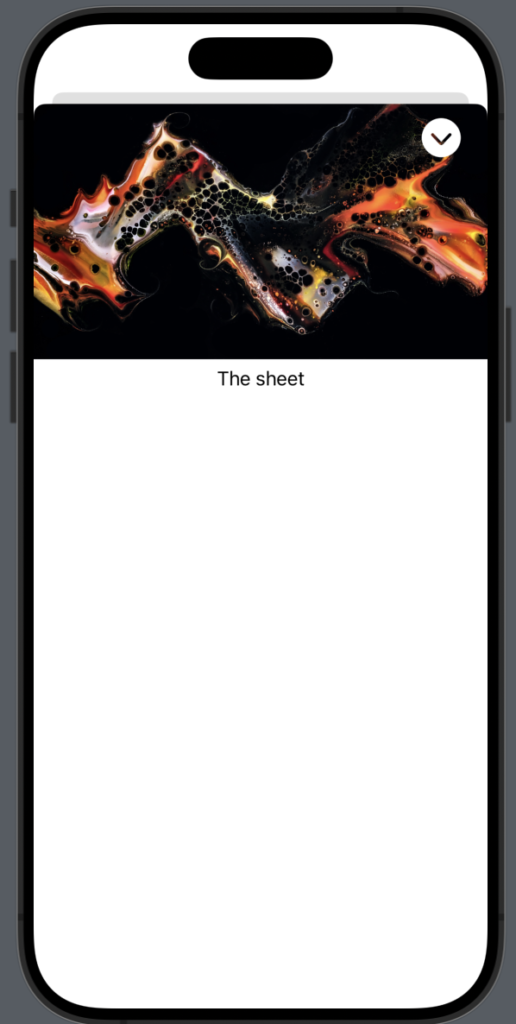
Using the Environment‘s dismiss, we call DismissAction on the current view. The body of the view contains an image at the top and some simple text. Although sheets are typically closed with a top-down swipe action, this might not always be intuitive. Therefore, we add a close button for clarity. Specifically, we place a button on the top-right corner with an action that calls dismiss(), thereby closing the sheet.

Creating a Full-Screen Sheet:

First, let’s start with a small modification in the ContentView.

struct ContentView: View {
    @State var isPresented = false
    var body: some View {
        NavigationStack {
            Text("Sheet")
                .toolbar {
                    ToolbarItem(placement: .confirmationAction) {                     
                        Button("+") {
                            isPresented = true
                        }.font(.largeTitle)
                    }
                }
        }
        .fullScreenCover(isPresented: $isPresented){
            SheetUIView()
        }
    }
}

We replace sheet with fullScreenCover for this implementation.

In the SheetUIView, we ignore the safe area to achieve a visually appealing effect:

The code:

struct SheetUIView: View {
    @Environment(\.dismiss) private var dismiss
    var body: some View {
        ScrollView {
            VStack {
                Image("susan")
                .resizable()
                .aspectRatio(contentMode: .fit)
                Text("The sheet")
            }
        }.overlay(
            HStack {
                Spacer()
                VStack {
                    Button(action: {
                        dismiss()
                    }, label: {
                        Image(systemName: "chevron.down.circle.fill")
                            .font(.largeTitle)
                            .foregroundStyle(.white)
                    })
                        .padding(.trailing, 20)
                        .padding(.top, 10)
                    Spacer()
                }
            }
        ).ignoresSafeArea(edges: .all)
    }
}

A tip for both scenarios mentioned above: If you’re not using an image but rather a VStack within a ScrollView, it’s advisable to define the VStack with these dimensions:

ScrollView {
            VStack {
                Spacer(minLength: 100)
                Text("Hello")
            }.frame(maxWidth: .infinity, maxHeight: .infinity)
        }
        ......

This is necessary to prevent the close button, defined in the overlay, from following the text in the VStack and ensure it stays at the top right border.

That’s all for this post. In the next one episode-ii, we will explore additional scenarios for using sheets.

Note: English is not my native language, sorry for any errors. I use ChatGPT only to generate the banner of the post, the content is human.

Mastering SwiftUI: A Guide to Customizing Toolbars

In this post, we’ll learn how to configure the toolbar using SwiftUI:

  • How to add a button to the main toolbar.
  • How to add a button to the bottom toolbar.
  • How to customize the title.

Add buttons in the main toolbar:

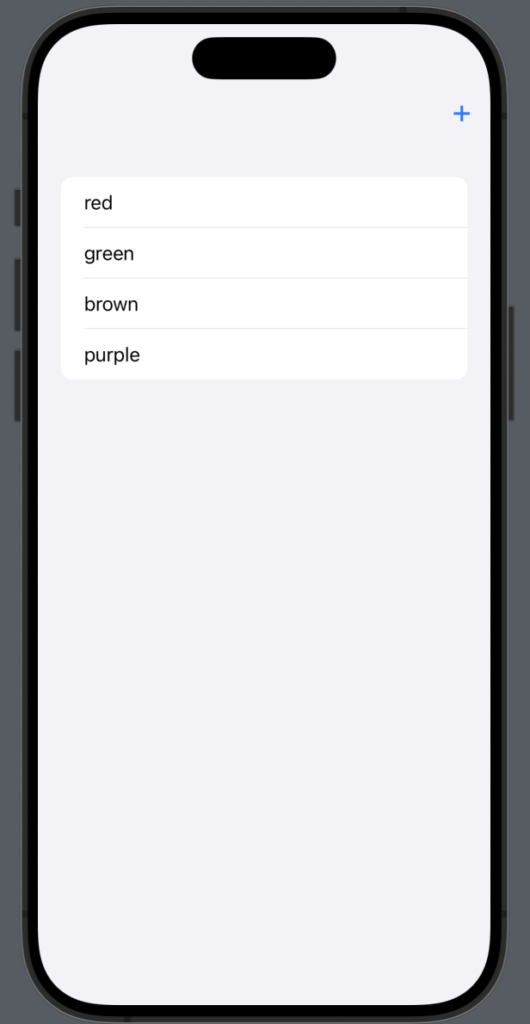
To keep things simple and have something in the view, we’ll start with a view that includes a NavigationStack and a list of colors. The objective is to add a “+” button at the top right. To do this:

struct ContentView: View {
    var colors = ["red", "green", "brown", "purple"]
    var body: some View {
        NavigationStack {
            List(colors, id:\.self) { color in
                HStack {
                    Text(color)
                }
            }
            .toolbar(content: {
                ToolbarItem(placement: .confirmAction) {
                    Button("+") {
                        // your action
                    }.font(.largeTitle)
                }
            })
        }
    }
}

In the toolbar we add a ToolbarItem that contains a button, note the placement, it’s “.confirmAction”, in the Apple world the confirm actions are always on the right. Intead of this value it’s possible also use .topBarTrailing.

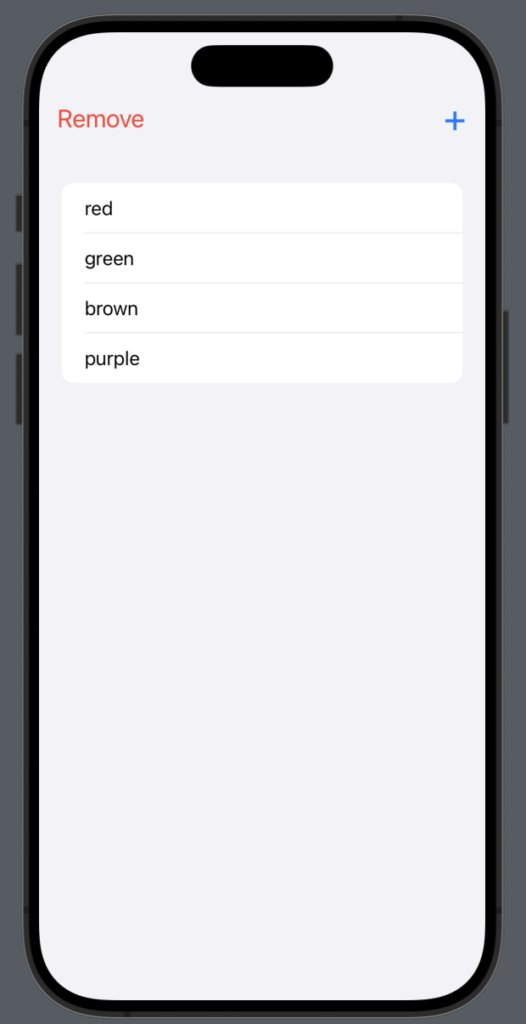
Instead of positioning the button on the top right, if you want it on the top left, use .cancelAction or .topBarLeading as the placement.

Obviously, it’s possible to use both placements at the same time:”

NavigationStack {
            List(colors, id:\.self) { color in
                HStack {
                    Text(color)
                }
            }
            .toolbar(content: {
                ToolbarItem(placement: .topBarTrailing) {
                    Button("+") {
                        
                    }.font(.largeTitle)
                }
                ToolbarItem(placement: .topBarLeading) {
                    Button("Remove") {
                        
                    }.font(.title2)
                     .foregroundStyle(.red)
                }
            })
        }

To have:

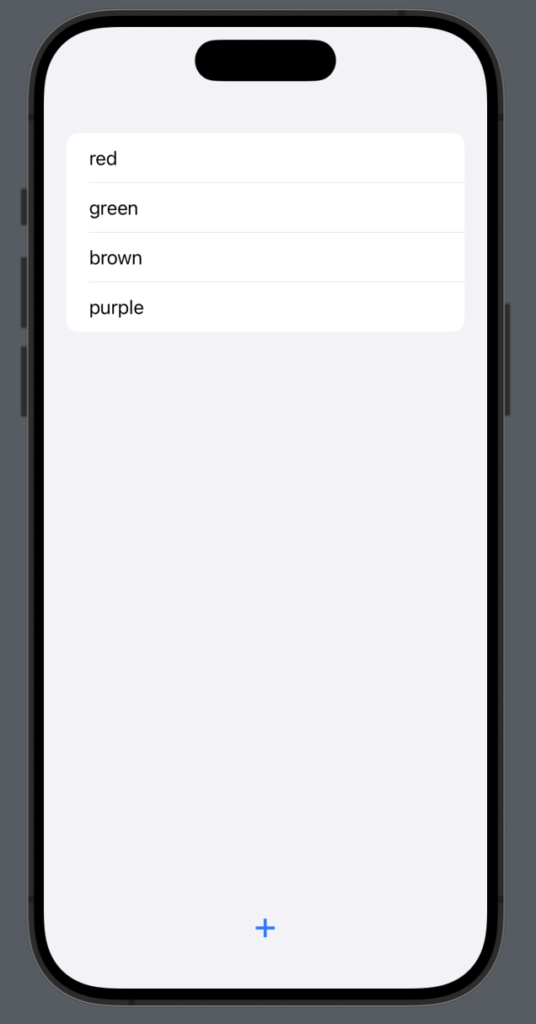
Add buttons in the bottom toolbar:

struct ContentView: View {
    var colors = ["red", "green", "brown", "purple"]
    var body: some View {
        NavigationStack {
            List(colors, id:\.self) { color in
                HStack {
                    Text(color)
                }
            }
            .toolbar(content: {
                ToolbarItem(placement: .bottomBar) {
                    Button("+") {
                        
                    }.font(.largeTitle)
                }
            })
        }
    }
}

The only change here is in the placement, which is now .bottomBar.

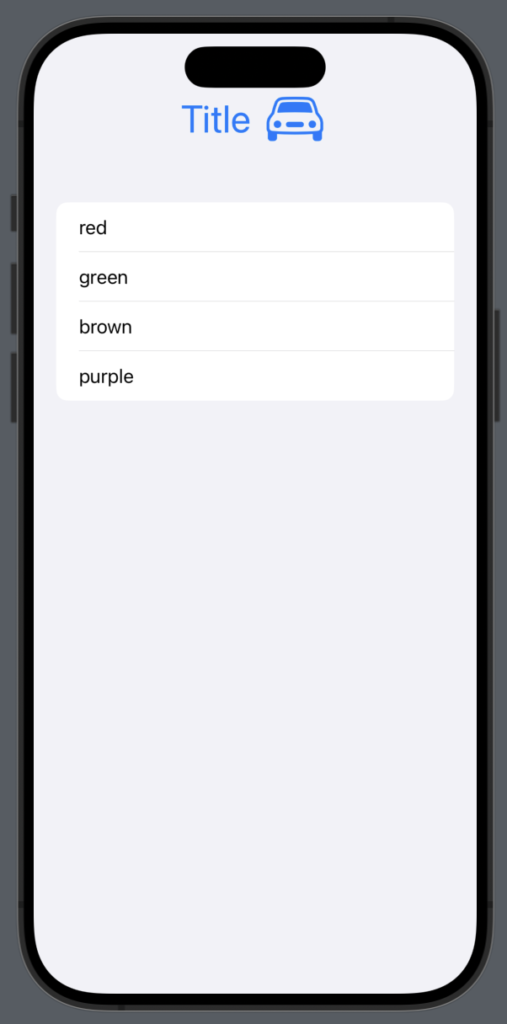
The toolbar can be useful when creating a custom title, such as one with an image. In that case, we can write something like this:

struct ContentView: View {
    var colors = ["red", "green", "brown", "purple"]
    var body: some View {
        NavigationStack {
            List(colors, id:\.self) { color in
                HStack {
                    Text(color)
                }
            }.toolbar {
                ToolbarItem(placement: .principal) {
                    HStack {
                        Text("Title")
                        Image(systemName: "car")
                    }.font(.largeTitle)
                        .foregroundStyle(.blue)
                }
            }
        }
    }
}

In this way we set in the center of the main bar a text and an image:

In this post, we explored how to use the toolbar. In the next one, we will learn how to add a real action to the button, such as opening a sheet.

Note: English is not my native language, so I’m sorry for some errors. I appreciate if your correct me.

Onboarding with a pager

To help you with creating an onboarding screen using a custom pager with a custom font, custom color, and button, I’ll guide you through the steps:

Create the Pager Component:

  • The pager will typically be a component or a view that allows the user to swipe through different screens (each representing a step in the onboarding process).

Custom Font and Color:

  • To apply a custom font, first add the font files to your project. Then, set the font for the text elements in your pager screens.
  • For custom colors, define the color values (like hex codes or RGB) in your project’s color resources or stylesheet. Apply these colors to the text, background, or other elements as needed.

Adding a Button:

  • Create a custom button

First, take a look how to create a pager:

TabView {
      Text("First page")
      Text("Second page")
      Text("Third page")
}.tabViewStyle(.page)

Now see how add a font:

  • download Fredoka from here https://fonts.google.com/specimen/Fredoka
  • add it to the project select from the File menu “Add file to your project” and select the font file
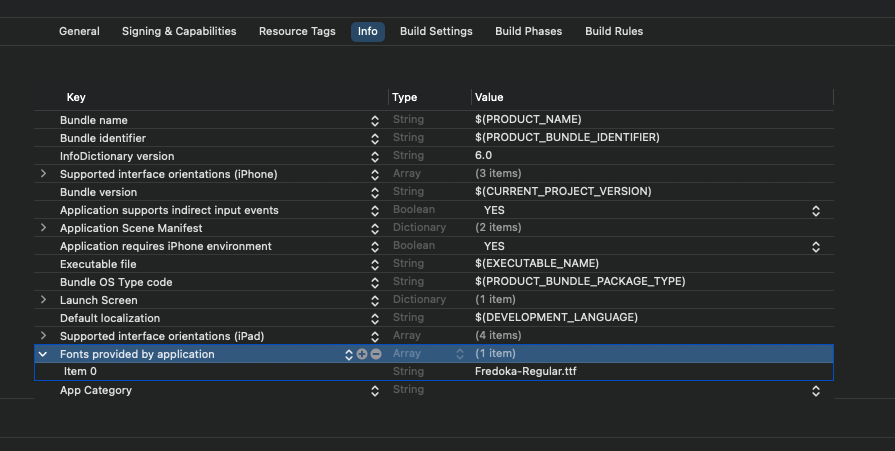
  • write the font file mane in the info section “Font provided by application

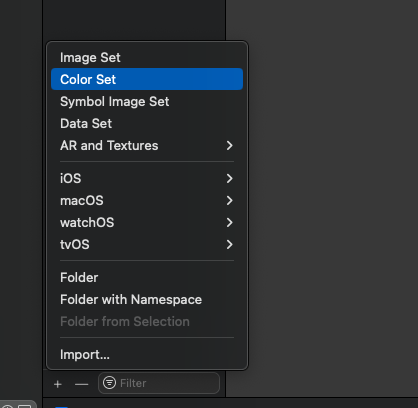
Now add a custom color, in the project open assets and add color:

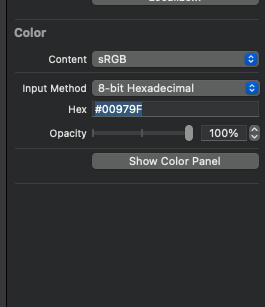
Set a name for the color and in the right panel set the color value.

Now create three views, using the custom color and the custom font, and please download also the san Francisco symbols (https://developer.apple.com/sf-symbols/) for the images.

struct ContentView: View {
    var body: some View {
        TabView {
            VStack {
                Image(systemName: "car")
                    .resizable()
                    .frame(width: 100, height: 100)
                Text("Welcome - first screen")
                    .font(Font.custom("Fredoka-Regular", size: 30, relativeTo: .largeTitle))
            }
            VStack {
                Image(systemName: "bolt.car")
                    .resizable()
                    .frame(width: 100, height: 100)
                Text("Welcome - second screen")
                    .font(Font.custom("Fredoka-Regular", size: 30, relativeTo: .largeTitle))
            }
        }.tabViewStyle(.page)
        .background(Color("onboardingColor"))
        .foregroundStyle(.white)
    }
}

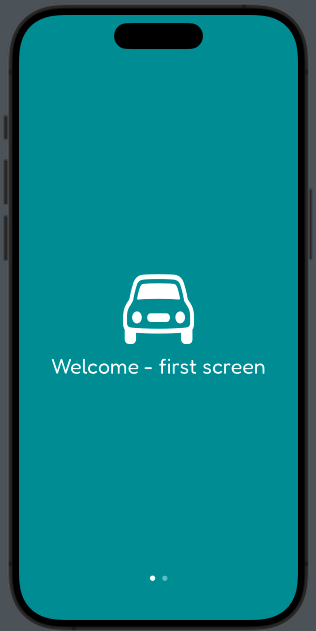
The first screen is:

To add custom button with a white border:

VStack {
       Image(systemName: "bolt.car")
       .resizable()
       .frame(width: 100, height: 100)
       Text("Welcome - second screen")
       .font(Font.custom("Fredoka-Regular", size: 30, relativeTo: .largeTitle))

       Button("Start") {

       }
       .padding()
       .overlay(
           Capsule()
           .stroke(Color.white, lineWidth: 2)
                    
        )
 }

To add the border to the button we use an overlay with a capsule shape empty with only a white border.

Enjoy creating your onboarding screen. Remember, a well-designed onboarding experience can significantly enhance user engagement and understanding of your app.