Assets in XCode 15

This post is designed to demonstrate how to use assets in Xcode 15. It serves as a quick recap for experienced developers and a helpful introduction for beginners. In this post, we’ll cover how to:

  1. Add an image to the assets and use it in the code.
  2. Add a custom color.
  3. Set the Accent color.
  4. Add an icon.

Image in the assets

Start copying this image in the assets:

Now we see the preview of the image on the right panel, along with two empty rectangles labeled 2x and 3x. What do these numbers mean? On iOS, we don’t consider the pixel size but rather use points (this concept was introduced in 2010 with the iPhone 4). For 1x, one point is equivalent to one pixel, for 2x, one point corresponds to a 2 x 2 pixel square, and for 3x, one point corresponds to a 3 x 3 pixel square. This approach results in a logical resolution (Android uses Density-independent pixels, which is a concept similar to this).

If images for 2x or 3x resolutions are not provided, the 1x image will be used even on devices with higher resolutions. Let’s look at an example to understand this better:

iPhone 11 Pro
Logical Resolution = 375 x 812 pixels
Scale Factor = x3
Screen Resolution = 1125 x 2436 pixels

The advantage of this approach is that we work with a logical resolution, and we don’t need to worry about what happens on different screen sizes because the images are scaled automatically. Of course, if we want to achieve a better look and feel, it’s advisable to have 2x or 3x versions for devices with high resolutions.

How to use this image in the code?

struct ContentView: View {
    var body: some View {
        VStack {
            Image(.postAssetHeader)
        }
        .padding()
    }
}

Note that we refer to the image with a dot and the name in camel case notation. This is a new feature in Xcode 15, where we don’t use the name as a string, and names in snake case are automatically transformed into camel case.

Custom Color

Now let’s see how to create a custom color. Start by clicking on the plus sign and selecting Color Set.
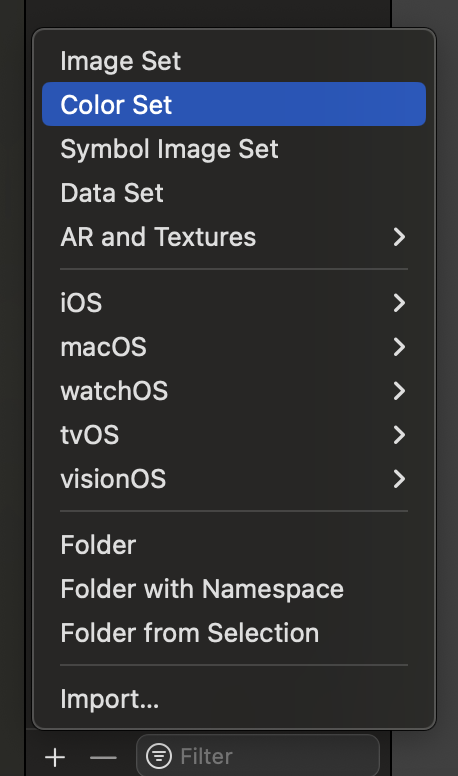
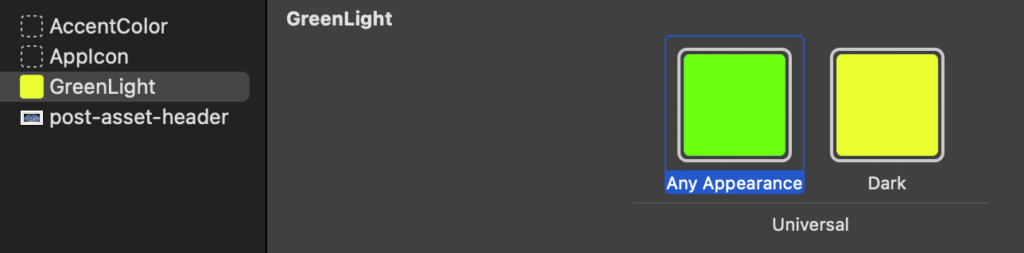
Afterward, define the color in the right panel:
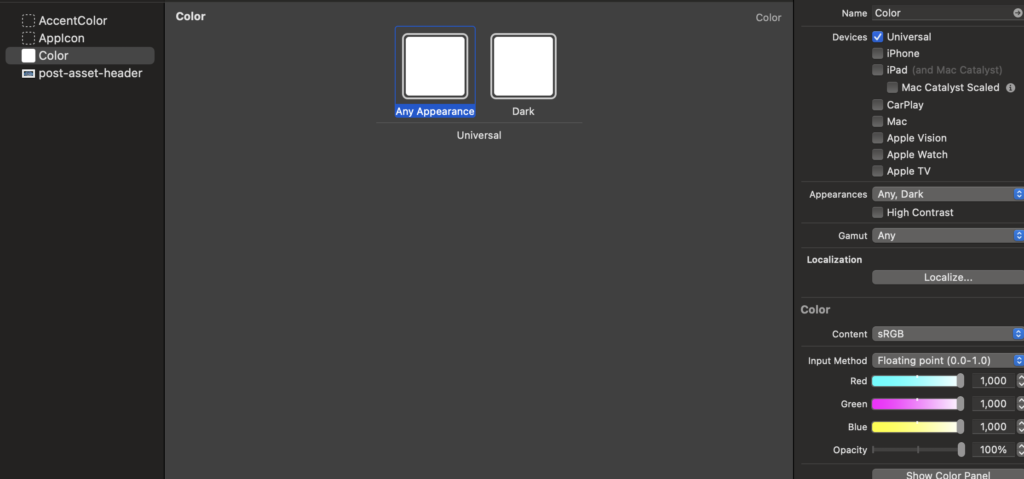
So, you can also change the name of the color to GreenLight. You should also specify the color for dark mode (it can be the same as the default; it’s your choice).
In the code:

struct ContentView: View {
    var body: some View {
        VStack {
            Text("Hello world")
                .foregroundStyle(.greenLight)
        }
        .padding()
    }
}

Note that like for the image the name is dot plus the name in camel case format.

Accent Color

The accent color is the color applied to views and controls (such as button text, tab item text, and more). You can set it as a custom color using the options in the right panel:
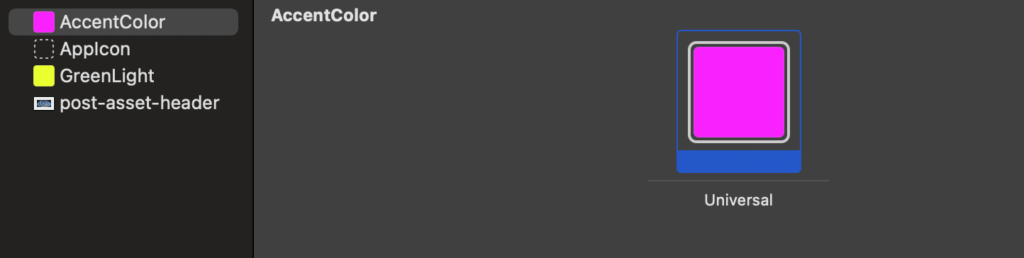
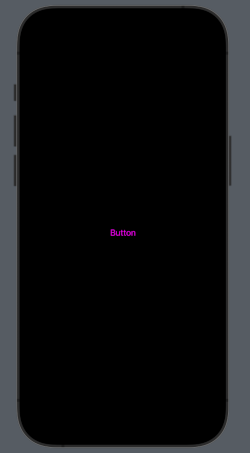
n the code, you don’t need to set anything; now, every text of controls will use it automatically.

struct ContentView: View {
    var body: some View {
        VStack {
            Button("Button") {
              // your action
            }
        }
        .padding()
    }
}

To have:
App icon

Now, creating the app icon is simple. You no longer need to create different images for different resolutions; just drag and drop one image, 1024×1024 in size, onto the rectangle. Use the image big-icon.jpg:
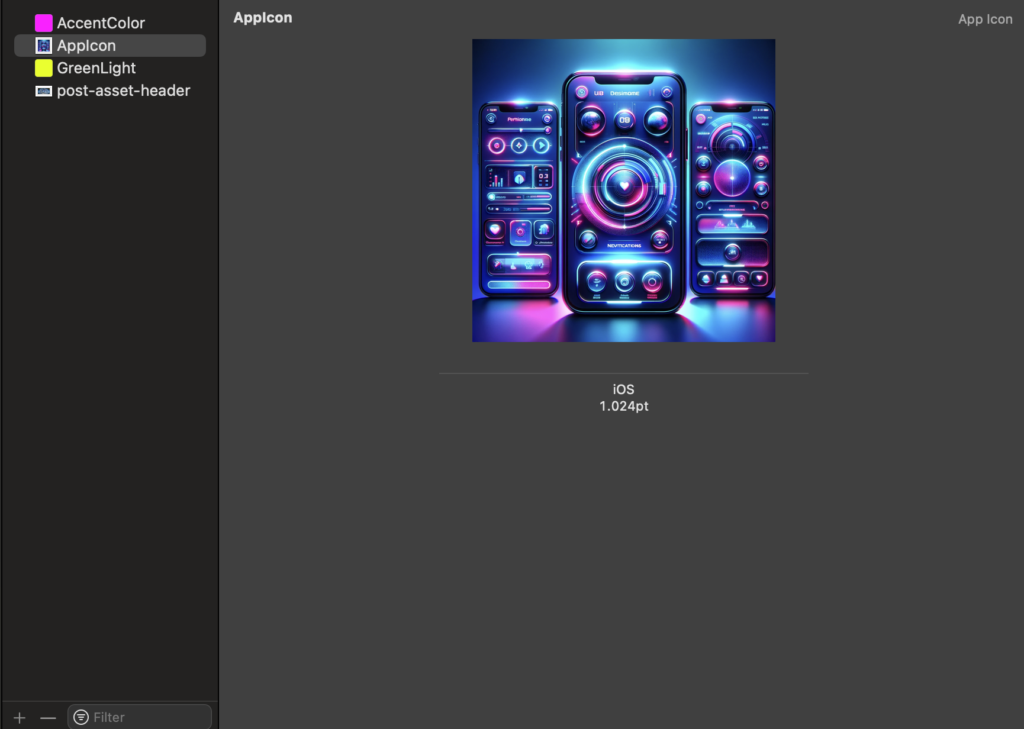
Now, run the application, and your app will have this nice icon on your phone:
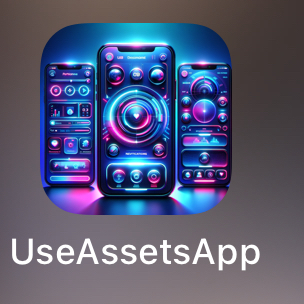
That’all.

Customize buttons in SwiftUI

In iOS, the size of buttons is typically proportional to the text or icon they contain. However, in some cases, we need buttons of uniform size. How can we achieve this? In this post, we’ll learn how to:

  • Create button with the same size
  • Create custom buttons

Buttons with the same size

The first thing we can try is this:

Button("Button") {
                // your action
            }
            .frame(maxWidth: 300, maxHeight: 60)
            .background(.purple)
            .cornerRadius(10)
            .overlay {
                RoundedRectangle(cornerRadius: 10)
                    .stroke(.red, lineWidth: 2)
            }

Therefore, create buttons with the same maxWidth and maxHeight to achieve something like this:

It can look good (apart from the colors), but there is a problem. If you click on the ‘Button’ label, you see the tapped effect and the action is executed. However, if you tap outside of the text, nothing happens. This is not ideal.

Let’s take a look at a possible solution:

Button(action: {}) {
                Text("Button")
                    .frame(maxWidth: 300, maxHeight: 60)
                    .background(.purple)
                    .cornerRadius(10)
                    .overlay {
                        RoundedRectangle(cornerRadius: 10)
                            .stroke(.red, lineWidth: 2)
                    }
            }

So, we now assign the action as a parameter of the Button, and the component is created within the button’s body.

Create custom buttons

Using the code we discussed earlier, we can create buttons in a multitude of ways; the only limit is our imagination (more or less):

Button(action: {}) {
                Text("Button")
                    .frame(maxWidth: 200)
                    .fontWeight(.bold)
                    .font(.title)
                    .padding()
                    .background(LinearGradient(gradient: Gradient(colors: [Color.red, Color.blue]), startPoint: .leading, endPoint: .trailing))
                    .cornerRadius(40)
                    .foregroundStyle(.white)
                    .padding(10)
                    .overlay(
                        RoundedRectangle(cornerRadius: 40)
                            .stroke(Color.red, lineWidth: 5)
                )
            }

In this case, we set a width, choose the font, select the text color, apply a gradient background, and add a border with a gap.

Now, feel free to create your custom buttons, but remember not to ruin the user experience with strange designs.

Shape, Stroke and Dash in SwiftUI

In this post we’ll learn how to:

  • Create a shape with stroke
  • Create a dashed stroke
  • Create a dashed line

Create a shape with stroke

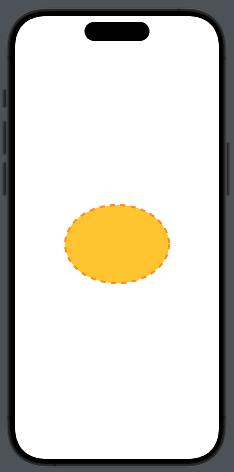
Begin by creating a yellow ellipse with an orange border:

struct ContentView: View {
    var body: some View {
        VStack {
            Ellipse()
                .stroke(style: StrokeStyle(lineWidth: 4))
                .foregroundStyle(.orange)
                .background(Ellipse().fill(.yellow))
                .frame(width: 200, height: 150)
        }
    }
}

We start by creating an ellipse, then add a border with a lineWidth of four. Next, set the color for the stroke, followed by adding a yellow ellipse as the background. Finally, set the dimensions for the entire shape.

We can have the same result with this code:

VStack {
            Ellipse()
                .strokeBorder(.orange, lineWidth: 4)
                .background(Ellipse().fill(.yellow))
                .frame(width: 200, height: 150)
        }

Create a stroke dashed

So, why do we need the StrokeStyle? It’s used to create a dashed stroke:

The code:

Ellipse()
                .stroke(style: StrokeStyle(lineWidth: 4, dash: [10]))
                .foregroundStyle(.orange)
                .background(Ellipse().fill(.yellow))
                .frame(width: 200, height: 150)

We can observe a new parameter, dash. It’s an array that contains the sizes of the dashes and spaces. For example, with dash[10, 2], we get:

We can achieve the same result as in the first example by overlapping the ellipse using a ZStack:

ZStack {
                Ellipse()
                    .strokeBorder(.red, lineWidth: 2)
                    .frame(width: 200, height: 150)
                Ellipse()
                    .foregroundStyle(.yellow)
                    .padding(2)
                    .frame(width: 200, height: 150)
            }

In this case, the second ellipse has padding equal to the lineWidth of the first one.

Create a line (dashed)

In SwiftUI, a Line shape doesn’t exist natively, so we have to create it using the Shape protocol:

struct Line: Shape {
    var y2: CGFloat = 0.0
    func path(in rect: CGRect) -> Path {
        var path = Path()
        path.move(to: CGPoint(x: 0, y: 0))
        path.addLine(to: CGPoint(x: rect.width, y: y2))
        return path
    }
}

The line is drawn inside a virtual rectangle; by default, it is horizontal. However, if we pass a value for y2, we get an inclined line.

struct ContentView: View {
    var body: some View {
        HStack {
            Spacer(minLength: 20)
            Line()
                   .stroke(style: StrokeStyle(lineWidth: 1, dash: [5]))
                   .foregroundStyle(.orange)
                   .frame(height: 1)
            Spacer(minLength: 10)
        }
    }
}

That’all for this post.

Map in SwiftUI (Episode V)

In this fifth and final episode of our series on Maps in SwiftUI, we’ll learn how to:

  1. Draw the route
  2. Calculate the travel time
  3. Change the transport type

As usual, let’s start from the beginning.

In the code, we set the starting point at Infinite Loop and the ending point at Apple Park. By clicking on the car icon, we change the transport type to walking.

Now, let’s begin analyzing the declarations in the view:

struct RouteView: View {
    @State private var route: MKRoute?
    @State private var formattedTravelTime: String = ""
    @State private var transportType: MKDirectionsTransportType = .automobile
    private let infiniteLoop = CLLocationCoordinate2D(latitude: 37.33218745278164, longitude: -122.03010316931332)
    private let applePark = CLLocationCoordinate2D(latitude: 37.33536036460403, longitude: -122.00901491534331)
    private let images = [MKDirectionsTransportType.automobile.rawValue: "car", MKDirectionsTransportType.walking.rawValue: "figure.walk"]
.
.
.

The route will contain the polyline of the route, while formattedTravelTime holds the time needed to complete the journey. transportType contains the mode of transportation used for the journey (in this example, we use only automobile and walking). infiniteLoop and applePark are the two points of interest that we want to connect. The images variable contains a dictionary with two elements, each representing the image name used for the transport type.

var body: some View {
        Map {
            if let route {
                MapPolyline(route.polyline)
                    .stroke(.blue, lineWidth: 8)
            }
        }
        .overlay(alignment: .bottom, content: {
            HStack {
                Text("Travel time: \(formattedTravelTime)")
                    .font(.headline)
                    .foregroundStyle(.black)
                    .fontWeight(.bold)
                    
                Button(action: {
                    if transportType == .automobile {
                        transportType = .walking
                    } else {
                        transportType = .automobile
                    }
                    fetchRouteFrom(infiniteLoop, to: applePark)
                }, label: {
                    Image(systemName: images[transportType.rawValue] ?? "questionmark.app")
                })
            }.padding()
            .background(.ultraThinMaterial)
            .cornerRadius(15)
        })
        .onAppear(perform: {
            fetchRouteFrom(infiniteLoop, to: applePark)
        })
    }

With this code, we display a map and, if not nil, the route as a polyline. The route is calculated by the fetchRouteFrom function. This function is called when the view is displayed and every time we tap on the transport type button. Next to the button, the required travel time is also displayed.

Now, let’s take a look at the functions used:

private func fetchRouteFrom(_ source: CLLocationCoordinate2D, to destination: CLLocationCoordinate2D) {
        let request = MKDirections.Request()
        request.source = MKMapItem(placemark: MKPlacemark(coordinate: source))
        request.destination = MKMapItem(placemark: MKPlacemark(coordinate: destination))
        request.transportType = transportType
        
        Task {
            let result = try? await MKDirections(request: request).calculate()
            route = result?.routes.first
            if let time = travelTime() {
                formattedTravelTime = time
            } else {
                formattedTravelTime = "unknown"
            }
            
        }
    }

These functions receive the coordinates of the two points as parameters. A request to MKDirections is created, setting the placemarks for the source and destination, as well as the transport type.

Following this, we calculate the route, retrieve the first available route, and then calculate the travel time with:

private func travelTime() -> String? {
        guard let route else { return nil}
        let formatter = DateComponentsFormatter()
        formatter.unitsStyle = .abbreviated
        formatter.allowedUnits = [.hour, .minute]
        return formatter.string(from: route.expectedTravelTime)
    }

In this function, we obtain the travel time using route.expectedTravelTime and format it with a formatter.

Now, let’s put everything together:

import SwiftUI
import MapKit

struct ContentView: View {
    @State private var route: MKRoute?
    @State private var formattedTravelTime: String = ""
    @State private var transportType: MKDirectionsTransportType = .automobile
    private let infiniteLoop = CLLocationCoordinate2D(latitude: 37.33218745278164, longitude: -122.03010316931332)
    private let applePark = CLLocationCoordinate2D(latitude: 37.33536036460403, longitude: -122.00901491534331)
    private let images = [MKDirectionsTransportType.automobile.rawValue: "car", MKDirectionsTransportType.walking.rawValue: "figure.walk"]
    
    var body: some View {
        Map {
            if let route {
                MapPolyline(route.polyline)
                    .stroke(.blue, lineWidth: 8)
            }
        }
        .overlay(alignment: .bottom, content: {
            HStack {
                Text("Travel time: \(formattedTravelTime)")
                    .font(.headline)
                    .foregroundStyle(.black)
                    .fontWeight(.bold)
                    
                Button(action: {
                    if transportType == .automobile {
                        transportType = .walking
                    } else {
                        transportType = .automobile
                    }
                    fetchRouteFrom(infiniteLoop, to: applePark)
                }, label: {
                    Image(systemName: images[transportType.rawValue] ?? "questionmark.app")
                })
            }.padding()
            .background(.ultraThinMaterial)
            .cornerRadius(15)
        })
        .onAppear(perform: {
            fetchRouteFrom(infiniteLoop, to: applePark)
        })
    }
    private func fetchRouteFrom(_ source: CLLocationCoordinate2D, to destination: CLLocationCoordinate2D) {
        let request = MKDirections.Request()
        request.source = MKMapItem(placemark: MKPlacemark(coordinate: source))
        request.destination = MKMapItem(placemark: MKPlacemark(coordinate: destination))
        request.transportType = transportType
        
        Task {
            let result = try? await MKDirections(request: request).calculate()
            route = result?.routes.first
            if let time = travelTime() {
                formattedTravelTime = time
            } else {
                formattedTravelTime = "unknown"
            }
            
        }
    }
        
    private func travelTime() -> String? {
        guard let route else { return nil}
        let formatter = DateComponentsFormatter()
        formatter.unitsStyle = .abbreviated
        formatter.allowedUnits = [.hour, .minute]
        return formatter.string(from: route.expectedTravelTime)
       
    }
}

With this episode, our series on maps is now complete.

Stay tuned and follow me for upcoming topics.

Map in SwiftUI (episode IV – Search Around)

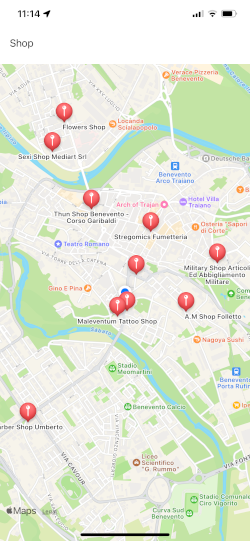
In this episode, we’ll learn how to conduct a search on the map. Our objective is to achieve something like this:

Therefore, by typing in a text field what we want to search for, the points of interest found will be displayed on the map. In the example, I typed Shop, but you can type anything else.

The Map

Let’s start by looking at the view that contains the map:

import SwiftUI
import MapKit

struct ContentView: View {
    @State var position: MapCameraPosition = .userLocation(fallback: .automatic)
    @State private var searchResults = [SearchResult]()
    @State private var selectedLocation: SearchResult?
    @State private var searchText: String = ""
    
    var body: some View {
        VStack {
            TextField("Search", text: $searchText)
            .onSubmit {
                Task {
                    // searchResults = 
                }
            }.padding()
            Map(position: $position, selection: $selectedLocation) {
                ForEach(searchResults) { result in
                    Marker(coordinate: result.location) {
                        Image(systemName: "mappin")
                        Text(result.name)
                    }
                    .tag(result)
                }
            }
        }
    }
}
  • The position variable contains the user’s current location.
  • searchResults holds the results of the search.
  • selectedLocation stores the marker that has been selected (the item chosen from the search results).
  • searchText is the text input used for the query.

When the user submits the search string, the search function is called. The map centers on position (which, in this case, is the user’s location), and selectedLocation is updated when a marker is tapped.

Using ForEach, we add all the searched points of interest to the map.

The Search

Now, let’s take a look at the search logic.

First, let’s define the structure used in the search:

struct SearchResult: Identifiable, Hashable {
    let id = UUID()
    let location: CLLocationCoordinate2D
    let name: String
    
    static func == (lhs: SearchResult, rhs: SearchResult) -> Bool {
        lhs.id == rhs.id
    }

    func hash(into hasher: inout Hasher) {
        hasher.combine(id)
    }
}

So, we implement the Identifiable protocol to have a unique identifier and the Hashable protocol to enable the use of this type of item as a selection on the Map.

Now, let’s focus on the core of the logic:

func search(with query: String, coordinate: CLLocationCoordinate2D? = nil) async throws -> [SearchResult] {
        let mapKitRequest = MKLocalSearch.Request()
        mapKitRequest.naturalLanguageQuery = query
        mapKitRequest.resultTypes = .pointOfInterest
        if let coordinate {
            mapKitRequest.region = .init(.init(origin: .init(coordinate), size: .init(width: 1, height: 1)))
        }
        let search = MKLocalSearch(request: mapKitRequest)

        let response = try await search.start()

        return response.mapItems.compactMap { mapItem in
            guard let location = mapItem.placemark.location?.coordinate else { return nil }

            return .init(location: location, name: mapItem.placemark.name ?? "")
        }
    }

This function receives the search string and coordinates for the search location as input (if ‘nil’, the current location is used), and it returns an array of SearchResult.

In the function, we create a request specifying that we use natural language and that our aim is to search for points of interest.

After that, we remove any points of interest with ‘nil’ coordinates and instead create SearchResult entity by adding coordinate and name.

That’s all.