
Adding Events to the Calendar in SwiftUI Using Default UI (Calendar Series Part III)

In this post, we learn how to use the default view to add an event to the calendar without creating a new one, if we don’t need a customized view. I mean this (sorry, today I’m lazy and don’t want to change my phone’s language to English).
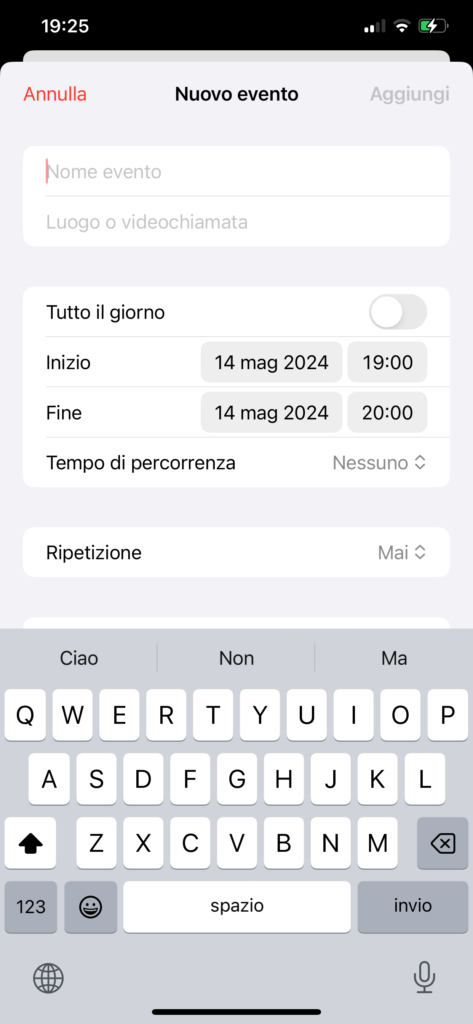
I advise you to take a look at the first post of this series to understand the fundamentals (I won’t repeat them here).

The first step is to create a controller for the view:

class EventUIController: UIViewController, EKEventEditViewDelegate {
    let eventStore = EKEventStore()
    
    func eventEditViewController(_ controller: EKEventEditViewController, didCompleteWith action: EKEventEditViewAction) {
        controller.dismiss(animated: true, completion: nil)
        parent?.dismiss(animated: true, completion: nil)
    }
    
    override func viewDidLoad() {
        super.viewDidLoad()
        Task {
            let response = try await self.eventStore.requestFullAccessToEvents()
            if response {
                let eventController = EKEventEditViewController()
                eventController.eventStore = self.eventStore
                eventController.editViewDelegate = self
                eventController.modalPresentationStyle = .overCurrentContext
                eventController.modalTransitionStyle = .crossDissolve
                self.present(eventController, animated: true, completion: nil)
            }
        }
    }
}

In the viewDidLoad method, we check for authorizations, and if everything is okay, we create the controller, assign the eventStore, set the delegate to itself, and finally, the view is displayed. Note that in this function, we use Task to allow the call of an async action. In another function, eventEditViewController, the dismiss action is managed.

To allow this controller to be used in SwiftUI, we need to have a UIViewControllerRepresentable:

struct EventRepresentable: UIViewControllerRepresentable {
    func makeUIViewController(context: Context) -> EventUIController {
        return EventUIController()
    }
    
    func updateUIViewController(_ uiViewController: EventUIController, context: Context) {
        // Only to be conform to the protocol
    }
}

Now we can call it from SwiftUI.

struct ContentView: View {
    @State var eventsManager = EventStoreManager()
    @State var isPresented = false
    
    var body: some View {
        NavigationStack {
            VStack {
                List(eventsManager.events, id:\.self) { event in
                    Text(event.title)
                }
            }
            .padding()
            .toolbar(content: {
                ToolbarItem(placement: .confirmationAction) {
                    Button("+") {
                        isPresented = true
                    }.font(.largeTitle)
                }
            })
            .sheet(isPresented: $isPresented, content: {
                EventRepresentable()
            })
        }.onAppear {
            Task {
                await loadEvents()
            }
        }.onChange(of: isPresented) {
            if !isPresented {
                Task {
                    await loadEvents()
                }
            }
        }
    }
    
    func loadEvents() async {
        do {
            try await eventsManager.setEventDate(date: Date())
        } catch {
            print("Error")
        }
    }
}

The code is 99% similar to that of the previous post; the only thing that changes is that now the sheet presents the default view instead of our custom view.

With this post, this series is complete (at least for now). Always remember to add permissions in the info.plist. Lastly, if you want to get the list of calendars in the calendar application, simply call the calendars function of the eventStore (this is necessary if you want to add an event to a particular calendar).

The code https://github.com/niqt/CalendarAppExample/tree/defaultEventView

To subscribe to my newsletter [https://nicoladefilippo.com/#mailinglist]

Note: English is not my native language, so I apologize for any errors. I use AI solely to generate the banner of the post; the content is human-generated.

Adding Events to the Calendar in SwiftUI (Calendar Series Part II)

We’ve learned (read-events-from-the-calendar-in-swiftui/ ) how to read calendar events. In this post, we’ll learn how to add an event to the calendar.

We’ll follow these steps:

  1. Add the logic to the events manager.
  2. Create a new view in the app to create an event with a title for the current date.

Let’s start by adding a new function, addEvent, in the EventStoreManager:

func addEvent(date: Date, title: String) {
        let event = EKEvent(eventStore: self.eventStore)
        event.calendar = eventStore.defaultCalendarForNewEvents
        event.title = title
        event.startDate = date
        event.endDate =  Calendar.current.date(byAdding: .hour, value: 1, to: date)
        
        do {
            try self.eventStore.save(event, span: .thisEvent, commit: true)
        } catch {
            print("Saving error \(error)")
        }
    }

(please get the code of the EventStoreManager from the previous post).

In this tutorial, we’ll create an event on a specified date. To simplify, we set the endDate by adding one hour to the startDate and set the title. However, pay special attention to the save function. We pass .thisEvent, which means it’s a single occurrence event and not recurring. The commit parameter is set to true, meaning the event is immediately saved, and we do not need to call the commit function later.

Now, let’s take a look at the ContentView:

struct ContentView: View {
    @State var eventsManager = EventStoreManager()
    @State var isPresented = false
    
    var body: some View {
        NavigationStack {
            VStack {
                List(eventsManager.events, id:\.self) { event in
                    Text(event.title)
                }
            }
            .padding()
            .toolbar(content: {
                ToolbarItem(placement: .confirmationAction) {
                    Button("+") {
                        isPresented = true
                    }.font(.largeTitle)
                }
            })
            .sheet(isPresented: $isPresented, content: {
                EventView()
            })
        }.onAppear {
            Task {
                await loadEvents()
            }
        }.onChange(of: isPresented) {
            if !isPresented {
                Task {
                    await loadEvents()
                }
            }
        }
    }
    
    func loadEvents() async {
        do {
            try await eventsManager.setEventDate(date: Date())
        } catch {
            print("Error")
        }
    }
}

Starting from the end, we see a loadEvent function that sets the date for which we want to load the events. This function is triggered when the view first appears and every time the sheet is closed.

The sheet contains the view to create the new event:

struct EventView: View {
    @State var title = ""
    @State var eventsManager = EventStoreManager()
    @Environment(\.dismiss) private var dismiss
    
    var body: some View {
        VStack {
            TextField("Event title", text: $title)
            Button("Save") {
                eventsManager.addEvent(date: Date(), title: title)
                dismiss()
            }
        }.padding()
    }
}

This view contains only a text field to add the event’s title and a button to call the addEvent function and close the sheet. If you have never used a sheet in SwiftUI, please take a look here https://nicoladefilippo.com/swiftui-sheets-demystified-episode-i/ .

The code can be improved with other best practices, but the purpose of this post is solely to demonstrate how to add an event to the calendar.

The code.

To subscribe to my newsletter [https://nicoladefilippo.com/#mailinglist]

Note: English is not my native language, so I apologize for any errors. I use AI solely to generate the banner of the post; the content is human-generated.
Read events from the calendar in SwiftUI

In this post, we’ll learn how to read events from the calendar in our SwiftUI application. In the next one, we’ll learn how to add an event to the calendar.

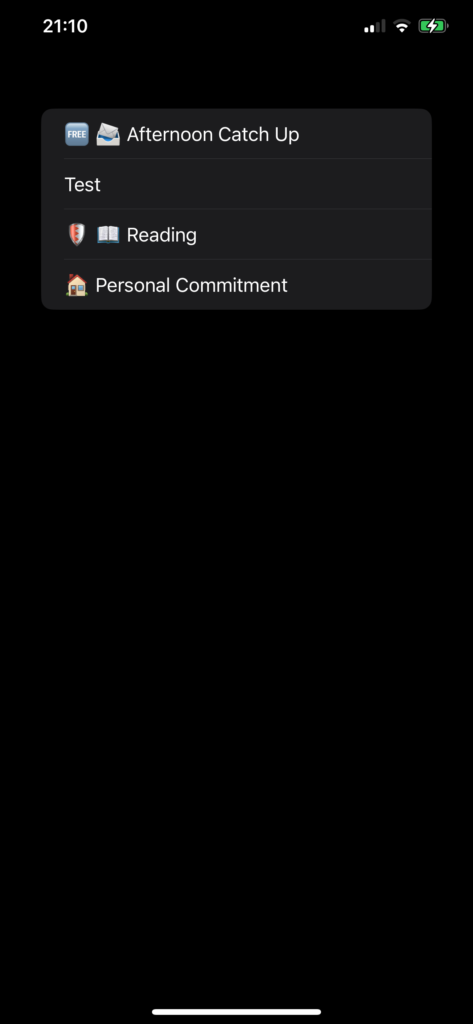
For today’s events, I display only the title:

We need to complete two steps:

  1. Add ‘Privacy – Calendars Usage Description’ to the info.plist for full calendar access.
  2. Create an event manager.

The Event Manager

import Foundation
import EventKit

@Observable
class EventStoreManager {
    public var events = [EKEvent]()
    let eventStore = EKEventStore()
    
    func fetchEvent(date: Date) -> [EKEvent] {
        let start = Calendar.current.startOfDay(for: date)
        let end = Calendar.current.date(byAdding: .day, value: 1, to: start) ?? Date()
        let predicate = eventStore.predicateForEvents(withStart: start, end: end, calendars: nil)
        return eventStore.events(matching: predicate)
    }
    
    func authorizationStatus() async throws -> Bool {
        return try await eventStore.requestFullAccessToEvents()
    }
    
    func setEventDate(date: Date) async throws {
        let response = try await authorizationStatus()
        if response {
            self.events = fetchEvent(date: date)
        }
    }
}

First step: Import EventKit. The class is annotated with @Observable to utilize the latest powerful features from iOS 17, allowing the UI to simply reflect changes in this class.

The authorization function is crucial as it requires user permission to access calendar app data. Without this permission, no events can be retrieved.

Events are returned by the fetchEvent function. In this function, the start and end dates are calculated (from 00:00 to 24:00 of the current day in the example). Then, a predicate is created to query the events within that interval.

The ContentView is simple:

struct ContentView: View {
    @State var eventsManager = EventStoreManager()
    var body: some View {
        VStack {
            List(eventsManager.events, id:\.self) { event in
                Text(event.title)
            }
        }.task {
            do {
                try await eventsManager.setEventDate(date: Date())
            } catch {
                print("Error")
            }
        }
        .padding()
    }
}

The eventsManager variable is defined as a @State to capture every change in it (recall that it’s observable). Thus, when the app is displayed, we set the date to search for events (simplified to the current day). The events that are returned are then displayed in a list.

The code is here https://github.com/niqt/CalendarAppExample

To subscribe to my newsletter [https://nicoladefilippo.com/#mailinglist]

Note: English is not my native language, so I apologize for any errors. I use AI solely to generate the banner of the post; the content is human-generated.

Write NFC Tag with SwiftUI

In the previous post, we learned how to read an NFC tag. In this one, we’ll explore how to write to an NFC tag. As I mentioned in the previous post: ‘Once you create a project, you need to add the Near Field Communication capability. In your code, you must also import CoreNFC. After that, add the “Privacy – NFC Scan Usage Description” permission in the Info.plist file. If this is omitted, your app will crash, and you’ll be left confused about the reason.’

We want to write both text and a URL to the tag, so in ContentView we have:

import SwiftUI
import CoreNFC

struct ContentView: View {
    @State var nfcWriter = NFCWriter()
    @State var textToWrite = ""
    @State var urlToWrite = ""
    
    var body: some View {
        VStack(spacing: 10) {
            TextField("Text to write", text: $textToWrite)
            TextField("Url to write", text: $urlToWrite)
            Button("Write NFC") {
                nfcWriter.write(url: urlToWrite, text: textToWrite)
            }.padding()
        }.padding()
    }
}

We have two TextField components to capture user input and a button that calls the write function.

Now, let’s look at the main component, the writer. Create a file named NFCWriter and copy the following code into it:

import Foundation
import CoreNFC

@Observable
public class NFCWriter: NSObject, NFCNDEFReaderSessionDelegate {
    var startAlert = "Hold your iPhone near the tag."
    var session: NFCNDEFReaderSession?
    var urlToWrite = "https://www.nicoladefilippo.com"
    var textToWrite = "Hello World"
    
    public func write(url: String, text: String) {
        guard NFCNDEFReaderSession.readingAvailable else {
            print("Error")
            return
        }
        self.urlToWrite = url
        self.textToWrite = text
        session = NFCNDEFReaderSession(delegate: self, queue: nil, invalidateAfterFirstRead: false)
        session?.alertMessage = self.startAlert
        session?.begin()
    }
    
    public func readerSession(_ session: NFCNDEFReaderSession, didDetectNDEFs messages: [NFCNDEFMessage]) {
        // Read logic
    }
    
    public func readerSession(_ session: NFCNDEFReaderSession, didDetect tags: [NFCNDEFTag]) {

        guard tags.count == 1 else {
            session.invalidate(errorMessage: "Cannot Write More Than One Tag in NFC")
            return
        }
        let currentTag = tags.first!
        
        session.connect(to: currentTag) { error in
            
            guard error == nil else {
                session.invalidate(errorMessage: "cound not connect to NFC card")
                return
            }
            
            currentTag.queryNDEFStatus { status, capacity, error in
                
                guard error == nil else {
                    session.invalidate(errorMessage: "Write error")
                    return
                }
                
                switch status {
                    case .notSupported: 
                        session.invalidate(errorMessage: "Not Suported")
                    case .readOnly:
                        session.invalidate(errorMessage: "ReadOnly")
                    case .readWrite:
                    
                        let textPayload = NFCNDEFPayload.wellKnownTypeTextPayload(
                            string: self.textToWrite,
                            locale: Locale.init(identifier: "en")
                        )!
                        
                        let uriPayload = NFCNDEFPayload.wellKnownTypeURIPayload(
                            url: URL(string: self.urlToWrite)!
                        )!
                        
                        let messge = NFCNDEFMessage.init(
                            records: [
                                uriPayload,
                                textPayload
                            ]
                        )
                        currentTag.writeNDEF(messge) { error in
                            
                            if error != nil {
                                session.invalidate(errorMessage: "Fail to write nfc card")
                            } else {
                                session.alertMessage = "Successfully writtern"
                                session.invalidate()
                            }
                        }
                    
                    @unknown default:
                        session.invalidate(errorMessage: "unknown error")
                }
            }
        }
    }
    
    public func readerSessionDidBecomeActive(_ session: NFCNDEFReaderSession) {
    }
    
    public func readerSession(_ session: NFCNDEFReaderSession, didInvalidateWithError error: Error) {
        print("Session did invalidate with error: \(error)")
        self.session = nil
    }
}

In the write function, we initialize the session and the data we want to write. Note that in this case, invalidateAfterFirstRead is set to false because it can’t be true when writing (otherwise, the session would immediately be invalidated).

The core of the functionality is the public func readerSession(_ session: NFCNDEFReaderSession, didDetect tags: [NFCNDEFTag]) function.

In this function, we check that only one tag is near the phone (since only one tag can be written to), then retrieve the tag and establish a connection to it. If everything checks out, we query it to verify its status. If writing is possible, we add an array of records containing a text and a URL (note how records are initialized differently based on the type). The capacity property indicates the maximum NDEF message size, in bytes, that can be stored on the tag.

You should now be able to write to your tag.

The code https://github.com/niqt/WriteNfcTag

To subscribe to my newsletter [https://nicoladefilippo.com/#mailinglist]

Note: English is not my native language, so I apologize for any errors. I use AI solely to generate the banner of the post; the content is human-generated.
Read NFC tag in SwiftUI

One of the technologies often discussed (sometimes for security reasons) is Near Field Communication (NFC). In this post, we’ll learn how to read information from an NFC tag. It’s possible to embed various types of data in a tag, such as contact information, a URL, WiFi credentials, and more, which can significantly enhance your application’s functionality.

In this example, we’ll assume that the tag contains a simple string: “Hello tag.”

To begin, once you create a project, you need to add the Near Field Communication capability. In your code, you must also import CoreNFC. After that in the info add the permission “Privacy – NFC Scan Usage Description”, if you omit this, your app will crash and you became crazy to understand the reason.

Now, let’s take a look at the main part, the NFCReader. Start by creating a file named NFCReader.swift:

import Foundation
import CoreNFC

@Observable
public class NFCReader: NSObject, NFCNDEFReaderSessionDelegate {
    public var startAlert = "Hold your iPhone near the tag."
    public var raw = "Raw Data will be available after scan."
    public var session: NFCNDEFReaderSession?
    
    public func read() {
        guard NFCNDEFReaderSession.readingAvailable else {
            print("Error")
            return
        }
        session = NFCNDEFReaderSession(delegate: self, queue: nil, invalidateAfterFirstRead: true)
        session?.alertMessage = self.startAlert
        session?.begin()
    }
    
    public func readerSession(_ session: NFCNDEFReaderSession, didDetectNDEFs messages: [NFCNDEFMessage]) {
        DispatchQueue.main.async {
            if messages.count > 0, let dataMessage = String(data: messages[0].records[0].payload, encoding:.utf8) {
                self.raw = dataMessage
            }
            //session.invalidate()
        }
    }
    
    public func readerSessionDidBecomeActive(_ session: NFCNDEFReaderSession) {
    }
    
    public func readerSession(_ session: NFCNDEFReaderSession, didInvalidateWithError error: Error) {
        print("Session did invalidate with error: \(error)")
        self.session = nil
    }
}

The NFCReader is marked with the Observable annotation, introduced in iOS 17. This feature allows SwiftUI to easily detect changes occurring within this class.

The startAlert is the message that appears when the sheet prompting the user to move the tag near the phone is displayed. The variable raw will contain the string read from the tag.

The NFCNDEFReaderSession is the session used to read the tag. Note the invalidateAfterFirstRead parameter in the constructor; if set to true, the sheet displayed for reading the tag automatically disappears once the tag is read (otherwise, we must call session.invalidate(), see the commented code).

When the tag is read, the readSession function is called. In this case, we retrieve the information from the first record on the tag (there could be more than one), and get the payload. It is also possible to obtain the type of the information, the typeInformationFormat, and the tag identifier (as an exercise, I suggest displaying these pieces of information).

Finally, in the ContentView we have:

import SwiftUI
import CoreNFC

struct ContentView: View {
    @State var NFCR = NFCReader()
    
    var body: some View {
        VStack(spacing: 10) {
            Text("NFC data: \(NFCR.raw)")
            Button("Read NFC") {
                NFCR.read()
            }
        }
    }
}

Thus, we create the NFCReader as State so we can get the changes, tapping on the button start to read, if the things are good, the string read is displayed.

The code https://github.com/niqt/NfcExample/tree/main

Note: English is not my native language, so I apologize for any errors. I use AI solely to generate the banner of the post; the content is human-generated.

To subscribe to my newsletter [https://nicoladefilippo.com/#mailinglist]