Chart in SwiftUI

Charts are not present in every mobile app, but they are quite common in sports, health, and finance applications. In this post, we’ll learn how to:

  • Create a chart (bar and line)
  • Set the unit
  • Improve the visibility of the information on the bars

Create a chart

First create the structure of the data:

struct MoneyData: Identifiable {
    let id = UUID()
    let operation: Int
    let euro: Double
}

Then, add a chart to the View (note the import Charts):

import SwiftUI
import Charts

struct ContentView: View {
    @State var expences: [MoneyData] = [MoneyData]()
    var body: some View {
        VStack {
            Chart(expences, id: \.id) { ex in
                BarMark(
                    x: .value("Operation", ex.operation),
                    y: .value("Money", ex.euro)
                )
            }
            .frame(height: 300)
            .padding()
            .onAppear {
                self.expences = initMoney()
            }
        }
    }
    func initMoney() -> [MoneyData] {
        return [MoneyData(operation: 1, euro: 2.5),
                MoneyData(operation: 2, euro: 6.5), MoneyData(operation: 3, euro: 1.5)
        ]
    }
}

To have:
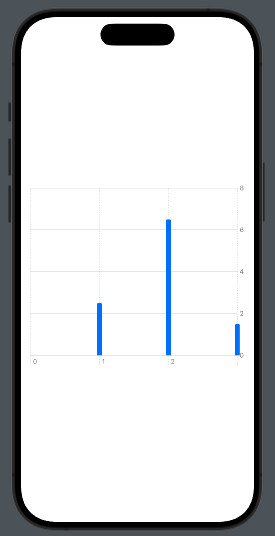
Next, the chart iterates over the expenses array, displaying the operation on the X-axis and the euros on the Y-axis.

To create a linear chart, use LineMark instead of BarMark:

LineMark(
         x: .value("Operation", ex.operation),
         y: .value("Money", ex.euro)
)

To have:
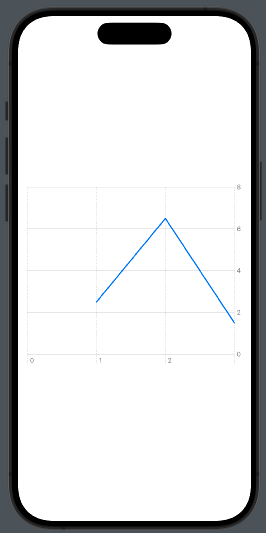
Note that the last operation has three values but is not displayed. To avoid this behavior, we need to add one value at the beginning and one at the end of the X-axis. Let’s see how to do this:

struct ContentView: View {
    @State var expences: [MoneyData] = [MoneyData]()
    @State var gridValue = [Int]()
    
    var body: some View {
        VStack {
            Chart(expences, id: \.id) { ex in
                LineMark(
                    x: .value("Operation", ex.operation),
                    y: .value("Money", ex.euro)
                )
            }.chartXAxis {
                AxisMarks(values: gridValue)  
            }
            .frame(height: 300)
            .padding()
            .onAppear {
                self.expences = initMoney()
                self.gridValue = Array((expences[0].operation - 1)...(expences[expences.count - 1].operation + 1))
            }
        }
    }
    func initMoney() -> [MoneyData] {
        return [MoneyData(operation: 1, euro: 2.5),
                MoneyData(operation: 2, euro: 6.5), MoneyData(operation: 3, euro: 1.5)
                
        ]
    }
}

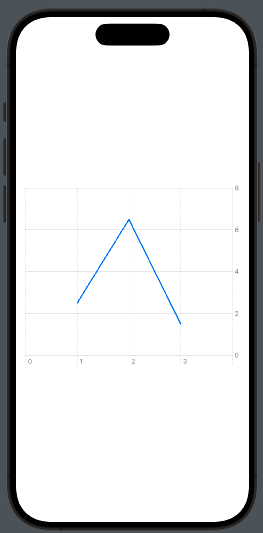
First, we add a State variable gridValue, initialized in the onAppear method with an interval for the operation that is larger than the interval in the money data (e.g., [0,3] instead of [1,2]).

This interval is used by applying:

.chartXAxis {
                AxisMarks(values: gridValue)  
            }

Thus, we have:
Unit

Now, let’s see what happens if we use dates on the X-axis.

To use dates, first, adjust the data structure to include dates.

struct RunData: Identifiable {
    let id = UUID()
    let date: Date
    let km: Double
}

Then make some small changes in the code to use this type of data with the chart:

struct ContentView: View {
    @State var races: [RunData] = [RunData]()
    
    var body: some View {
        VStack {
            Chart(races, id: \.id) { run in
                BarMark(
                    x: .value("Date", run.date),
                    y: .value("Km", run.km)
                )
            }
            .frame(height: 300)
            .padding()
            .onAppear {
                self.races = initData()
            }
        }
    }
    func initData() -> [RunData] {
        let dateFormatter = ISO8601DateFormatter()
        dateFormatter.formatOptions = [.withFullDate]
        
        return [RunData(date: dateFormatter.date(from: "2024-05-03") ?? Date.now, km: 15),
                RunData(date: dateFormatter.date(from: "2024-05-05") ?? Date.now, km: 20),
                RunData(date: dateFormatter.date(from: "2024-05-07") ?? Date.now, km: 10)
        ]
    }
}

Simply, we replaced the moneyData with runData and used a different initialization function, just to have:
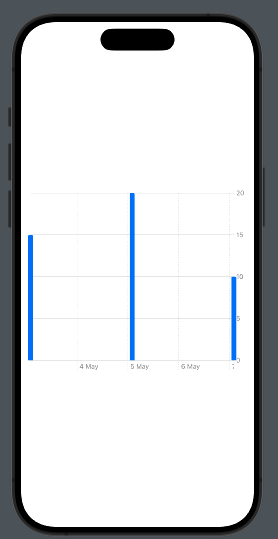
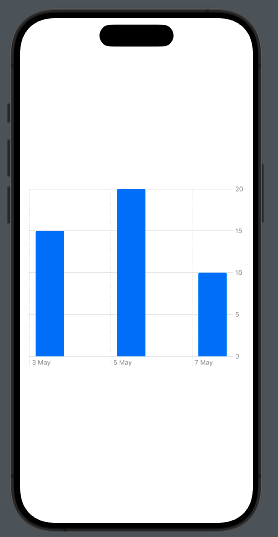
As you can see, we only have the label for “5 May.” Don’t worry, we have a simpler solution that I showed before. We can add the unit value for the X-axis:

BarMark(
         x: .value("Date", run.date, unit: .day),
         y: .value("Km", run.km)
)

Now we see:
Now you should have the knowledge base to implement charts in your app.

Note: English is not my native language, so I apologize for any errors. I use AI solely to generate the banner of the post; the content is human-generated.

Alert in SwiftUI

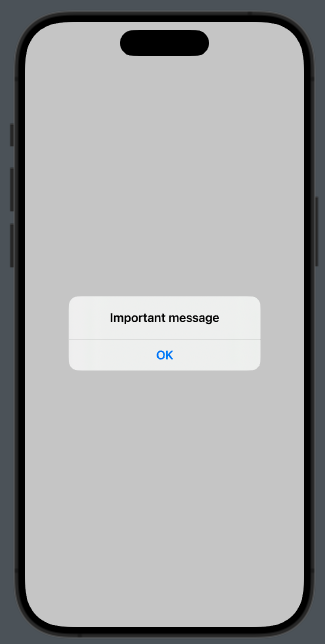
In Xcode 15, we can display an alert using the .alert modifier.

Take a look at the code:

struct ContentView: View {
    @State var showAlert = false
    
    var body: some View {
        VStack {
            Button("Show Alert") {
                showAlert = true
            }
        }.alert("Important message", isPresented: $showAlert) {
            Button("OK", role: .cancel) {
                // Your action
            }
        }
        .padding()
    }
}

The role of the button can be:

  • .cancel
  • .destructive
struct ContentView: View {
    @State var showAlert = false
    
    var body: some View {
        VStack {
            Button("Show Alert") {
                showAlert = true
            }
        }.alert("Important message", isPresented: $showAlert) {
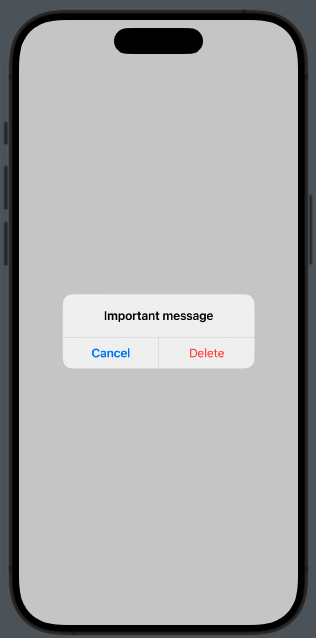
            Button("Delete", role: .destructive) {
                
            }
        }
        .padding()
    }
}

Note that using a button with .destructive is also added the default cancel button.

LazyGrid in SwiftUI

In this post, we’ll learn how to use LazyVGrid and LazyHGrid, two powerful and efficient grids to display multiple items.

The fundamental element for these types of grids is the GridItem, which can be of three types:

  • .adaptive
  • .fixed
  • .flexible

GridItem Adaptive

GridItem Adaptive is essential for a responsive layout. By setting a minimum size for it, the grid will try to adapt to all the available space.

Take a look at using LazyHGrid:

struct ContentView: View {
    let rainbowColors = [Color.red, Color.orange, Color.yellow, Color.green, Color.mint, Color.teal, Color.cyan, Color.blue, Color.indigo, Color.purple, Color.brown]
    var body: some View {
        ScrollView(.horizontal) {
            LazyHGrid(rows: [GridItem(.adaptive(minimum:150))]) {
                        ForEach(rainbowColors, id:\.self) { color in
                            Circle()
                            .fill(color)
                        }
                    }
                    .padding()
                }
    }
}

We can also define different sizes for the rows:

ScrollView(.horizontal) {
            LazyHGrid(rows: [GridItem(.adaptive(minimum:150)),GridItem(.adaptive(minimum:100))]) {
                        ForEach(rainbowColors, id:\.self) { color in
                            Circle()
                                                    .fill(color)
                        }
                    }
                    .padding()
                }

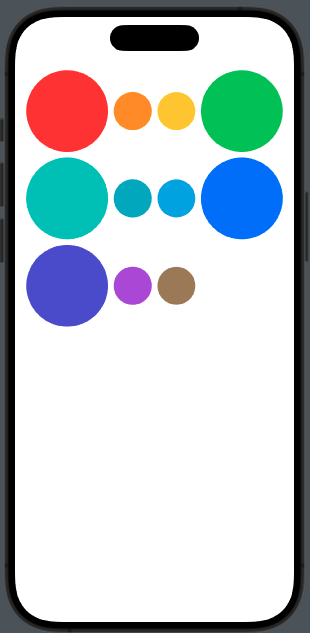
So we have:

So, the two different dimensions are used to adapt to the screen.

This type is helpful when we have a dynamic number of elements, such as in a playlist.

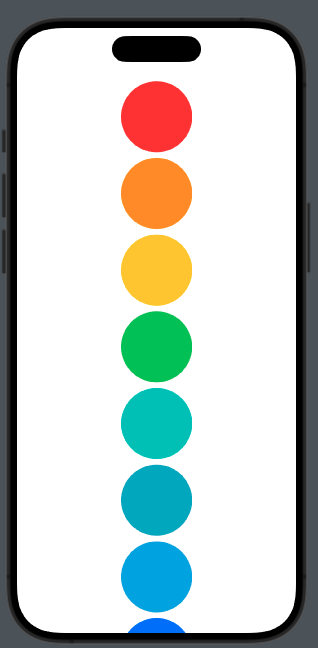
Using the Vertical grid:

ScrollView() {
            LazyVGrid(columns: [GridItem(.adaptive(minimum:100)), GridItem(.adaptive(minimum:50)),GridItem(.adaptive(minimum:100))]) {
                        ForEach(rainbowColors, id:\.self) { color in
                            Circle()
                            .fill(color)
                        }
                    }
                    .padding()
                }
}

GridItem Fixed

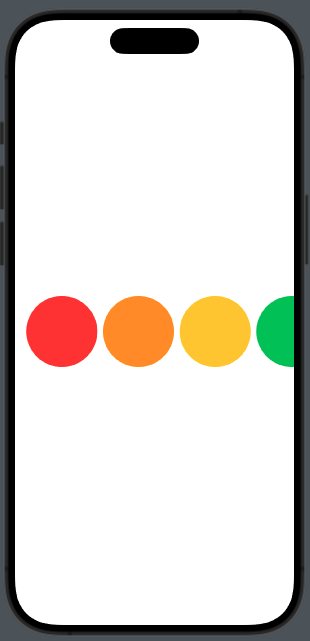
In this case, the GridItem has a fixed size for the horizontal layout:

ScrollView(.horizontal) {
            LazyHGrid(rows: [GridItem(.fixed(100))]) {
                ForEach(rainbowColors, id:\.self) { color in
                    Circle()
                                            .fill(color)
                }
            }
            .padding()
        }

For vertical:

ScrollView() {
            LazyVGrid(columns: [GridItem(.fixed(100))]) {
                    ForEach(rainbowColors, id:\.self) { color in
                        Circle()
                        .fill(color)
                    }
                }
                .padding()
            }
}

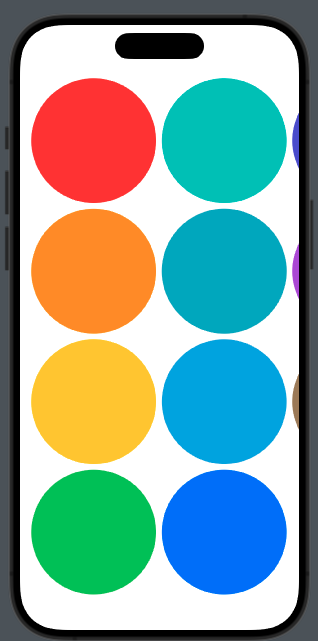
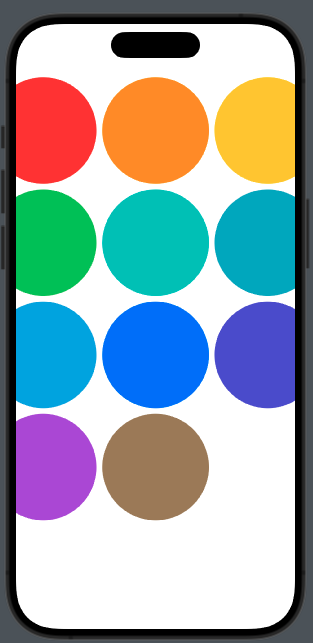
This is helpful when you need a fixed number of columns or rows. In this case, by adding GridItem with a fixed size, we don’t have adaptability to the screen.

Take a look at this example:

ScrollView() {
            LazyVGrid(columns: [GridItem(.fixed(150)),GridItem(.fixed(150)),GridItem(.fixed(150))]) {
                    ForEach(rainbowColors, id:\.self) { color in
                        Circle()
                        .fill(color)
                    }
                }
                .padding()
            }

we have:

Three columns of circles with fixed size but truncated.

GridItem Flexible

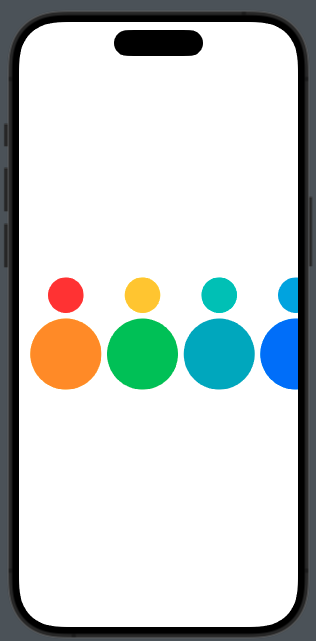
With flexible, we define the size of GridItem within a range. For example:

ScrollView(.horizontal) {
            LazyHGrid(rows: [GridItem(.flexible(minimum: 10, maximum: 50)),GridItem(.flexible(minimum: 20, maximum: 100))]) {
                ForEach(rainbowColors, id:\.self) { color in
                    Circle()
                    .fill(color)
                }
            }
            .padding()
        }

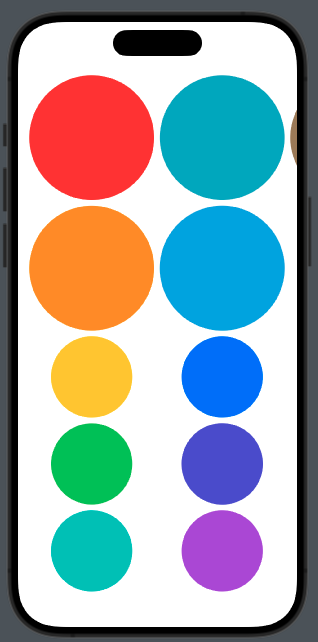
To have:

It’s helpful when we need different sizes for different content, such as images and text.

Let’s try the vertical case for exercise.

Note: English is not my native language, so I apologize for any errors. I use AI solely to generate the banner of the post; the content is human-generated.
SwiftData Tutorial (Episode III°)

In this last episode about SwiftData, we’ll learn:

  • How to modify saved data
  • How to execute a simple query
  • How to execute a dynamic query

Before we start, I advise you to review the previous episodes (https://nicoladefilippo.com/swiftdata-tutorial-episode-i/ https://nicoladefilippo.com/swiftdata-tutorial-episode-ii/).

Edit data

First of all, we will create the view to edit a ProjectItem:

import SwiftUI
import SwiftData

struct EditProjectView: View {
    @Environment(\.modelContext) private var modelContext
    @Environment(\.dismiss) private var dismiss
    @Binding var project: ProjectItem?
    var edit = false
    
    var body: some View {
        VStack {
            Text(edit ? "Edit": "Create")
            TextField("Project name", text: Binding(
                get: { project?.name ?? "" },
                set: { newValue in project?.name = newValue }
            ))
            Button("Save") {
                if !edit {
                    modelContext.insert(project!)
                }
                try? modelContext.save()
                dismiss()
            }
        }
    }
}

#Preview {
    @State var dum: ProjectItem?
    return EditProjectView(project: $dum)
}

A part from the variable used to dismiss the sheet (considering that this view is displayed in a sheet), this view receives a project variable and an edit variable. If the edit variable is true, it means we are editing an existing item; otherwise, we are creating a new one. Considering this, change the save action to only save if it’s an edit; otherwise, also perform an insert.

The projectsView is now changed in this way:

struct ProjectsView: View {
    @Environment(\.modelContext) private var modelContext
    @Query private var projects: [ProjectItem]
    @State var isPresented = false
    @State var projectSelected: ProjectItem?
    @State var edit = false
    
    var body: some View {
        NavigationStack {
            List {
                ForEach(projects) { project in
                    HStack() {
                        Text(project.name)
                        Spacer()
                    }
                    .contentShape(Rectangle())
                    .onTapGesture {
                        projectSelected = project
                        edit = true
                        isPresented = true
                    }
                        
                }.onDelete(perform: deleteProject)
            }
            .toolbar {
                ToolbarItem(placement: .navigationBarTrailing) {
                    EditButton()
                }
                ToolbarItem {
                    Button(action: {
                        projectSelected = ProjectItem(name: "")
                        edit = false
                        isPresented = true
                    }) {
                        Label("Add Project", systemImage: "plus")
                    }
                }
            }
            .sheet(isPresented: $isPresented) {
                EditProjectView(project: $projectSelected, edit: edit)
            }
        }
    }
    private func deleteProject(offsets: IndexSet) {
        withAnimation {
            for index in offsets {
                modelContext.delete(projects[index])
            }
        }
    }
}

So, if we tap on an existing project name, we’ll edit the selected project. Instead, if we tap on “Add,” a new project will be created and the edit view will be displayed in creation mode.

Simple query

Now, suppose that we want to display only the Pomodoros associated with the project named “test project”:

import SwiftUI
import SwiftData

struct PomodoriView: View {
    @Environment(\.modelContext) private var modelContext
    @Query(filter: #Predicate<PomodoroItem> { pomodoro in
        pomodoro.project.name == "test project"
    }) var pomodori: [PomodoroItem]
    @State var isPresented = false
    
    var body: some View {
        NavigationStack {
            List {
                ForEach(pomodori) { pomodoro in
                    Text(pomodoro.name)
                }.onDelete(perform: deletePomodoro)
            }
            .toolbar {
                ToolbarItem(placement: .navigationBarTrailing) {
                    EditButton()
                }
                ToolbarItem {
                    Button(action: {isPresented = true}) {
                        Label("Add Pomodoro", systemImage: "plus")
                    }
                }
            }.sheet(isPresented: $isPresented, content: {
                PomodoroView()
            })
        }
    }
    private func deletePomodoro(offsets: IndexSet) {
        withAnimation {
            for index in offsets {
                modelContext.delete(pomodori[index])
            }
        }
    }
}

The query is:

@Query(filter: #Predicate<PomodoroItem> { pomodoro in
        pomodoro.project.name == "test project"
    }) var pomodori: [PomodoroItem]

Simple, and we can also add more conditions, but statically. While this might be straightforward, it’s not always helpful. It’s better to have a dynamic query.

Dynamic Query

We have to create a view for the list, with the initializer where we execute the query:

struct ListFilteredView: View {
    @Environment(\.modelContext) private var modelContext
    @Query var pomodori: [PomodoroItem]
    var searchString = ""
    
    init(sort: SortDescriptor<PomodoroItem>, searchString: String) {
        _pomodori = Query(filter: #Predicate {
            if searchString.isEmpty {
                return true
            } else {
                return $0.project.name.contains(searchString)
            }
        }, sort: [sort])
    }
    var body: some View {
        List {
            ForEach(pomodori) { pomodoro in
                Text(pomodoro.name)
            }
        }
    }
}

So i nthe init the quesry is filtered. Note that we call pomodori with _pomodori, the backup property of the @Query.

The PomodoriView changes in this way:

struct PomodoriView: View {
    @Environment(\.modelContext) private var modelContext
    @Query var pomodori: [PomodoroItem]
    @State var searchString = ""

    var body: some View {
        NavigationStack {
            ListFilteredView(sort: SortDescriptor(\PomodoroItem.project.name), searchString: searchString)
            .searchable(text: $searchString)
        }
    }
    private func deletePomodoro(offsets: IndexSet) {
        withAnimation {
            for index in offsets {
                modelContext.delete(pomodori[index])
            }
        }
    }
}

Note that apart from passing the search string, we also pass the sort option, in this case sorting by the project name associated with the Pomodoro.

Note: English is not my native language, so I apologize for any errors. I use AI solely to generate the banner of the post; the content is human-generated.

SwiftData Tutorial (Episode II°)

In the previous episode, we learned how to create a project with SwiftData, how to create relationships between entities, and how to insert data. In this episode, we’ll learn: How to delete data.

Let’s start with deletion in the projects (I advise you to take a look at the previous episode because I will start from that code). The first step is to ensure that when we delete a project, we also delete all the pomodoros for that project in cascade. To do that, we need to make some small changes to the ProjectItem definition.

import Foundation
import SwiftData

@Model
final class ProjectItem: Identifiable {
    var name: String
    var id = UUID().uuidString

    @Relationship(deleteRule: .cascade, inverse: \PomodoroItem.project)
    var pomodori = [PomodoroItem]()
    
    init(name: String) {
        self.name = name
    }
}

We add a @Relationship attribute for the deletion on the list of pomodoros associated with the project. The deletion will be in cascade, considering the inverse relationship that we have in the PomodoroItem (where we have project: ProjectItem) as you can see in the code:

import Foundation
import SwiftData

@Model
final class PomodoroItem {
    var start: Date
    var end: Date
    var project: ProjectItem
    var name: String
    
    init(start: Date, end: Date, project: ProjectItem, name: String) {
        self.start = start
        self.end = end
        self.project = project
        self.name = name
    }
}

Now take a look at the ProjectsView:

import SwiftUI
import SwiftData

struct ProjectsView: View {
    @Environment(\.modelContext) private var modelContext
    @Query private var projects: [ProjectItem]

    var body: some View {
        NavigationStack {
            List {
                ForEach(projects) { project in
                    Text(project.name)
                }.onDelete(perform: deleteProject)
            }
            .toolbar {
                ToolbarItem {
                    Button(action: {isPresented = true}) {
                        Label("Add Project", systemImage: "plus")
                    }
                
                ToolbarItem(placement: .navigationBarTrailing) {
                    EditButton()
                } 
            }.sheet(isPresented: $isPresented, content: {
                ProjectView()
            })
        }
    }
    private func deleteProject(offsets: IndexSet) {
        withAnimation {
            for index in offsets {
                modelContext.delete(projects[index])
            }
        }
    }
}

We added an EditButton to the toolbar (one of the special buttons in SwiftUI). Tapping on this button will display the buttons to delete the rows. When you tap on one of these buttons, the deleteProjectFunction is called to delete the project.

The view for the pomodoros is similar:

struct PomodoriView: View {
    @Environment(\.modelContext) private var modelContext
    @Query private var pomodori: [PomodoroItem]
    @State var isPresented = false
    
    var body: some View {
        NavigationStack {
            List {
                ForEach(pomodori) { pomodoro in
                    Text(pomodoro.name)
                }.onDelete(perform: deletePomodoro)
            }
            .toolbar {
                ToolbarItem(placement: .navigationBarTrailing) {
                    EditButton()
                }
                ToolbarItem {
                    Button(action: {isPresented = true}) {
                        Label("Add Pomodoro", systemImage: "plus")
                    }
                }
            }.sheet(isPresented: $isPresented, content: {
                PomodoroView()
            })
        }
    }
    private func deletePomodoro(offsets: IndexSet) {
        withAnimation {
            for index in offsets {
                modelContext.delete(pomodori[index])
            }
        }
    }
}

This tutorial may seem short, but I encourage you to experiment with deletion and relationships. In the next episode, we will see how to update items and create queries.