A concept not simple to understand in every programming language (mainly for the “new” developer) is to realize the difference between “Pass by reference and Pass by value”.
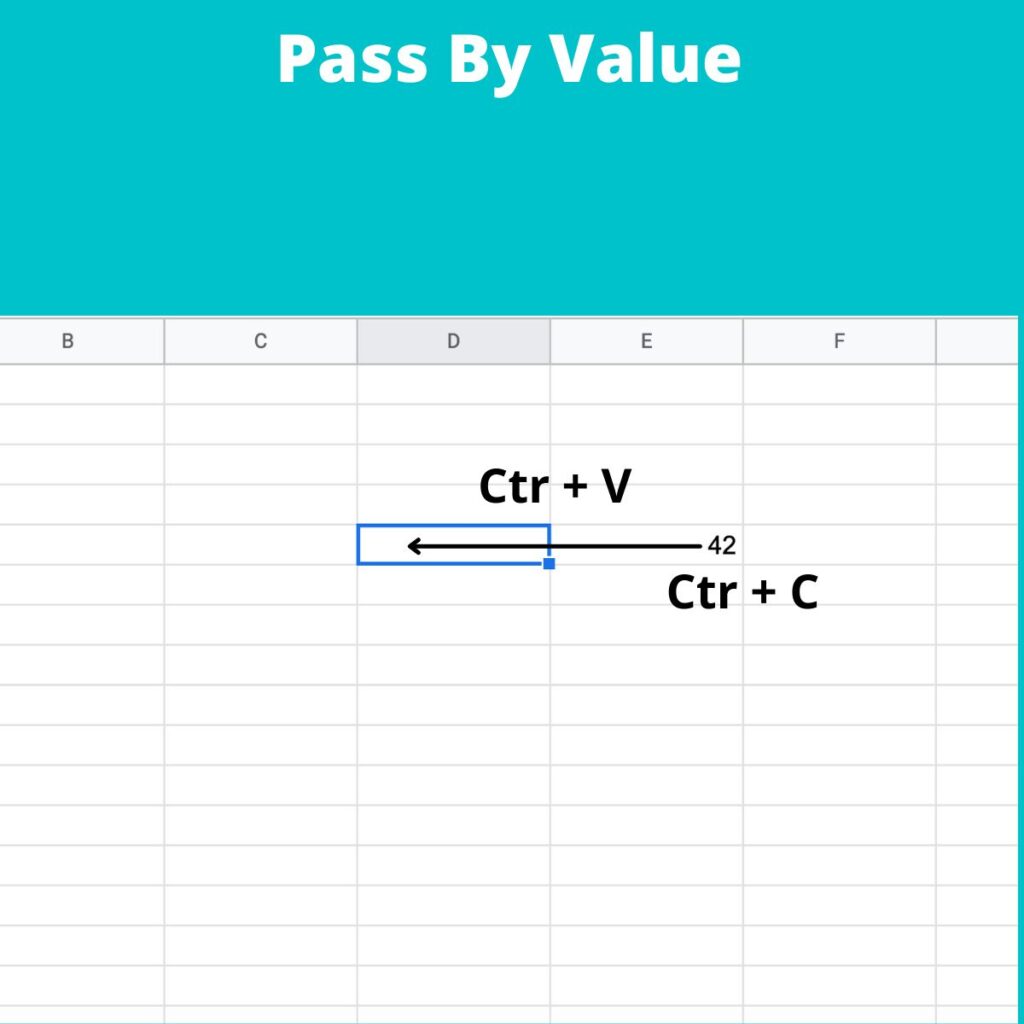
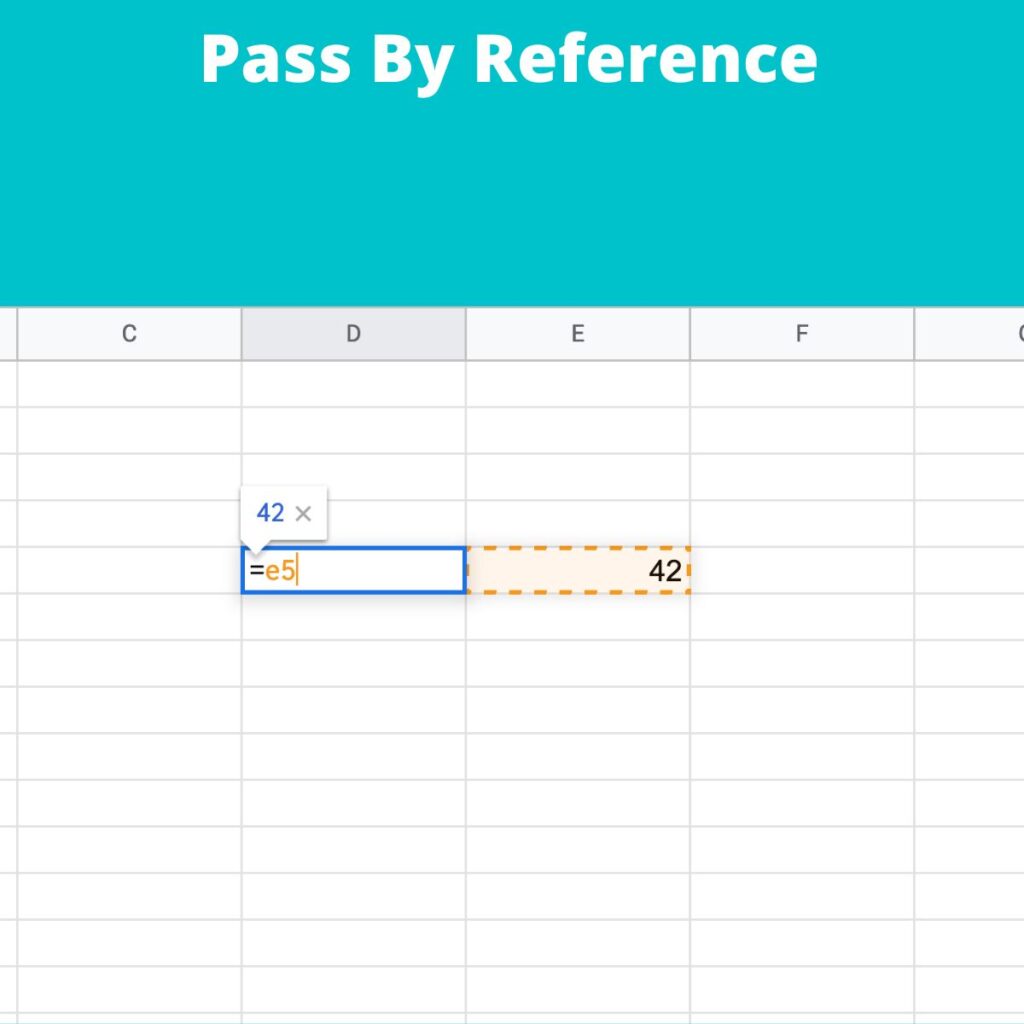
Pass by value means: “copy a value from a location of memory to another location of the memory.” Instead, pass by reference mean that we don’t copy a value in the destination but the reference (address) to the source.
I like to use these images to explain the differences:
Pass by ValuePass by reference
Thus, when we pass by value is like copying a cell value from one cell to another, instead, when passing by reference, we set in the destination cell the address of the source (e5 in the example).
Little box: width 57 height 84
Big box: width 57 height 84
Little box: width 57 height 84
Big box: width 150 height 333
In this case, we have a copy by value. We copy the content from bigBox to littleBox, thus both the boxes have the same value; after we change the value of bigBox and then the two boxes will contain different values.
Let’s see what happen with the class:
class TriangleClass {
    var width: Int
    var height: Int

    init(width: Int, height: Int) {
        self.width = width
        self.height = height
    }
}

var littleTriangle = TriangleClass(width: 2, height: 3)
var bigTriangle = TriangleClass(width: 57, height: 84)

littleTriangle = bigTriangle

print("Little Triangle: width \(littleTriangle.width) height \(littleTriangle.height)")
print("Big Triangle: width \(bigTriangle.width) height \(bigTriangle.height)")

bigTriangle.width = 150
bigTriangle.height = 333

print("Little Triangle: width \(littleTriangle.width) height \(littleTriangle.height)")
print("Big Triangle: width \(bigTriangle.width) height \(bigTriangle.height)")
Now we have this output:
Little Triangle: width 57 height 84
Big Triangle: width 57 height 84
Little Triangle: width 150 height 333
Big Triangle: width 150 height 333
This time is different! After the copy, the triangles have the same value; after we change the dimensions of the bigTriangle but happen a magic thing, the dimensions of the littleTriangle are changed! Why? For the class, the copy is done by reference, so writing “littleTrianlge = bigTriangle”, we are not copying the content of the big in the little, we are copying the reference like in the sheet example. Now every change in the big will be visible also in the little.
The same happen in the function, if we want modify the original value of the parameter passed to a function, these have be passed by reference, in this way:
func swap(a : inout Int, b: inout Int) {
    let dum = a
    a = b
    b = dum
}

var first = 2
var second = 5

swap(a:&first, b:&second)

// now first = 5 and second = 2
For exercise try to remove the keyword “inout” and see what happen.
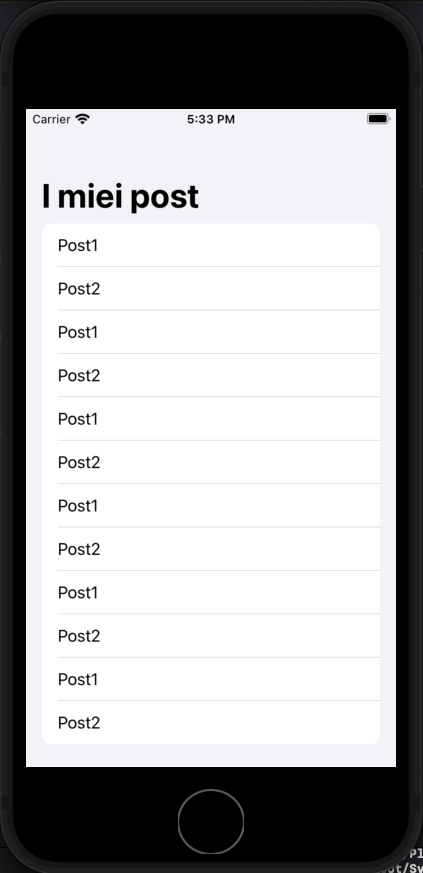
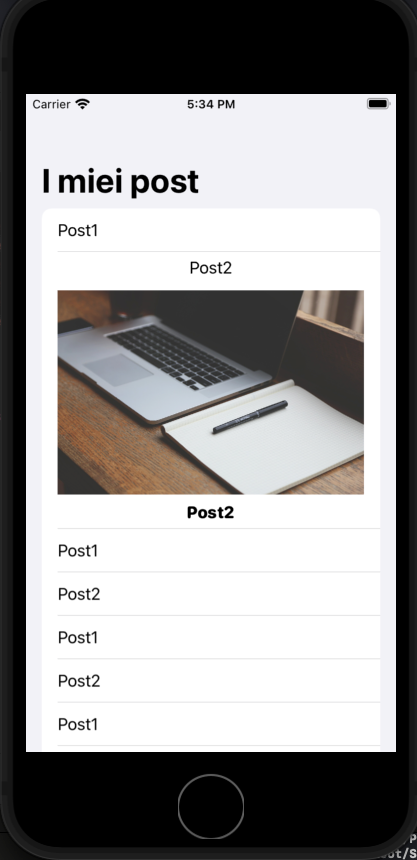
In this post, we see how to expand a list item of a list. To do this is not complicated, the principle is simple when the user taps the row, we insert the current Item in a Set. The view used to show the current item change the visualization type if the current item is in the set of selected items.
Before starting copy the images: https://nicoladefilippo.com/wp-content/uploads/2021/05/blogger-336371_1920-1536×1024.jpg and https://nicoladefilippo.com/wp-content/uploads/2021/05/desk-593327_1920-1536×1024.jpg in your assets directory, renaming them blogger and desktop (you can use also other images if you prefer).
The final behaviour is:
Expanded row
Define the data model for the list:
struct Post: Identifiable, Hashable {
    var id = UUID()
    var title: String
    var image: String
}
In this Set are added the Post when the user Tap the row. If the user re-tap the row, the Post is removed from the Set. This is done by calling the function selectDeselect.
The row is shown with:
struct RowView: View {
    var post: Post
    let isExpanded: Bool
    var body: some View {
        VStack {
            HStack {
                Text(post.title)
            }
            if isExpanded {
                HStack {
                    BigRow(post:post)
                }
            }
        }
    }

}
The isEpanded is true when the selection (the Set) contains a post, in that case, the row shows also the BigRow, simply an image and another title in the body.
struct BigRow: View {
    var post: Post
    var body: some View {
        VStack {
            Image(post.image)
                .resizable()
                .aspectRatio(contentMode: .fit)

            Text(post.title)
                .fontWeight(.heavy)
                .font(.system(.headline, design: .rounded))
        }
    }
}
Note: English is not my native language, so I’m sorry for some errors. I appreciate it if your correct me.
From September 2021 is finally available native SwiftUI SearchBar component, so is not anymore necessary to attach UIKit things to have the search bar in a SwiftUI application, but there is a condition, can be restrictive for someone, to use iOS 15.
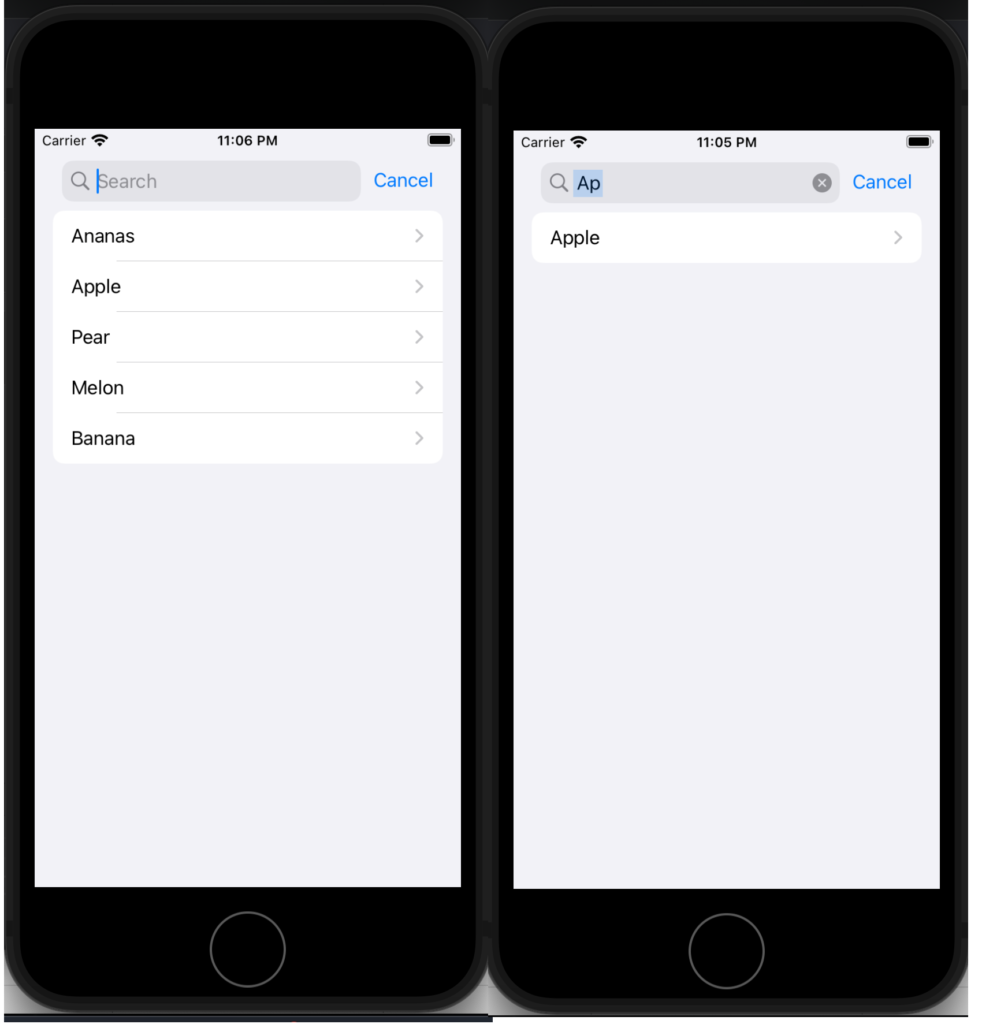
First look at a simple example, use the searchbar to search a string in a list of fruit.
struct SimpleSearchUIView: View {
    let names = ["Ananas", "Apple", "Pear", "Melon", "Banana"]
    @State private var searchText = ""

    var body: some View {
        NavigationView {
            List {
                ForEach(searchResults, id: \.self) { name in
                    NavigationLink(destination: Text(name)) {
                        Text(name)
                    }
                }
            }
            .searchable(text: $searchText)
            .navigationTitle("Fruits")
        }
    }

    var searchResults: [String] {
        if searchText.isEmpty {
            return names
        } else {
            return names.filter {$0.lowercased().contains(searchText.lowercased())}
        }
    }
}
First thing, add a searchable to a List. The searchable is waiting for a text, and the written text is saved in a state variable, in this case, searchText.
The ForEach is not working on a list but with a variable that contains the fruits filtered using the search text. Simply it applies a filter on the names array.
Now see an example using an array of complex type, simply Post type, so defined:
struct Post: Identifiable, Hashable {
    var id = UUID()
    var title: String
    var image: String
}
Now the List and the searchbar working in this way:
struct SerarchUIView: View {
    @State private var searchText = ""
    var posts = [
        Post(title: "Toolbar and Customization", author: "Nicola De Filippo"),
        Post(title: "SwiftUI App Chat – Episode II°", author: "Nicola De Filippo"),
        Post(title: "SwiftUI App Chat – Episode I°", author: "Nicola De Filippo"),
        Post(title: "Navigation", author: "NDF"),
        Post(title: "SwiftUI App Chat – Episode II°", author: "Nicola De Filippo"),
        Post(title: "List in SwiftUI", author: "NDF"),
        Post(title: "State, Binding and Refactoring", author: "Nicola De Filippo")

    ]
    var body: some View {
        NavigationView {
            List(searchResults) { post in
                VStack(alignment: .leading) {
                    Text(post.title)
                        .font(.headline)
                    Text(post.author)
                        .font(.caption)
                }
            }.searchable(text: $searchText)
            .navigationBarTitle("My posts", displayMode: .automatic)
        }
    }

    var searchResults: [Post] {
        if searchText.isEmpty {
            return posts
        } else {
            return posts.filter { (post: Post) in
                return post.title.lowercased().contains(searchText.lowercased())
            }
        }
    }
}
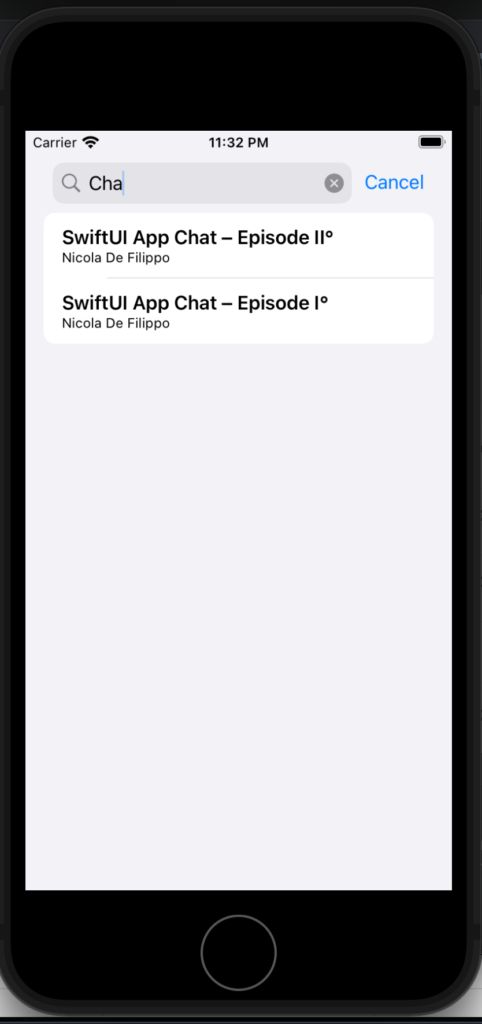
Now the list iterates on a list of posts, the searchable works with a text, instead of the search result in this case filter the array using the title. If everything is ok, you should have:
Note: English is not my native language, so I’m sorry for some errors. I appreciate it if your correct me.
First thing, create a UINavigationBarAppearance and clear any default options, then we set the background colour and the text colour. Note that for the text colour we need to specify the colour for when the title is little or large.
We set the appearance to the navigation bar for any possible case.
The last two lines are about the settings of the TabBar.
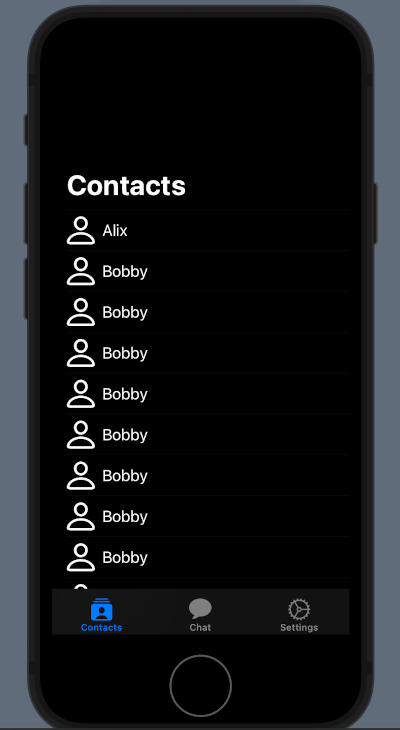
To complete the customization of the contacts list we need to do some changes in the ContactsView:
 init() {
        UITableView.appearance().backgroundColor = .none
        UITableViewCell.appearance().backgroundColor = .none
    }

    var body: some View {
        List {
            ForEach(contacts) { contact in
                ZStack(alignment: .leading) {
                    RowView(contact: contact)
                    NavigationLink(destination: ChattingView()) {
                        EmptyView()
                    }.buttonStyle(PlainButtonStyle()).frame(width:0).opacity(0)
                }
            }.listRowBackground(Color.clear)
        }.background(Color.black)
        .ignoresSafeArea()
    }
}

struct RowView: View {
    var contact: Contact
    var body: some View {
        HStack {
            Image(systemName: "person")
                .resizable()
                .frame(width: 30, height: 30)
                .foregroundColor(.white)
            Text(contact.aliasName)
                .foregroundColor(.white)
        }
    }
}
In the init function we remove the background to the tableview and to the cells present in the view.
Note how with the .listRowBackground(Color.clear) remove the background to the rows and how we set the list background to the list with .background(Color.black).
Why do we need a ZStack to show the rows of the list?
In SwuiftUI we don’t have a simple method to remove the Disclosure indicator (> at the end of the row). To hide this indicator, we overlap the Row with a NavigationLink that have EmptyView (so we can see the RowView) and a buttonStyle with zero width.
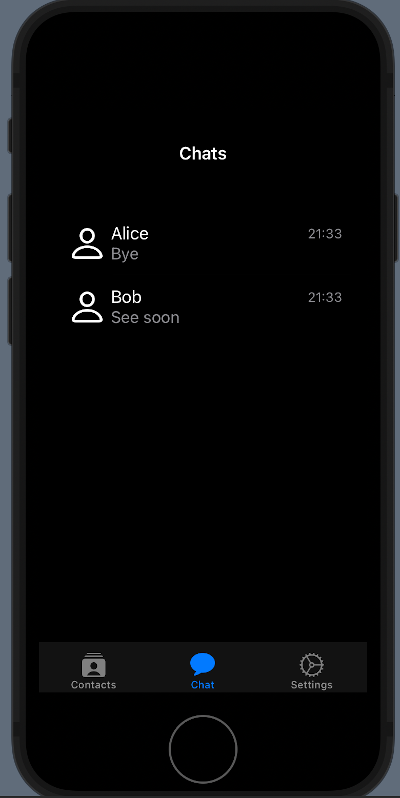
Chats List
We want:
First, remove the background in the init function:
With this post starts a series where the topic is building a chat app using the Smoke protocol, as in every my post I want to share knowledge about SwiftUI, so in this series also who doesn’t have an interest in a chat app can read/learn things helpful also for other types of project.
In memory
Before to start, i want to say that: “This Chat App EEnigma stands for Electronic Enigma. It is a project based on the Echo protocol as e.g. deployed in the Smoke mobile Messenger Application for Android, which is known as as worldwide the first mobile McEliece Messenger. I started this project in memory of my friend Bernd H. Stramm, who passed away two years ago and was also a friend of the inventor of the Echo Protocol, e.g. for secure chat. The aim is to provide students a step by step guide and open source code basis to develop an own chat application with the Swift programming language.”
The three views ContactsView, ChatView and SettingsView don’t exist yet. Note the NavigationView in the first tab, the ContactsVIew is within a NavigationView (with no title), I do it because I want ( when I tap a contact) to open a view to chat.
See the ContactView:
struct ContactsView: View {
    var contacts: Array<Contact> = [Contact(name: "Alice", lastName: "Fish", aliasName: "Alix"),
        Contact(name: "Bob", lastName: "Bird", aliasName: "Bobby")
    ]

    var body: some View {
        List {
            ForEach(contacts) { contact in
                NavigationLink(destination: ChattingView(), label: {
                    RowView(contact: contact)
                })
            }
        }
    }
}

struct RowView: View {
    var contact: Contact
    var body: some View {
        HStack {
            Image(systemName: "person")
                .resizable()
                .frame(width: 30, height: 30)
            Text(contact.aliasName)
        }
    }
}
I defined a Contact in this way:
struct Contact: Identifiable {
    var id = UUID()
    var name: String
    var lastName: String
    var aliasName: String
}
Chatting
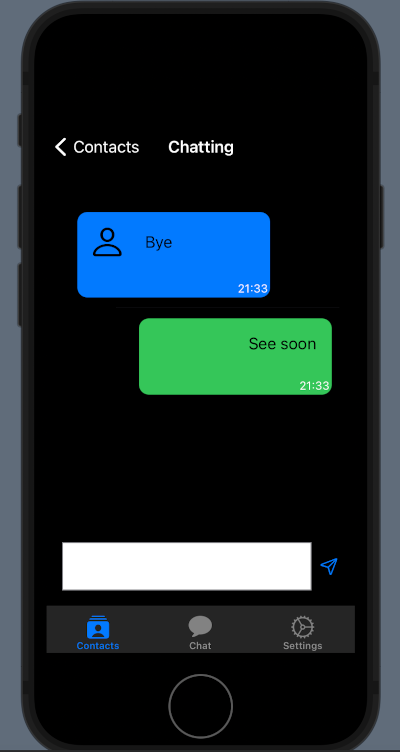
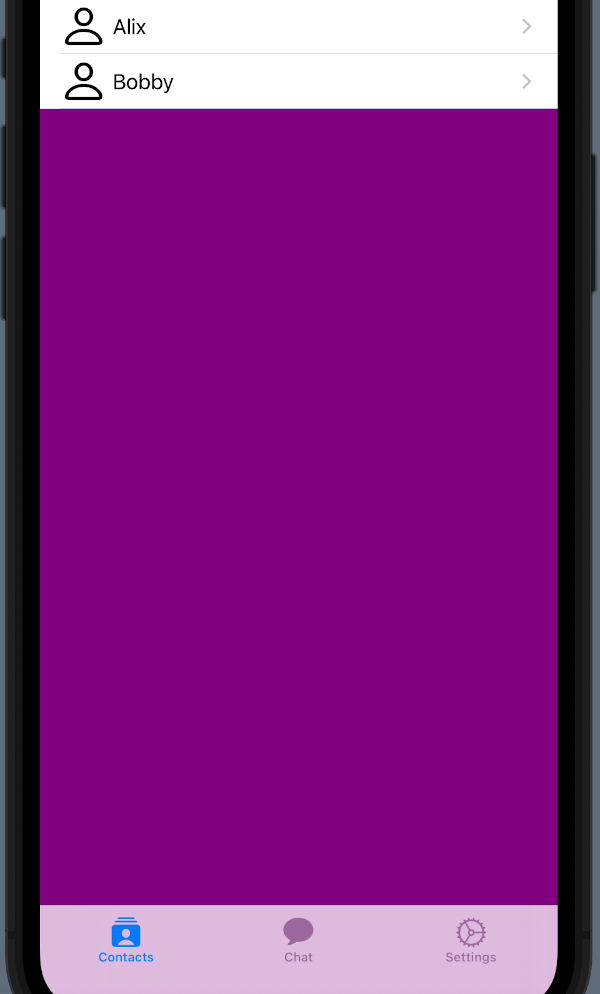
The ContactsView is defined as an array of fake contacts and in the List, we iterate this array and show (using the RowView) the default image “person” and the alias of the contact. Note as there is a NavigationLink that contains the RowView. If we tab the row the view change in the destination ChattingView.
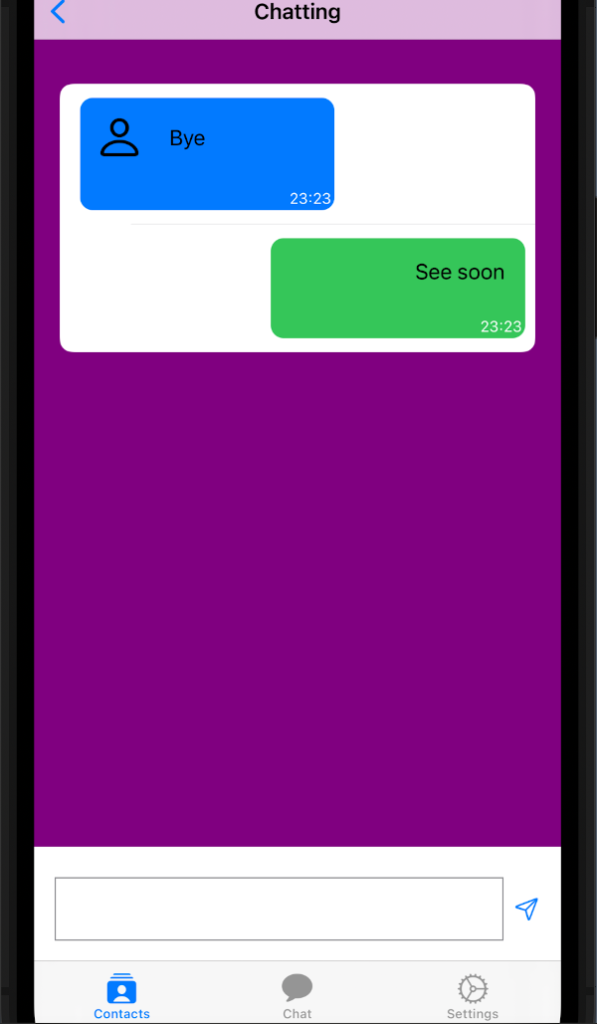
How in all the chat app, on the left we have the messages received and on the right the messages sent.
At the bottom, there are TextEdit and a button to write and send a message. We want to close the keyboard when tapping the send button or tap in any place on the view. See all piece by piece.
struct Chat: Identifiable {
    var id = UUID()
    var name: String
    var image: String
    var lastMessage: String
    var timestamp: Date
    var chatId: String
}
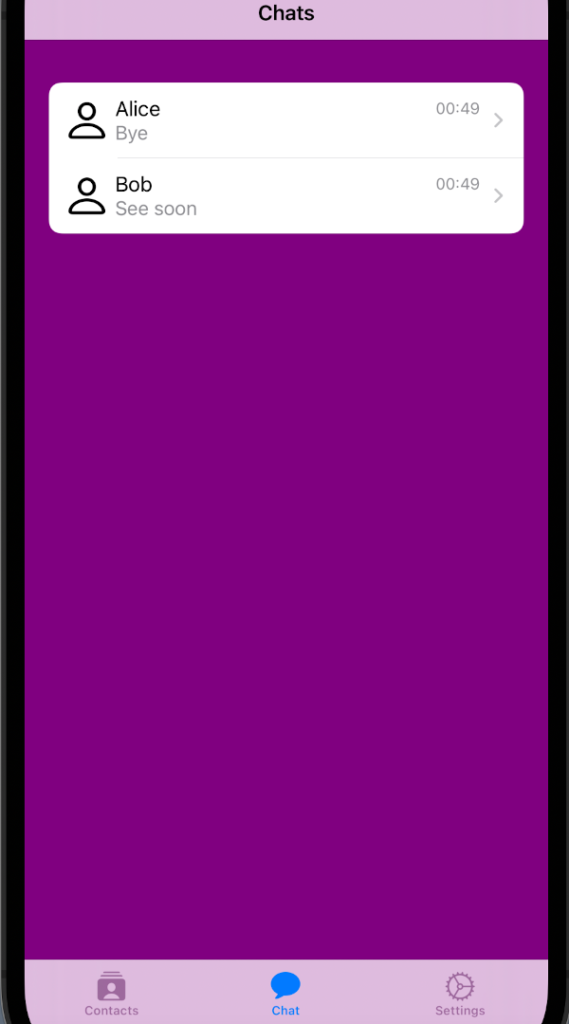
The chat has the name of the sender, an image (we’ll remove when we’ll do refactoring), the last message sent from the “name”, and the Id of the chat and when the message has arrived.
This row so has a VStack aligned on the left, within an HStack with a fixed maximum width, we don’t want a rectangle that fills all the width. In this stack, we add at the end a Spacer to force the alignment on the left. Note instead of the alignment of the stack on the right, it’s necessary to have the time on the right.
It’s very similar to the “blue”. In this case, there is no image, because this message is of the user and in the HStack the Spacer is at the beginning because we want to align the text on the right.
In the init, I set the background colour to purple.
With the function endEditing, we dismiss the keyboard, this function is called when the user taps the send button or when taps anywhere on the view.
The Chat part contains a list of the messages, in the foreach, we verify if the message is of the sender or the user. To simplify in this example, I assumed that the user is Bob (in future we’ll remove any embedded value). With .listStyle(SidebarListStyle()) we remove the line separator, instead with onTapGesture we catch this gesture and close the keyboard (is open).
In the input part, we set a TextEdit in the bar on the bottom calling the .ignoresSafeArea(.keyboard, edges: .bottom), in this way the HStack is on the bottom but when appears the keyboard the Hstack is moved on top of the keyboard, so the user can see what he writes.
To default (for now) when simulating the send of the message, the owner is Bob, so we see the message in the green rectangle.
This piece of code has things already seen in the previous: a NavigationLink on the row and when it’s tapped the view skip to destination ChattingView.
I suggest playing with HStack, VStack, Spacer and fonts to have better effects.
How said at the beginning it’s only the first episode, in the next week, we’ll create a nice real chat app.
Note: English is not my native language, so I’m sorry for some errors. I appreciate it if your correct me.
Manage Consent
To provide the best experiences, we use technologies like cookies to store and/or access device information. Consenting to these technologies will allow us to process data such as browsing behavior or unique IDs on this site. Not consenting or withdrawing consent, may adversely affect certain features and functions.
Functional
Always active
The technical storage or access is strictly necessary for the legitimate purpose of enabling the use of a specific service explicitly requested by the subscriber or user, or for the sole purpose of carrying out the transmission of a communication over an electronic communications network.
Preferences
The technical storage or access is necessary for the legitimate purpose of storing preferences that are not requested by the subscriber or user.
Statistics
The technical storage or access that is used exclusively for statistical purposes.The technical storage or access that is used exclusively for anonymous statistical purposes. Without a subpoena, voluntary compliance on the part of your Internet Service Provider, or additional records from a third party, information stored or retrieved for this purpose alone cannot usually be used to identify you.
Marketing
The technical storage or access is required to create user profiles to send advertising, or to track the user on a website or across several websites for similar marketing purposes.